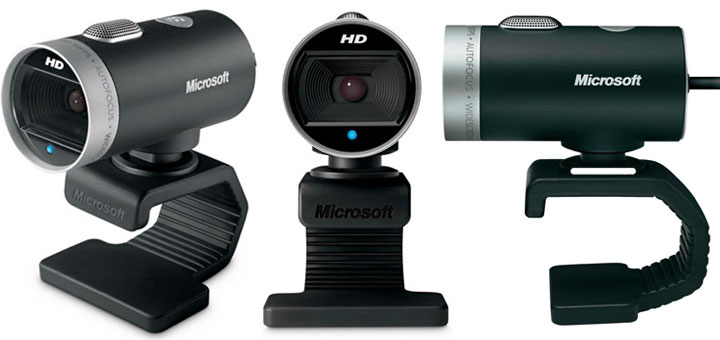
High Definition. Those two words are the very soul of what’s driving consumer electronics and pushing broadband Internet, and Microsoft’s sleek LifeCam Cinema is no exception. As one of the first webcams to boast a magnificent 1280×720 resolution with a price that doesn’t break the bank, it won’t be long before we’re able to marvel at the next Star Wars Kid with each and every one of his clogged pores clearly visible. Now that’s entertainment! But to get back to the webcam side of the business, we put Microsoft’s latest gizmo to the test and found the results to be quite resounding. Find out why after the break.
Contents
Dual-purpose Mount
To date, just about every consumer webcam brought to market has had one thing in common – they’re all goofy looking. If a webcam wasn’t modeled after a sideways pepper shaker or a billiard ball, you could at least be certain that it’d be as square as Bill O’Reilly’s mandible. Thankfully with the LifeCam Cinema, Microsoft’s design team has taken a different approach to this all-too-familiar market, drawing their inspiration from sleek bullet cameras or perhaps the Apple iSight. I’m not just talking about copying the form factor here, either. This webcam is made out of aluminum.
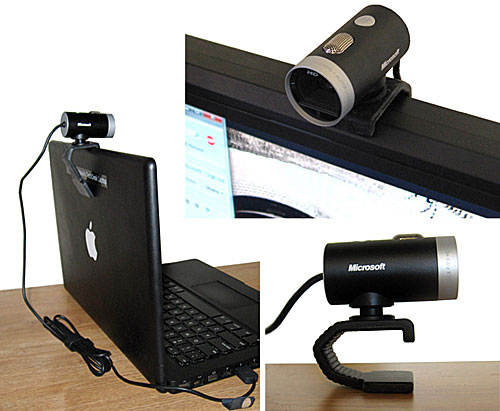
Accented only by bits of silver here and there along with some text to remind you that you’re staring at a Microsoft Webcam that happens to support High Definition 720p at 30fps, the small webcam exudes professionalism. That classic black and silver motif just never gets old. Indeed, the only candy-colored bit on the LifeCam is its recording LED in – you guessed it – electric blue.
I found the mounting solution for the LifeCam to be most versatile, and easily able to adapt to any environment for both desktop and mobile users. A small clip hooks to the front of your monitor while a flexible metal inserts in the rubber backing allows you to loosely clamp the webcam onto a flat panel or lie it on top of a CRT. Unlike the similar mounts found on Logitech’s now-discontinued QuickCam Ultra Vision and Fusion, the backing can also bend forward enough to properly brace itself against a thin laptop display, or even act as its own stand on a desk.
Though the new mounting kit certainly prevents shaking, it won’t be as secure as the spring-loaded mounts found on the latest webcams from Logitech and Creative. Even so, this is more than made up for by the Cinema’s uncanny ability to not only adjust the pitch of the camera but the yaw as well. As an added bonus, the 6′ USB cable has an integrated cable management clip to keep things tidy.
LifeCam Software
Microsoft’s LifeCam software has received a generous facelift sometime in the three years since I last reviewed a Microsoft webcam. Now themed to the likes of Windows Media Player 11, LifeCam 3.0’s new interface is both intuitive and clutter-free. A large window showcases the camera’s video feed on top of three simple buttons for capturing videos, still photos, and audio recordings. Directly underneath is a filmstrip gallery filled with previous recordings and a shortcut that points straight to the folder where they’re stored in the active user’s profile. Unfortunately, this folder cannot be reassigned to a different location.
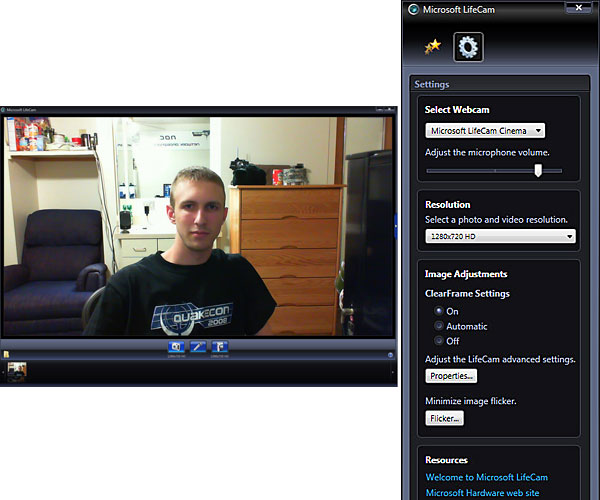
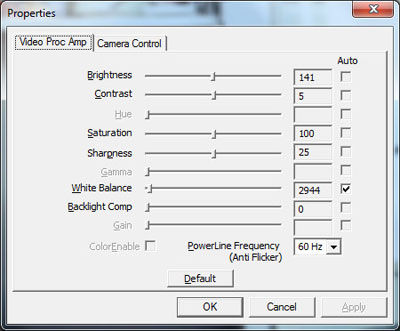
Installing the LifeCam software also provides access to the LifeCam dashboard, a handy way of fine-tuning the basic webcam controls including microphone volume, image flicker, and ClearFrame noise reduction. It also houses a shortcut to the classic webcam properties panel for tweaking everything else the LifeCam has to offer including the white balance, exposure, and focus levels to name a few.
Another bonus to be had when installing the LifeCam software is the plethora of video effects to add a some much-needed distraction to your teleconferencing sessions or get a few laughs out of the kids. A small but healthy array of lens effects, 3D rendered accessories, and color filters are available to choose from, but what you see is what you get; Microsoft has yet to host a gallery of downloadable effects. At least the included filters allow me to express the extent of my profound love for chili in a still format!

As for the 3D accessories, well, they’re hit and miss. That is to say, roughly half the time they miss my head and can’t tell which direction I’m facing, sometimes rendering a few inches or so off-center at a skewed angle. To be fair, Logitech’s own 3D effects often face similar challenges, but then again Logitech had the good sense to include a Calibrate feature in their drivers. For me at least, the problem seems to be a result of my dorm room’s overhead lighting coupled with the shiny affliction that is my military haircut.

All-in-all, I think the new LifeCam software holds up well on its own. It’s stable, easy to use, and well laid out. Still, there are three things I’d like to see in a future driver release: 1) Allow me to change the output folder. 2) Present an option to change the active microphone. 3) Implement motion-triggered security recordings with timestamps. Logitech and Creative both feature motion triggers in their webcam drivers, why can’t Microsoft?
So-called HD Video Quality
The LifeCam’s video quality is nothing short of astounding. Both the automatic white balance and default saturation levels were spot-on, keeping white walls white and flesh tones fleshy. Out of the box, the exposure level tended to be a bit overzealous at the expense of frame rates, but a quick adjustment to the brightness level allowed the webcam to ease down and maintain a steady 30 frames per second at 640×360 in typical indoor lighting.
The webcam also boasts a feature called ClearFame that will consume a little extra CPU horsepower to clean up the video noise picked up by the CMOS sensor. Though enabling ClearFrame isn’t exactly necessary at low resolutions like 640×480 (the upper limit of most videoconferencing programs), at higher resolutions it can make a huge difference, especially if you’re wearing dark clothing.

The LifeCam Cinema also sports an automatic focus that’s in many ways both a blessing and a curse. In decent lighting conditions it can easily detect the proper focal point to keep the foreground and the background in perfect harmony, if not slightly softened. In dim lighting, however, the auto focus can easily lose track and has a tendency to repeatedly span the full focal range offered by the drivers. Also, unless you’re keeping the camera steadily aimed at a fixed object, don’t even think of trying to use the auto focus for macro shots. Personally, I found that if I wasn’t planning on pacing around the room or inviting multiple guests into the frame, it was best to manually configure the focus in the drivers and just be done with it. That being said, I still prefer the software-controlled focus adjustments over the fixed and ring-controlled implementations found on older webcams.

Left to automatic settings, the LifeCam does a rather good job of balancing exposure levels, backlighting compensation, and white balance in a variety of different lighting conditions. Most of these situations can be improved somewhat if the settings are tweaked manually, but the automatic picture quality is still something to behold as you’ll see in the video below.
720p at 30fps
So we’ve already established that the LifeCam has an excellent picture then, yes? Good. Now let’s talk about the one juicy marketing bit that is High Definition – the current driving force in consumer electronics. Microsoft beat a lot of other major manufacturers to the punch with this one by offering one of the first two 720p webcams to the market. I must say that I am quite impressed with just how well the resolution scales from 160×120 all the way up to 1280×720. Fine details are well preserved at each step in the resolution, and you never get the sense that there’s any pixelation as you do so. This is a great webcam for taking stills.
It’s unfortunate, then, that many users will find themselves sorely disappointed when they find out the webcam is limited to 720p at a mere 15 frames per second if the LifeCam drivers are installed. Only without drivers as a UVC-compatible webcam would actually be able to hit 720p at 30fps. But not so fast! You’ll need need special 3rd party software such as the $30 AMCAP utility in order to do so, however, since most programs will scoff at the more capable MJPG color space and instead opt to use the uncompressed YUY2 format that’s limited to 720p at 10fps due to available USB 2.0 bandwidth. So, what happens if you install the LifeCam drivers? Well, you’ll have access to the LifeCam Dashboard features I mentioned earlier, but the drivers will also change the MJPG and YUY2 color spaces to RGB24 and I420. Both of these are better supported by third party applications, but they’re also capped at 15fps for any resolution greater than 640×480. Why?
“This behavior is by design. The reason for the limit is that we (Microsoft Hardware) have defined specific experiences based on CPU capabilities (single core, dual-core and quad cores in different GHz ranges). The reason for this is that high resolution and high frame rate is very demanding on the CPU and we want to make sure that there is no bottleneck.”
There is some merit to this explanation; if I start recording a 720p video to a compressed WMV at 15fps with all the frills like ClearFrame and 3D effects enabled, my overclocked 3.8GHz Core 2 Duo will get pegged anywhere between 62-85%, typically settling around 77%. That doesn’t leave much breathing room for other processes in the background, let alone another 15fps. Laptops are almost guaranteed to choke under this load. Still, I’d much rather have the option to override this limit at my own discretion if I know I won’t be using effects and am only interested in capturing video. A future driver release is supposed to unlock 30fps recording, but this will arbitrarily be limited to quad-core CPUs only.
Shaking up Skype in HD
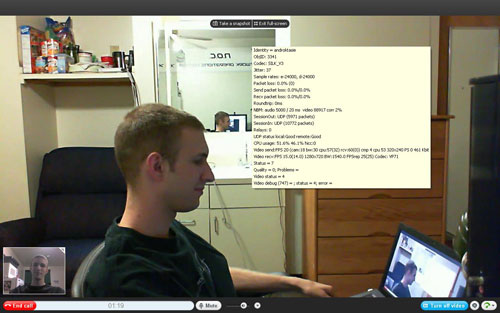
Now that you can buy a 720p webcam for less than $100, whatever should you do with it? I suppose there’s always recording videos and posting them to the Internets, but becoming the next ridiculed YouTube celebrity may not be in your best interests. So, what about video calling? With most IM clients limited to 320×240 or 640×480, the best mainstream option left is Skype.
To get started, you’ll need to download an old version of Skype that doesn’t enforce artificial limits on resolutions and framerates. As it stands, the current Skype beta (v4.2.0.141) locks video to 640×480 at 30fps in 4:3 while the latest stable client (v4.1.0.179) simply doesn’t work. I’ve had the most success with v4.0.0.226, and v4.1.0.166, both of which handle widescreen resolutions under Windows XP and Windows 7 without complaint. Next you’ll need to edit Skype’s config.xml under your user profile. SkypeGarage has easy instructions on how to do this, though you can safely ignore the part about installing FFDShow – just edit the config file. Huzzah! You’ve just enabled widescreen video calls.
Now keep in mind that broadcasting realtime HD video in Skype can be very processor intensive. Broadcasting 1280×720 at 15fps with my dual core 3.8GHz system will consume roughly 62% CPU if ClearFrame is enabled, and 40% CPU without it. Expect laptops to be hit much harder. There’s also the issue of bandwidth. 720p at 15fps will eat close to 1584 kbps of bandwith, well beyond the upload capacity of most residential Cable and DSL users in America. I’d recommend sticking to either 960×544 or 800×448 at 15fps, or if you care about the frame rate more than pixel quality, 640×360 @ 30fps.
Audio Quality, or Lack Thereof
Sadly the Cinema’s microphone is the weakest point of this otherwise spectacular webcam. There exists a manufacturing defect that introduces a high-pitched whine in all videoconferencing and capture programs, including Skype and the LifeCam Software itself, which if you’ll recall doesn’t allow changing the active microphone. The bug is directly linked to the camera’s exposure levels whenever the video is active, so depending on your room’s lighting situation you may be better off or worse.
I was able to replicate the issue on multiple computers running Windows XP and Windows 7, and unfortunately the problem persisted even after acquiring a second camera with a different lot number, though admittedly at a lesser volume. Searching through YouTube, it’s clear that other reviewers also have the whine in their recordings. Below is my own video that demonstrates the problem as I adjust the exposure level.
Unlike The Mosquito, this sound can be heard by more than young teenagers. In fact, I’d venture to say that any pair of ears not belonging to a U.S. Senator should be able to hear the whine. When I presented the issue to my good friend Paul Brown, a 32-year-old AV Specialist in California, he could clearly hear all three phases of the whine through his low-end notebook speakers, calling the issue “clearly audible, distracting, and unacceptable.” I’ll take that a step further; to my 23-year-old ears the whine is borderline painful.
As I pointed out in the above video, there is a way to deaden the whine by lowering the microphone’s sample rate from CD to AM Quality in the Windows Control Panel, and this mostly removes the distraction unless you’re actively listening for it. Be warned, however, that this workaround is not bulletproof; a handful of applications such as Skype require FM quality or better in order for the microphone to be used. Then again, this workaround shouldn’t even be necessary in the first place! With three years of webcam design experience under its belt, Microsoft should have caught this bug in QA long before the LifeCam hit shelves. When the webcam isn’t capturing video, the microphone actually does more or less okay on its own for VoIP calls and gaming. Speech is clear and sounds reasonable for an ordinary webcam, though background noise can pose an issue. Expect your friends to hear every mouse click you make at the default recording level.
Recap
I really wanted to like this webcam. From the modest $80 price tag to the sleek barrel design, superb image quality and solid drivers, the LifeCam Cinema sure has a lot going for it. The warranty is also quite generous with three years coverage when the closest offerings from Microsoft’s competitors are only good for one or two. I just find it disappointing that the marketing and built-in microphone killed this little beauty for me. Microsoft’s marketing team shouldn’t have boasted “720p at 30fps!” if the included drivers intentionally limit it to 15. This handicap may very well change with a future driver release, but there still wouldn’t be any warning on the box that says you need a quad-core processor to use it. As for the microphone with its incessant high-pitched whine, I can think of no excuse for the QA team when problem is so widespread. Interested buyers should wait until both issues are fully addressed by Microsoft.
Latest Webcam Deals




Pricing is last updated by Amazon on 2026-07-15 at 23:55. When you buy through Amazon affiliate links on our site, we may earn an affiliate commission.