USB drives get formatted more often compared to any other storage media due to the fact that the USB drive gets used for transferring different files. In turn, this makes the loss of files relatively high due to accidental deletion.
Fortunately, recovering files from a formatted USB drive is not only possible but also easy. Here, we first briefly explain what happens if you format your USB drive and equip you with the skills and tools needed to recover data from a formatted USB drive effectively.
Why My USB Drive Gets Formatted
“When you format a USB drive, you’re basically resetting its file system, giving it a fresh space to store new information. Nevertheless, depending on the type of formatting done on your data, its effects could be different in several aspects:
- Quick formatting: this is physical formatting and involves removing the directory or map used by the operating system to locate the file on a drive or hard disk. Once a drive is Quick formatted, the system can’t detect anything on it, treating it as empty, even though the file or content (the book’s pages) is still on the drive. Data on a drive formatted with Quick formatting is recoverable if it is on a USB drive.
- Full format: The Full format, on the other hand, takes this process much further. It not only removes this index but also wipes all “pages” in the drive, either erasing or overwriting them. This is like ripping out all the pages from the book, leaving you with blank pages. The Full format can sometimes look for bad sectors on this drive as well.
Recover Data from a Formatted USB Drive with CMD Command
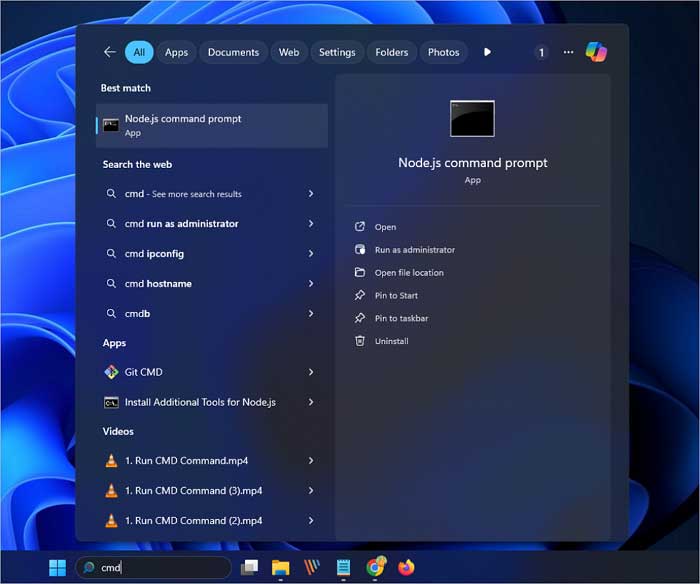
The Command Prompt in Windows offers several data recovery methods that are useful in different ways. By opening the Command Prompt, pressing the Windows key and typing “cmd,” then running it as an administrator, you are likely to get your files back. Here are the detailed steps you can follow to get your data back from the formatted USB drive:
Step 1. Plug in your formatted USB drive to your computer and see which letter it is in ‘This PC’.
Step 2. Type cmd in the search bar and look for “Run as administrator” in the results.
Step 3. Type the following command in the command prompt: chkdsk F: /f. (Replace the drive letter with that of your formatted USB drive.)
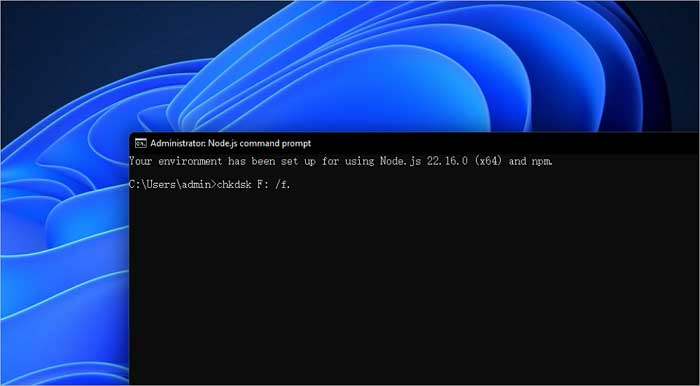
Step 4. Next, enter Y and the letter of your USB drive.
Step 5. Then, enter this command to display all hidden files on your USB drive:
(Also, do not forget to replace F with the letter of the USB drive you are using)
F: >attrib -h -r -s /s /d *.*
Recover Data from a Formatted USB Drive with Data Recovery Software
Another easy way to restore lost files from a formatted USB drive, and really suitable for computer rookies, is to consult a professional data recovery tool.
EaseUS Data Recovery Wizard is the first place that you would like to turn to because it is not only extremely intuitive when it comes to data recovery, but also offers a completely free version. In addition to its ability to restore data from a USB flash drive, it also works with other compatible storage devices for PCs. These include hard drives that have been formatted.
Here are the steps you should follow to retrieve data from the formatted USB drive using this trustworthy software:
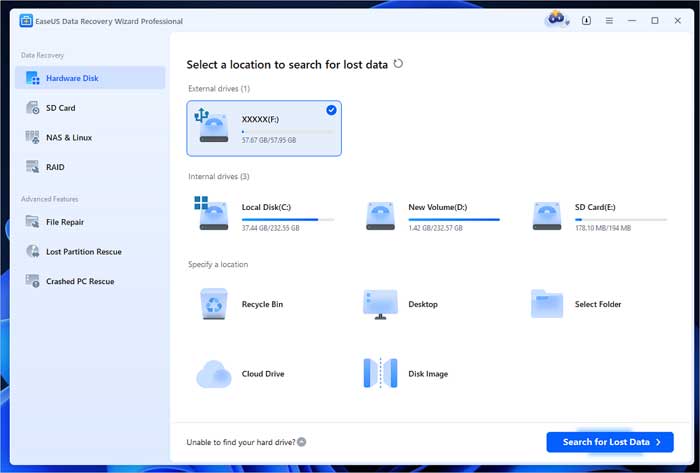
Step 1. Plug the USB drive into your computer properly. Launch EaseUS Data Recovery Wizard, then select the formatted USB drive from the list. Click the blue “Search for Lost Data” button to scan the data.
Step 2. Scanning will be complete, and all found files will be visible at this point. You can also find your files while the scanning process is in progress. File path, type, and name are used to find the files being recovered.
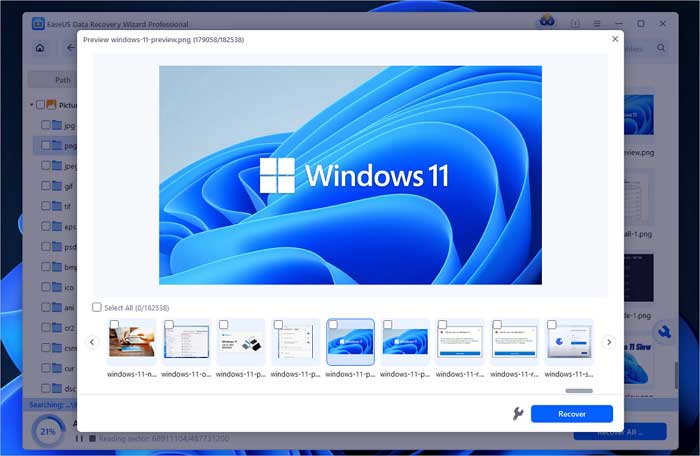
Step 3. Instead, you can double-click on these files to open them or select those that you want and hit “Recover” in order to relocate those files to a safe site.
Recover Data from a Formatted USB Drive with the Previous Version
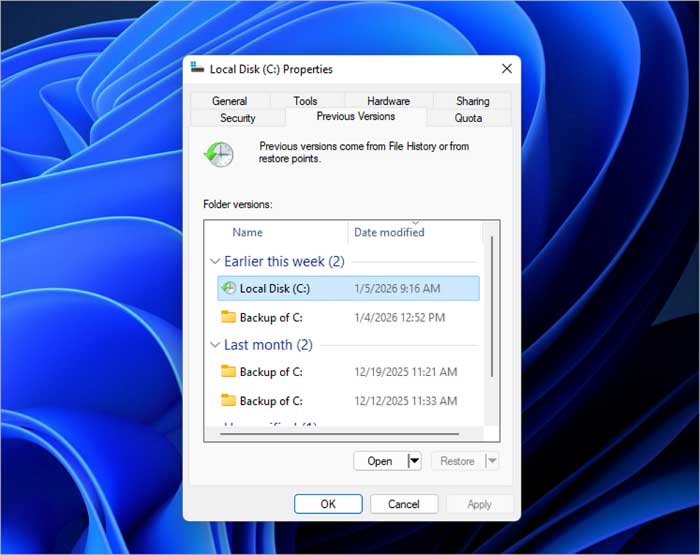
It is also possible to access your files from the previous version and restore them from the formatted pen drive. You just need to connect the drive to your computer and open the properties like this:
Step 1. Connect your USB drive to your PC and open File Explorer. Right-click on your USB drive and choose “Properties” from the menu.
Step 2. Choose the “Previous Version” tab, and you will see a list of restore points here.
Step 3. Choose a previous version where your files are still there.
Step 4. Find your files and click “Restore” to recover all files or one specific file. Remember to choose a different location to avoid further data loss.
Conclusion
Actually, retrieving files from your USB drive after a format is a whole lot simpler than what you are thinking. In truth, thanks to the help of file recovery software, you would no longer be afraid to answer questions such as “How to recover files from a formatted flash drive.” The next time your pen drives become accidentally formatted, damaged, or corrupted, you would no longer be that concerned about the information they contain.