Portable Windows on a Flash Drive
Microsoft nixing support for Windows To Go has left users with only third-party tools to create a bootable Windows on a USB Drive. Luckily, we have no shortage of tools for that, with WinToUSB and Rufus immediately coming to mind.
The former provides a free version for non-commercial use whereas the latter is an open-source app. While both software has a pretty good track record for performing a clean installation of Windows on external storage, WinToUSB also allows for cloning an existing system to another drive.
Recently, these utilities are now updated with the ability to bypass Windows 11’s TPM 2.0 requirement on a PC. The workaround makes it possible for users to do a clean install of Windows 11 on a flash drive or to simply prepare a USB install drive.
Note you will consistently run into licensing issues as an MS account verification process is required every time you move your bootable Windows USB stick from one machine to another. It’s fair considering Microsoft sees the change of hardware configuration upon detection by Windows as a license transfer between systems.
Lastly, we don’t recommend installing Windows on thumb drives given out at trade shows. Try this only on a USB 3.2 Gen 2 (or faster) SSD with UASP and TRIM support especially if there are some heavy-duty apps that also run off the same drive as the operating system.
System Recovery on a Flash Drive
At some point, you might come across issues when Windows is damaged beyond repair. When catastrophe strikes and it is no longer feasible to find a solution in a timely manner, it’s crucial to have a fail-safe. For Windows 10 and 11, it comes down to two out-of-the-box options: Recovery from a USB drive and System Image Backup.
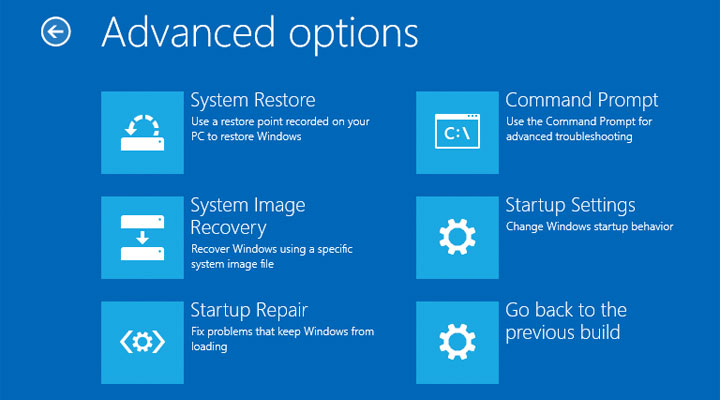
For the first method, you first go through a wizard in Windows to set up a USB drive, which can later boot up the system on its own to begin the recovery process. This, however, should be considered as a last resort as the drive can only factory reset Windows itself; hence, your data and applications that reside on the PC will be wiped clean. Additionally, any partitions created on your own will be removed as well. It is presumably you have backed up your data some other way before attempting this kind of system recovery.
The second method – System Image Backup – is more appealing to most users. It involves capturing an image of everything – from files (across different partitions) to applications to settings – on a USB drive. Understandably, the capacity of the external storage has to be larger than that of all the partitions combined. Since every backup results in another mammoth-sized file, you can have multiple system snapshots as long as there’s enough free space on the drive.
In the event Windows might fail to boot, you will also need the bootable USB recovery drive in order to reach the screen that allows you to proceed with the system restore. The only caveat is that the backup procedure is very time-consuming as this does not support differential backup. But in face of a possible ransomware attack or sudden hardware failure, it’s better safe than sorry.
Anti-virus Scanner on a Flash Drive
Some stubborn malware and devious viruses aren’t easy to deal with, especially when they have already gotten a foothold inside your PC. Sometimes, they just keep on resurfacing and are adept at hiding their tracks.
If you find yourself not able to resolve the issue via conventional methods, you may want to consider scanning the system with a bootable scanner. Such a scanner resides on a USB drive, and boots into a self-contained environment so it is immune to malware camouflage tactics.

There are a number of anti-virus programs with reliable tools to guide you through how to prepare a bootable anti-virus scanner drive. Avast, Kaspersky, Malwarebytes, and Trend Micro to name a few are some of the well-known brands that can conduct deep virus scanning from a USB drive even before Windows boots.
Short of factory resetting your operating system, this method is the second-best option to stop Windows from being reinfected. It, however, is highly recommended an anti-virus scanner drive is created on a PC not infected with malware as there’s no way to know how this could affect the subsequent scans.
Portable Apps on a Flash Drive
PortableApps platform has been around long enough that it doesn’t need a formal introduction. The app launcher – now at version 21.1 – has gradually grown to a 400-strong library of well-groomed open-source and freeware applications which you can carry all of them with you given enough space on your flash drives. The platform also unifies all the software apps into a singular experience.
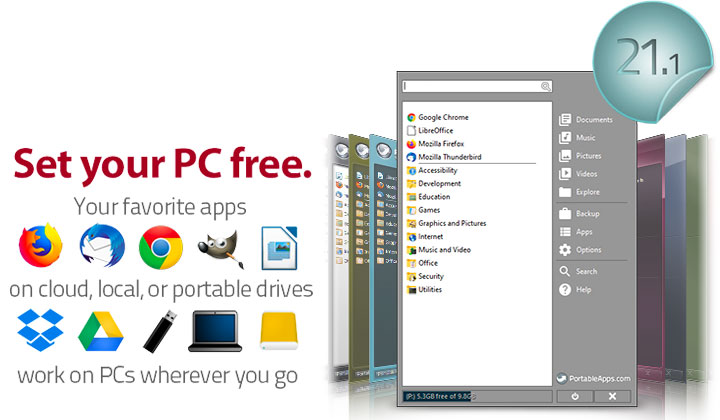
Over the years, PortableApps adds some much-desired functions. For those just setting up a new drive, there’s an application directory that you can pull down the free portable applications just by checking a check-box. And just like other modern apps stores, there’s now an updater that will automatically install patches in the background.
The launcher is further ‘deepened’ to allow for application categories. Previously, you could run out of room or have problems organizing apps without a depth structure. The easy backup application is another we couldn’t live without. One-click to launch an entire flash drive backup makes what is usually a chore, a breeze. Feel like digging deeper, check out the very varied and creative forums for ideas and info on new projects. If you are ready to unchain yourself from thinking in one dimension, now is a great time to start.
USB Drive as a Key to Windows
Of the many uses for flash drives, one that is only starting to get explored, is security. Predator, written by Richard Goutorbe of France is contributing one of the most mature-looking implementations of USB keys for security. His software writes a unique key file to your flash drive and the program constantly checks for it. If you remove the drive, the software dims your monitors and hides all your programs.

The effect is a very successful work factor increase for anyone hoping to monkey with your workstation. The method doesn’t feel uber-secure, but it should work for all but the most paranoid needs. Upon installation, you are required to create a password that can be used to unlock your system if you have lost your key.
The software is free for non-commercial use and doesn’t do anything to your flash drive except write and rewrite its key files. Currently, Predator is only being developed for Windows OS flavors. Others have cobbled together this functionality with a variety of programs but this is the most mature single solution to date. While this is a great step for USB, there are a few more convenient but less secure Bluetooth varieties emerging.