Contents
Dual-bay USB 3.0 RAID
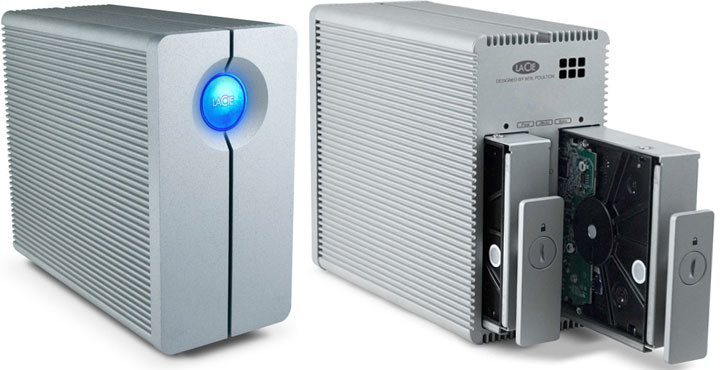
There is no getting around the fact that the LaCie 2Big USB 3.0 (2 x 1TB version tested) is big and heavy. With dimensions of 3.7″ x 7.9″ x 7.2″ and an official weight of nearly 8 pounds, you don’t even need to see it in person to get that. What’s not readily apparent from those dimensions is how sturdy and robust this unit is. This dual bay enclosure is basically made from metal and there is very little in the way of plastic anywhere. While the use of metal is not all that uncommon, what really made this unit special for me is the fact that the 2Big is not just a hunk of steel with slab sides.
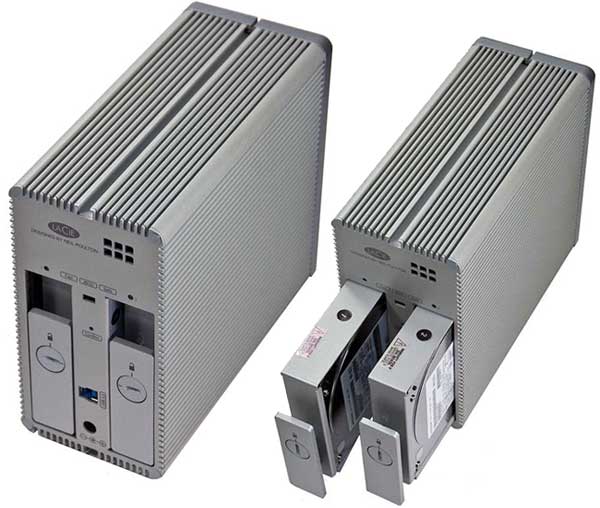
As is befitting of a LaCie product, a lot of good thought and engineering went into the 2Big design. For all intents and purposes, LaCie has made the external metal skin of this unit one big passive heat sink. To this end, the surface area of the 2Big has been significantly increased by the inclusion of cooling fins. As with a CPU cooler, the more surface area you provide the more efficient the design will be. This does help explain the weight of this unit. The main advantage is it can easily keep itself and the two enclosed hard drives relatively cool without resorting to noisy fans. If you are like me who consider itty bitty 40 and 60mm fans downright annoying, you will consider this trade-off well worth it.
The 2Big is also taller and deeper than it is wider so it does take up a fair chunk of real-estate. I personally don’t consider this a big deal. If you don’t have room for it on your desk, the fact that it is made from durable metal and is passively cooled means you can easily tuck it away underneath your desk without fear of breaking it. Though to be fair and balanced, you still have to make sure you handle the 2Big with care since the relatively fragile 3.5″ hard drives are prone to data loss due to physical mishandling.
As mentioned previously, the LaCie 2Big is a two-bay device which comes standard with either two 1TB, 2TB or 3TB hard drives. Since LaCie sent their 2TB (2x 1TB) model, I cannot talk about the hard drives used in the 4TB. However what I can say is that LaCie opted for Hitachi DeskStar 71000.c 1TB hard drives for my test unit. These .c revision hard drives are the latest revision and are in fact a two platter design that runs fairly cool and very quick. In fact, a couple of its brethren are running inside one of my own personal NAS’ enclosures. It is also worth noting that this drive is the exact same model found inside the ioSafe’s SoloPRO. All in all, it’s a very good choice as it is both fast and modestly cool running. I was also very pleased to see that it is both easy and quick to swap out these hard drives via the back of the 2Big. I strongly dislike RAID-based storage solutions which make you tear down the unit to swap out a dead hard drive. To remove one from the 2Big, all you need do is turn the locking mechanism to unlock it and gently slide the drive caddy (with attached drive) out the back. No fuss, no muss just great engineering.
RAID Explanation, for Novices
The main features on the back of LaCie 2Big are the USB 3.0 interface; the recessed RAID selector switch; and the power connector. Where this unit is a tad on the large side, I was expecting a built-in power supply. Instead, LaCie has opted for an power brick. So, if the power adapter dies one day, it is a lot easier to replace an external one than an internal one. Just above and in-between the two hard drive bays is a small recessed three position slider for RAID mode selection. This slide is labeled from right to left FAST, JBOD and SAFE. FAST is just another way of saying RAID-0 where both hard drives are seen as one drive with the data being evenly split between the drives (i.e. “stripped”) but without any parity data being created. The upside to RAID-0 is it is faster than either a single hard drive or a RAID-1 array. The inherent disadvantage is all you data on both drives would be corrupted and rendered useless in the event of a drive failure.
JBOD stands for Just a Bunch of Disks. In this mode, if one drive dies, its data is gone, the data on the other drive is perfectly fine and accessible. RAID-1 (or SAFE) is a configuration in which the data on one drive is mirrored to the other drive. You only see one drive’s worth of storage space in total. The primary reason for using RAID-1 instead of RAID-0 is that if one drive dies, your data is safe as the other one has a perfect exact copy of the data. I personally prefer RAID-0 for instances where I don’t care about long term safety of my data and just want speed. There’s a perfectly valid reason to go the RAID-1 path. Hard drives can and will die on you and external hard drives usually die quicker than internal ones. This is why many manufacturers (such as Seagate for example) offer shorter warranties on external hard drives than the exact same hard drive that is meant to live inside a computer case. A good rule of thumb is: when in doubt, play it safe with RAID-1 (SAFE) instead of RAID-0 (FAST).
Before I move on to the software, the last thing I would like to point out is the large button on the front of the device. This button is not only the power button but also the activity and status indicator LED all in one. When the 2Big is on, this button glows a nice blue color. When the drive is being accessed, the button’s blue glow blinks rapidly. When the device is in a degraded state, the blue glow disappears to be replaced by an angry red. After you replace the failed drive (and assuming you are in RAID-1), it goes back to blue and simply rebuilds the array. During the rebuilding process, you can access your data but speeds will be decreased.
Software
As with most serious external storage solutions, the LaCie 2Big comes with its own backup software. The company includes a separate software CD with Backup Manager Professional version 8 on it. It can be used on either Windows or Mac and is very powerful for a “free” or “value added” piece of software. It is interesting to note that the Backup Manager is not a trial version and actually comes with a key code.
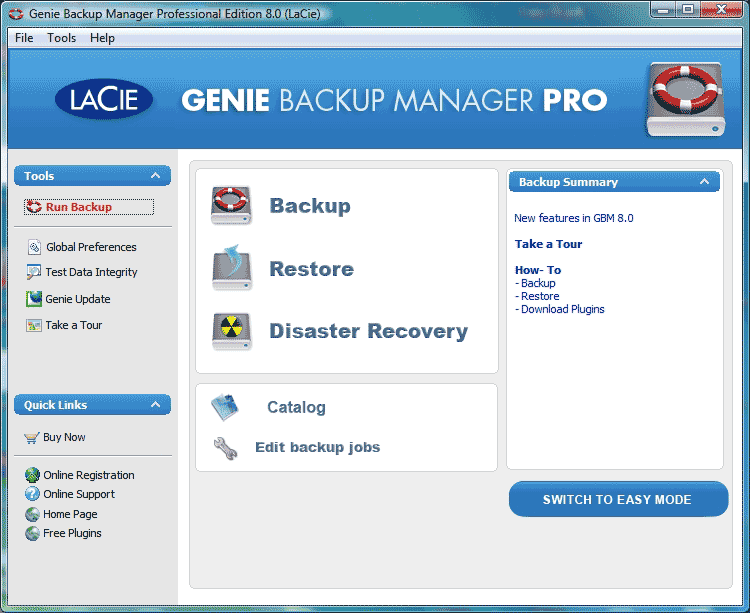
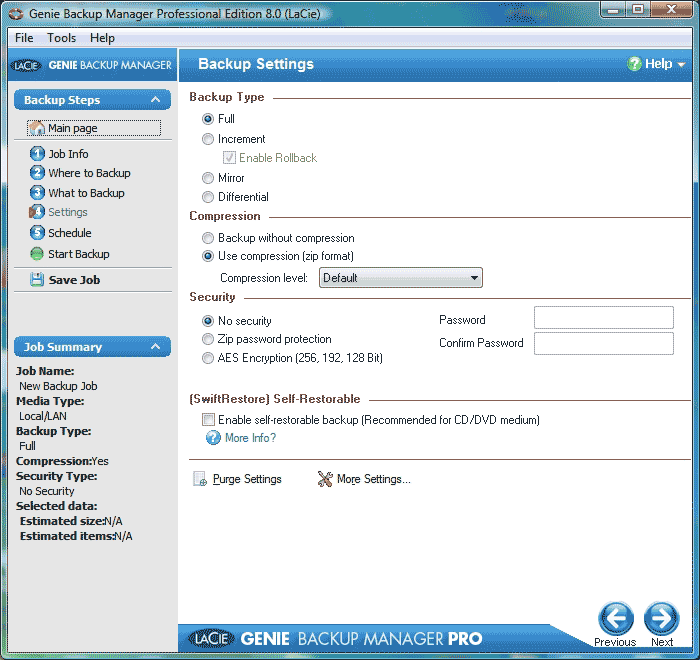
The Backup Manager is extremely flexible yet still fairly user-friendly. Not only can you do the typical incremental, or full backups but also auto backup. Heck, you can even choose what files or file types to backup. This certainly will come in handy for people who only want to backup their photos or documents (for example) to the 2Big and rely on Acronis for their OS imaging needs. As an added bonus, you can also choose to compress your data into ZIP format and to encrypt it with your choice of 128-, 196- or even 256-bit AES encryption. All in all, this software is certainly a slick piece of coding that will easily satisfy the needs of all but the most finicky of users. With that being said, I still prefer Acronis to Backup Manager Professional but that is a personal preference.
Crystal DiskMark Benchmarks
Now this is interesting. Those custom drivers really do improve things. The reason HD-Tune, HD-Tach and Crystal DiskMark disagree on the true performance of this drive is that it appears the custom drivers only “kick in” when there is an actual partition on the drive(s). When I removed the custom driver, the write and read speed of the 2Big went right back down to where it was with those other benchmarks. I guess only “real world” testing will tell us what this drive can really do. As you can see, based on these numbers, I can actually envision circumstances that would call for RAID-0. If I planned on using the 2Big for say de-muxing of my Blu-Ray collection, this USB 3.0 RAID would certainly make that tedious task a heck of a lot quicker.
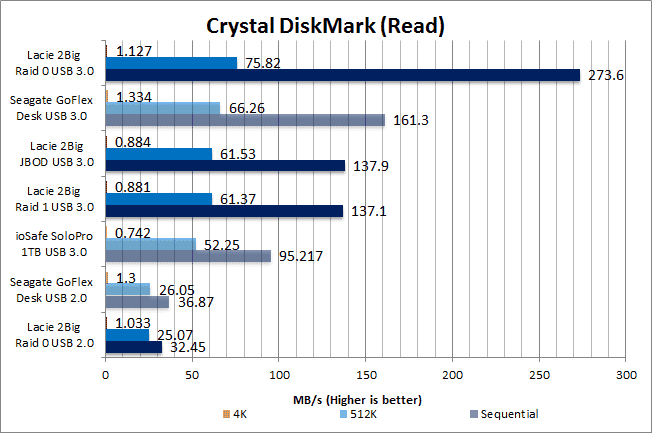
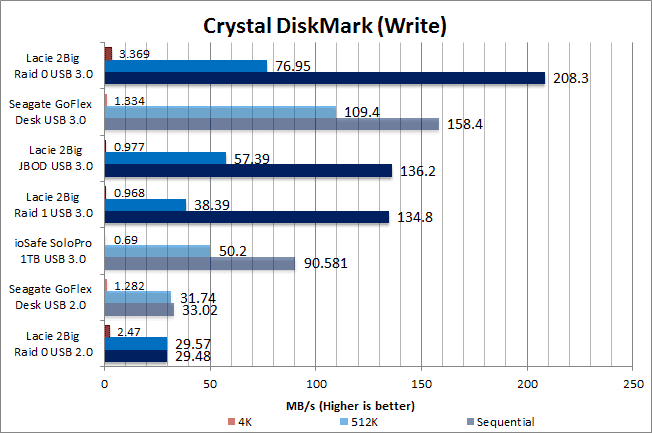
Unfortunately, Crystal DiskMark has also highlighted a significant performance penalty to using the RAID-1 setting. While this unit’s main job is going to be largely sequential reads and writes, take a close look at the 512kB write numbers the 2Big posts in RAID-1 mode. Notice how they are much lower than the JBOD’s? This difference is because of the RAID overhead. I still would not mind giving up speed for security but it is no longer a cut and dry “no brainer”.
Real World Performance
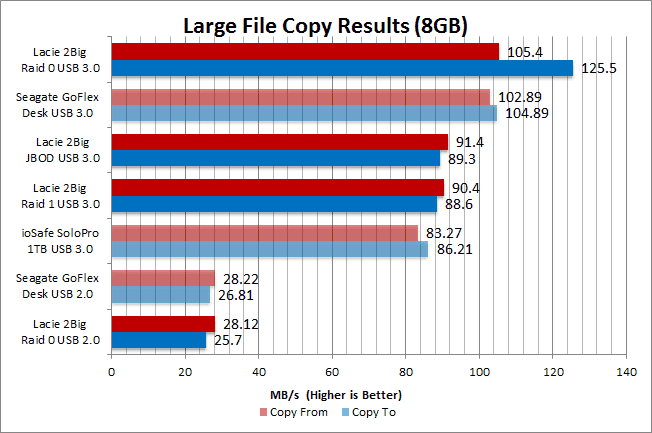
The real world performance of this drive is certainly good. To be honest, the reason the RAID-0 numbers are not even better is simply because the hard drive in the testbed PC used to send and receive data to and from the 2Big couldn’t go any faster. This certainly is impressive, but it just underscores how real world and synthetic results can differ. In the real world, unless you have an internal RAID-0 array to pair with an external one, there really is not that much benefit to using the FAST mode. You are much better off in the long run taking a minor performance hit and using RAID-1 / SAFE mode, not to mention your data will be much more secure.

Recap
Looking back over my time with the LaCie 2Big USB 3.0, my overall impression of this device is one of delight. It really can provide both the safety and security that crucial data demands and do so without any real performance penalty. When you add fast hard drives in RAID – to USB 3.0, the end result really is a winning combination. The fact that it can do all this and be silent and be drop dead sexy really is impressive.
However, this unit is not perfect. It is pricey for what it offers as it really is only going to offer 1TB of safe storage. If safety is your number one priority, then the 2Big is a very good option as it is both fast and reliable. However, if you are looking for shear speed or shear storage space, then this is only one of many good options. I personally am not a huge fan of RAID-0 as I have seen first hand how fast a good hard drive can go bad and relying on two of them is double the trouble. For this reason, unless speed was my absolute number one priority, I would take a long hard look at the myriad other options available before purchasing this LaCie RAID. In the end, only you can decide if the price of the LaCie 2Big is “too big” for you, but I have a feeling many people are going to find the security it offers too big to pass up.