Home
Reviews
Desktop USB 3.0 Hard Drives 
By R. Scott Clark on
Samsung's first foray into USB 3.0 hard drives is fast, quiet and stable - just the way I like it. The bundled backup utility with its real-time monitoring and unlimited file revisioning only serves to sweeten the deal.
Wait! I know what you're thinking from the photo, that this is yet another 3.5" hard drive fitted in some boxy enclosure. Well, to that extent you'd be right, but what of the bundled real-time backup system, low drive acoustics and trouble-free SuperSpeed USB 3.0 connection? Do I have you attention now? Good. Walk with me in my in-depth review as I explore everything the Samsung Story Station USB 3.0 hard drive has to offer.
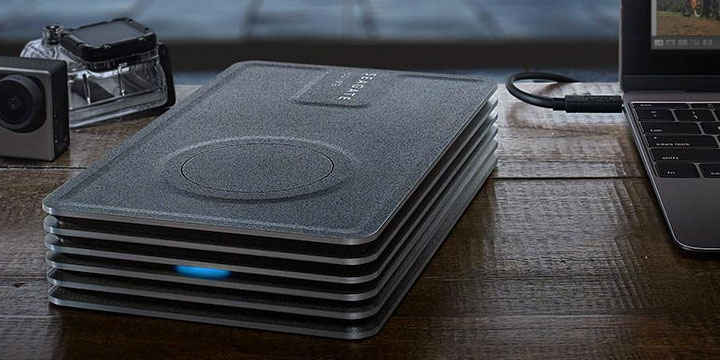
There's something mystically alluring about brushed aluminum. In the hands of a craftsman who knows the significance of refrain, it can be made into something that commands an aura of sophistication whilst presenting only a modest appearance. Samsung Story Station 3.0's enclosure is a clear embodiment of this design philosophy in an age that's defined by the economy of plastic. Granted, only the top cover is actually made from aluminum, but this is quickly overlooked since both the front and back panels follow the same simplistic curvature and bear close to the same metallic luster. The Samsung's understated design extends beyond its clean lines and choice of material. Perhaps what's most enticing about this hard drive in particular is its sullen gray retro appearance; it blends into just about anything that's either black or wooden in nature. When combined with a simple text logo silk-screened in red and the highly unusual power control knob, the drive evokes some serious imagery of vintage headphone amplifiers.
To answer the obvious question of "why use control knob instead of a button or switch", the answer lies in the down-firing LED that's hidden from view. The further the knob is turned to the right, the brighter the LED will become. At its lowest setting, the light casts but a faint glow - perfect for sleeping in the same room as the computer. Crank it up and the glow is significantly filled out, yet maintains a feathered appearance that's just as aesthetically pleasing. Unfortunately this effect is ruined as soon as the light starts to flash from data transfer; perhaps a pulsating glow would have been the better choice here. Depending on the drive's connection, the light will either glow blue for SuperSpeed USB 3.0 or green for Hi-Speed USB 2.0. It should also be noted that unlike many external USB drives from Seagate and Western Digital, the power knob's on/off status is absolute - the drive won't switch on at its own volition.
One last design aspect worth mentioning is that the USB 3.0 drive runs silent and is entirely convection cooled from slits that run along the underside and back of the enclosure. Aiding in this process is the fact that the hard drive is part of Samsung's eco-friendly F3 series, spinning at a relaxed 5,400 RPM to limit power consumption and acoustic noise. While this won't win any benchmark competitions in the long haul, for simple backups and mass storage it is more than sufficient.

Two pieces of software from the Korean developer, Clarus, are bundled with the Story Station 3.0, allowing users to both encrypt and backup their data without the need to go out and buy anything extra. Since these titles are included on the hard drive itself and not on a CD-ROM as is common practice nowadays, Samsung hosts the installers on their website in case you forgot to back them up before reformatting. You may wish to download these installers anyway since their versions are newer than what's included with the drive. Unfortunately, I could never get the bundled SecretZone encryption software to work on either of my 64-bit Windows 7 machines, even after downloading the latest v2.0.510 update that explicitly purports compatibility with 7. The program would always bug out on launch with the error message, "Service program is not running." I can only presume that this is referring to the "MSSvc.exe" service that wasn't even registered in the first place. 32-bit versions of Windows may have better luck with this one; I haven't tried. Looking through the program's manual, however, SecretZone appears to be similar in function to the freeware TrueCrypt program that I've always recommended. It requires administrator rights to function, and will create software-encrypted volumes that are mounted under separate drive letters. Under FAT32, these volumes are curiously limited to 2GB. Unlike TrueCrypt, SecretZone does not offer plausible deniability nor does it come in Mac or Linux flavors, so really there's no reason to bother fighting with it when a better-established and feature-filled alternative exists. Moving on, Samsung Auto Backup (a rebadged Clarus IntelliStor Pro) had no issues running on my system, and I was delighted to see just how easy it is to use without suffering from being too simplistic. Post-install, the program walks through a quick wizard that configures the encryption password and sets various backup options such as compression/encryption, file revisioning, what file extensions to backup or exclude, and backup scheduling.
What's impressive is that immediately after completing this wizard, a first-time backup copied my entire Documents folder to the Story Station, and the program was automatically set to perform backups in real-time after that. In other words, the Samsung Auto Backup would monitor and backup any file changes as they occurred, regardless of my backup schedule. This is of great benefit to just about everyone, provided that file revisioning is enabled in order to protect against data corruption or accidental saves. Alternatively, it's possible to tell the program to just stick to the schedule and only do traditional backups, saving system resources in the short term at the expense of longer backups.

File/folder selection and exclusion works just as you'd expect it to, and in a rare move for bundled backup software we're also able to backup from networked locations. The ability to select a backup destination other than the Samsung hard drive is notably absent; though that's understandable considering the program could otherwise be freely used with any hardware, not earning the developers a cent.

While file revisioning can be set to maintain an unlimited amount of past revisions or limited to a small handful in order to save on space, unfortunately that's about the extent of Samsung Auto Backup's automatic space reclamation. Instead it's up to you to manually free up room, but at least process is simple. From any given directory in the backed-up list it's possible to delete all previous file revisions, files without sources, or anything that's older than a certain date.

In short, Samsung Auto Backup does just about everything I could want it to for a backup utility, shy of backing up my Windows system state and applications. Oh well, there's always the new Windows 7 backup for that. Kudos to both Samsung and Clarus for delivering a contender capable of going toe-to-toe against Memeo Backup. Though the design and documentation may not be as polished, the interface sure as hell is a lot snappier.
Seeing as how this is one of Everything USB's first SuperSpeed USB reviews, I figured we should explore how different hardware setups might affect the external drive's performance. All tests were conducted on a home-built system with 4GB of DDR3-1333 memory and an Intel Core 2 Duo E8400 processor clocked at 3.0GHz. Our USB 3.0 host adapters were provided by Gigabyte, and include a GA-EP45T-USB3P motherboard based on Intel's P45 chipset along with a GA-USB 3.0 PCI Express card that can be easily installed in any desktop system built since 2006. (Thanks, fellas!)
Throughout the review I'll be referring to a Turbo USB 3.0 mode that's specific to Gigabyte motherboards. Enabling this feature in the BIOS changes how the motherboard's USB 3.0 host adapter is presented to the CPU. In the standard non-turbo mode, the USB 3.0 controller from NEC essentially takes a standard route via a PCI Express x1 lane to the southbridge, where it will then get passed along to the northbridge before hitting the CPU. Enabling Turbo mode acts as a high-speed shortcut; it locks out the second graphics card slot and makes use of the available PCIe x8 bandwidth to talk to the P45 northbridge, bypassing the southbridge entirely.
The unfortunate downside to enabling Turbo mode on a P45 platform is that the primary graphics card's bandwidth will be cut in half from x16 to x8; though for most configurations the performance setback should be negligible. My own personal gaming experience with a GeForce GTX 260 graphics card hasn't suffered in the slightest. Still, SLI and CrossFire users will be left out, and I'd imagine that dual GPUs on a single card such as the Radeon HD 5900 might not reach their full potential. As best as I can tell, the newer P55 chipset for Core i5/i7 CPUs will behave much the same, so if you're looking for truly unhindered speed with no setbacks whatsoever, you should be looking at an X58 system. Overclockers.com has a great write-up if you want to dive further into Turbo USB 3.0, and they also pit it against its closest competitor from Asus, dubbed "True USB 3.0".
To start with, let's take a look at the HD Tach RW synthetic benchmark from SimpliSoftware. This program hasn't been updated in years, but that doesn't stop it from holding a special place in my heart for presenting everything so nicely in a single view.
HDTach benchmarks tested on Gigabyte GA-USB 3.0 PCI Express card.

HDTach benchmarks tested on Gigabyte GA-EP45T-USB3P.

HDTach benchmarks tested on Gigabyte GA-EP45T-USB3P with turbo enabled.
As you can see, both the PCIe card and motherboard controllers in standard mode had results that were virtually identical, which isn't all that surprising since they both utilize an x1 interface. Switching on Turbo mode didn't help the sustained reads or writes, and actually seemed to somewhat hurt the write speed by a small amount, though you'd be hard pressed to notice the difference in real life. The burst speed, however, was increased by a significant amount from sub-UDMA/133 levels to a hearty 175MB/s. With reads and writes averaging out around 91MB/s and 85MB/s respectively, the Story Station USB 3.0 performed up to par for a 5,400 rpm drive.
Next we'll be taking a look at HD Tune, another great synthetic benchmark that acts much like HD Tach, but with results that are always a few MB/s off. For some odd reason the program would refuse to launch if the USB 3.0 hard drive was plugged in, but thankfully a newer v4.50 was just released that resolves this issue.

HD Tune Pro 4.5 benchmarks tested on Gigabyte GA-USB 3.0 PCI Express card.

HD Tune Pro 4.5 benchmarks tested on Gigabyte GA-EP45T-USB3P.

HD Tune Pro 4.5 benchmarks tested on Gigabyte GA-EP45T-USB3P with turbo enabled.
Here the results were more revealing. While all connections delivered the same sustained read performance of about 114MB/s, Turbo mode once again substantially increased the burst speed, boosting it from 115MB/s to 166MB/s. Also take note that all of the read results followed a natural curve as the USB 3.0 hard drive heads traveled from the center of the drive to the outer edge, showing that there weren't any bottlenecks.
The write portion of the benchmark proved to be a little more finicky, with both of the standard x1 solutions capping out close to 90MB/s with a level plateau for the first terabyte before we can see the curve. Turbo USB 3.0 removes this cap, increasing the maximum read speed by a whopping 23MB/s to 113.8MB/s, and raising the average write speed by a few MB/s. Again, this all meets my expectations for a power-saving 3.5" drive.
Last but not least we have our real-world benchmark, courtesy of Microsoft Robocopy and my 16GB stash of various small utilities, drivers and CD images. With individual file sizes ranging from a few KB to several gigabytes, this is a good indicator of the performance you can expect in day-to-day use. This test was conducted with Turbo mode enabled to show the maximum potential of the STORY USB 3.0.

Hot dog! With both transfers taking less than four minutes to move 16GB, I forgot for a moment that I'm dealing with an external hard drive. Contrast this to the same files being moved to the fastest USB 2.0 flash drive on the market, and you'll see that USB 3.0 is roughly 300% faster than its predecessor - and we're only just beginning to realize USB 3.0's true potential! The future should prove to be very interesting indeed. eSATA, I'm sorry but you're a has-been now. SuperSpeed USB is just as fast, but without all of the terrible headaches that you've caused from lousy chipsets and flakey drivers. Long live USB 3.0!
There's little not to like about Samsung's new line of SuperSpeed USB 3.0 hard drives. They're quiet, speedy, and have a modest design that's easy on the eyes. Though the bundled encryption software turned out to be a flop, I was impressed by the strength of the included Samsung Auto Backup utility that allowed me to perform revisioned backups of all my data in real-time without any hassle. All in all, the Story Station 3.0 comes highly recommended, and should be available in the near future with an MSRP of $270.
You Might Also Like
Samsung Story Station 3.0 (2TB) Review
By R. Scott Clark on
Samsung's first foray into USB 3.0 hard drives is fast, quiet and stable - just the way I like it. The bundled backup utility with its real-time monitoring and unlimited file revisioning only serves to sweeten the deal.

INSIDE THIS REVIEW ▼
Samsung Design - Understated Elegance
There's something mystically alluring about brushed aluminum. In the hands of a craftsman who knows the significance of refrain, it can be made into something that commands an aura of sophistication whilst presenting only a modest appearance. Samsung Story Station 3.0's enclosure is a clear embodiment of this design philosophy in an age that's defined by the economy of plastic. Granted, only the top cover is actually made from aluminum, but this is quickly overlooked since both the front and back panels follow the same simplistic curvature and bear close to the same metallic luster. The Samsung's understated design extends beyond its clean lines and choice of material. Perhaps what's most enticing about this hard drive in particular is its sullen gray retro appearance; it blends into just about anything that's either black or wooden in nature. When combined with a simple text logo silk-screened in red and the highly unusual power control knob, the drive evokes some serious imagery of vintage headphone amplifiers.
To answer the obvious question of "why use control knob instead of a button or switch", the answer lies in the down-firing LED that's hidden from view. The further the knob is turned to the right, the brighter the LED will become. At its lowest setting, the light casts but a faint glow - perfect for sleeping in the same room as the computer. Crank it up and the glow is significantly filled out, yet maintains a feathered appearance that's just as aesthetically pleasing. Unfortunately this effect is ruined as soon as the light starts to flash from data transfer; perhaps a pulsating glow would have been the better choice here. Depending on the drive's connection, the light will either glow blue for SuperSpeed USB 3.0 or green for Hi-Speed USB 2.0. It should also be noted that unlike many external USB drives from Seagate and Western Digital, the power knob's on/off status is absolute - the drive won't switch on at its own volition.
One last design aspect worth mentioning is that the USB 3.0 drive runs silent and is entirely convection cooled from slits that run along the underside and back of the enclosure. Aiding in this process is the fact that the hard drive is part of Samsung's eco-friendly F3 series, spinning at a relaxed 5,400 RPM to limit power consumption and acoustic noise. While this won't win any benchmark competitions in the long haul, for simple backups and mass storage it is more than sufficient.

Bundled Software
Two pieces of software from the Korean developer, Clarus, are bundled with the Story Station 3.0, allowing users to both encrypt and backup their data without the need to go out and buy anything extra. Since these titles are included on the hard drive itself and not on a CD-ROM as is common practice nowadays, Samsung hosts the installers on their website in case you forgot to back them up before reformatting. You may wish to download these installers anyway since their versions are newer than what's included with the drive. Unfortunately, I could never get the bundled SecretZone encryption software to work on either of my 64-bit Windows 7 machines, even after downloading the latest v2.0.510 update that explicitly purports compatibility with 7. The program would always bug out on launch with the error message, "Service program is not running." I can only presume that this is referring to the "MSSvc.exe" service that wasn't even registered in the first place. 32-bit versions of Windows may have better luck with this one; I haven't tried. Looking through the program's manual, however, SecretZone appears to be similar in function to the freeware TrueCrypt program that I've always recommended. It requires administrator rights to function, and will create software-encrypted volumes that are mounted under separate drive letters. Under FAT32, these volumes are curiously limited to 2GB. Unlike TrueCrypt, SecretZone does not offer plausible deniability nor does it come in Mac or Linux flavors, so really there's no reason to bother fighting with it when a better-established and feature-filled alternative exists. Moving on, Samsung Auto Backup (a rebadged Clarus IntelliStor Pro) had no issues running on my system, and I was delighted to see just how easy it is to use without suffering from being too simplistic. Post-install, the program walks through a quick wizard that configures the encryption password and sets various backup options such as compression/encryption, file revisioning, what file extensions to backup or exclude, and backup scheduling.


Benchmarking Setup
Seeing as how this is one of Everything USB's first SuperSpeed USB reviews, I figured we should explore how different hardware setups might affect the external drive's performance. All tests were conducted on a home-built system with 4GB of DDR3-1333 memory and an Intel Core 2 Duo E8400 processor clocked at 3.0GHz. Our USB 3.0 host adapters were provided by Gigabyte, and include a GA-EP45T-USB3P motherboard based on Intel's P45 chipset along with a GA-USB 3.0 PCI Express card that can be easily installed in any desktop system built since 2006. (Thanks, fellas!)

Throughout the review I'll be referring to a Turbo USB 3.0 mode that's specific to Gigabyte motherboards. Enabling this feature in the BIOS changes how the motherboard's USB 3.0 host adapter is presented to the CPU. In the standard non-turbo mode, the USB 3.0 controller from NEC essentially takes a standard route via a PCI Express x1 lane to the southbridge, where it will then get passed along to the northbridge before hitting the CPU. Enabling Turbo mode acts as a high-speed shortcut; it locks out the second graphics card slot and makes use of the available PCIe x8 bandwidth to talk to the P45 northbridge, bypassing the southbridge entirely.
The unfortunate downside to enabling Turbo mode on a P45 platform is that the primary graphics card's bandwidth will be cut in half from x16 to x8; though for most configurations the performance setback should be negligible. My own personal gaming experience with a GeForce GTX 260 graphics card hasn't suffered in the slightest. Still, SLI and CrossFire users will be left out, and I'd imagine that dual GPUs on a single card such as the Radeon HD 5900 might not reach their full potential. As best as I can tell, the newer P55 chipset for Core i5/i7 CPUs will behave much the same, so if you're looking for truly unhindered speed with no setbacks whatsoever, you should be looking at an X58 system. Overclockers.com has a great write-up if you want to dive further into Turbo USB 3.0, and they also pit it against its closest competitor from Asus, dubbed "True USB 3.0".
Benchmark Results
To start with, let's take a look at the HD Tach RW synthetic benchmark from SimpliSoftware. This program hasn't been updated in years, but that doesn't stop it from holding a special place in my heart for presenting everything so nicely in a single view.

HDTach benchmarks tested on Gigabyte GA-USB 3.0 PCI Express card.

HDTach benchmarks tested on Gigabyte GA-EP45T-USB3P.

HDTach benchmarks tested on Gigabyte GA-EP45T-USB3P with turbo enabled.

HD Tune Pro 4.5 benchmarks tested on Gigabyte GA-USB 3.0 PCI Express card.

HD Tune Pro 4.5 benchmarks tested on Gigabyte GA-EP45T-USB3P.

HD Tune Pro 4.5 benchmarks tested on Gigabyte GA-EP45T-USB3P with turbo enabled.

Recap
- Average read/write speeds above 85MB/s
- Backwards compatible with USB 2.0
- Passive cooling; eco drive saves energy and runs silent
- Down-firing LED with adjustable intensity
- Drive stays off when it's told to
- Easy to use backup software included
- Backups can be set as scheduled or real-time with file revisioning
- Backups optionally can compress/encrypt data
- Security software is incompatible with Windows 7 x64
- Not as fast as a 7,200 RPM drive might be
- LED angrily flashes during data transfer
- Sleep timeout isn't adjustable
- No Mac software is included
You Might Also Like