Finding missing files on a USB stick often feels like a small disaster – suddenly, important Word/Excel/PPT/PDF files or personal photos seem wiped out. Some think deletion means permanent data loss. Is that true? No, not every deleted file vanishes without a trace.
Most times, lost files on a USB stick can come back – if new info hasn’t taken their place. Depending on the USB file deletion scenario, you can use different methods to recover data from USB drives.
Things You Need to Know Before USB Recovery
Something you should know after USB file deletion, and think through the following tips before doing anything else.
Stop using the USB flash drive right now. Files vanish from view when deleted, yet remain physically present until replaced. USB recovery becomes less feasible if new data overwrites the deleted data.
Do not format or repair the USB drive. If your USB files are deleted due to formatting or USB corruption, don’t reformat the drive or run a USB repair tool, as either could change the file structure.
Do not run multiple recovery tools at once. Running more than one recovery tool together can cause problems. One after another works better.
Prepare a separate storage location for recovered files. Avoid putting restored files back onto the original USB flash drive. Try using your main computer storage or a different external device for that.
Users lose data on USB drives way more often than they think. Here’s what helps if you lose data due to accidental deletion, USB formatting, or disk corruption: the missing data usually remains, ready to recover if handled quickly and smartly. When this happens, try one of these straightforward fixes based on what happened.
Method 1. Recover Deleted Files from USB Drive with USB Recovery Software
For most USB data loss situations, applying a professional USB recovery tool is always the best way. A reliable USB data recovery program can be a lifesaver when you don’t have available backups on local or cloud drives.
EaseUS Data Recovery Wizard supports multiple file types and file systems and works on both Windows and macOS operating systems. You can save your data from USB drives with EaseUS easily.
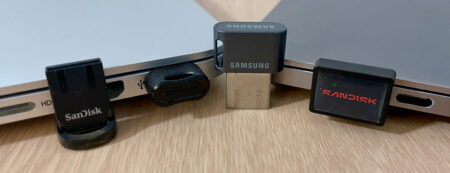
Deleted and formatted USB drive recovery is also possible, and the faster you move, the more files you may recover from the USB stick. This USB data recovery software performs well on Samsung, SanDisk, Kingston, Lexar, and PNY USB flash drives. With the unique SSR (Smart Sector Rebuild) engine published on EaseUS Data Recovery Wizard 20.1, data recovery on a long-term used USB can be easier.
How to recover deleted files from a USB flash drive with EaseUS recovery software:
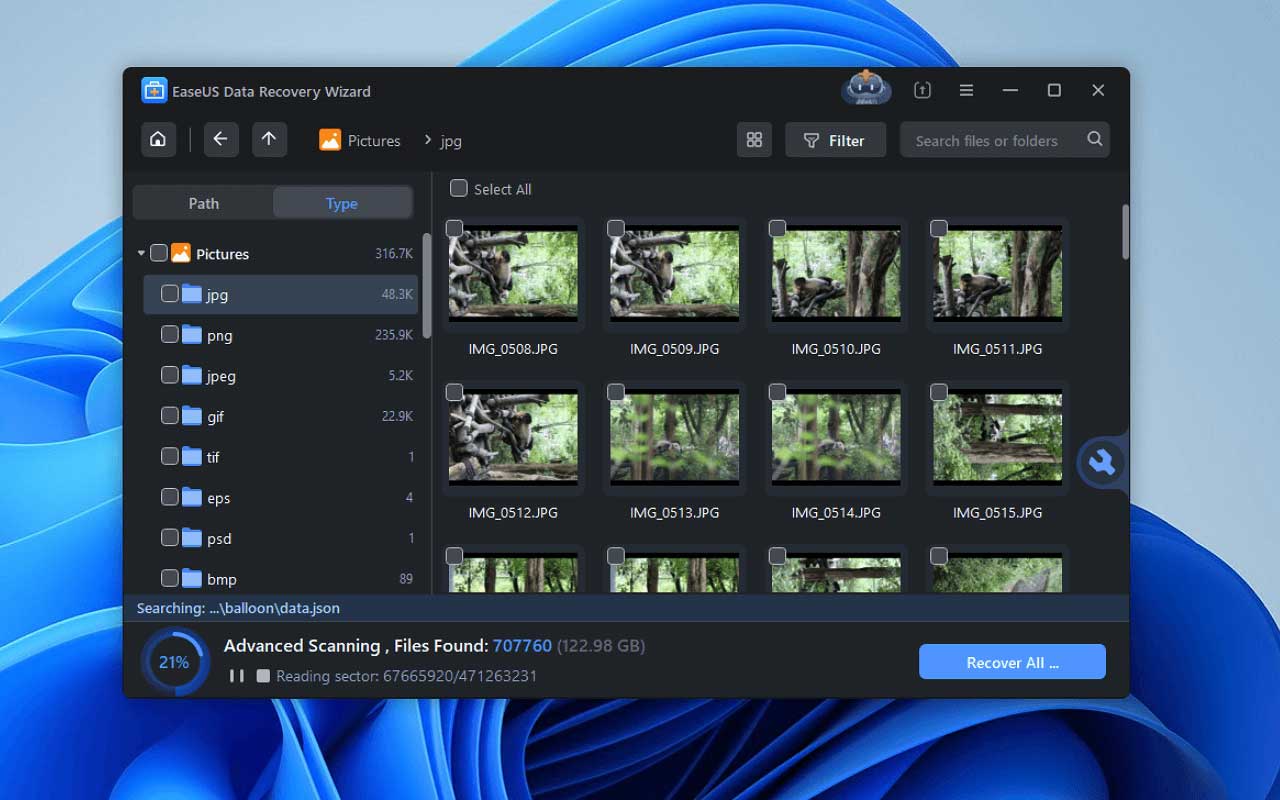
Step 1. Start by plugging the USB drive into your computer. Open EaseUS Data Recovery Software once it’s connected.
Step 2. Pick the USB stick you have lost data from – then begin the scan right after. Start your search by file name, or select a specific type to narrow results quickly. It can save a lot of time to find the wanted files on the USB drive.
Step 3. You can preview photos, documents, videos, and audio files if you want. A simple double-click opens the preview window. Click “Recover” to save the files. Remember to move them to a safe location on your computer – never back onto the USB drive.
Method 2. Recover Your USB from Recent Backups
You may find lost data from recent backups if you have a good backup habit. Those copies could hold what is permanently deleted from your USB drive.
Recover Deleted USB Files from File History
When a Windows computer has File History enabled before losing data from a USB drive, recovery may be possible directly from backups. Old versions of those lost files could reappear – no need to check the drive itself. This works only if the system previously saved the lost USB files.
Step 1. Search for File History in the Windows search box. You can enter the search box from the taskbar.
Step 2. If File History was previously enabled, you will see the backup status and available restore options. Click “Restore personal files” to check the backups.
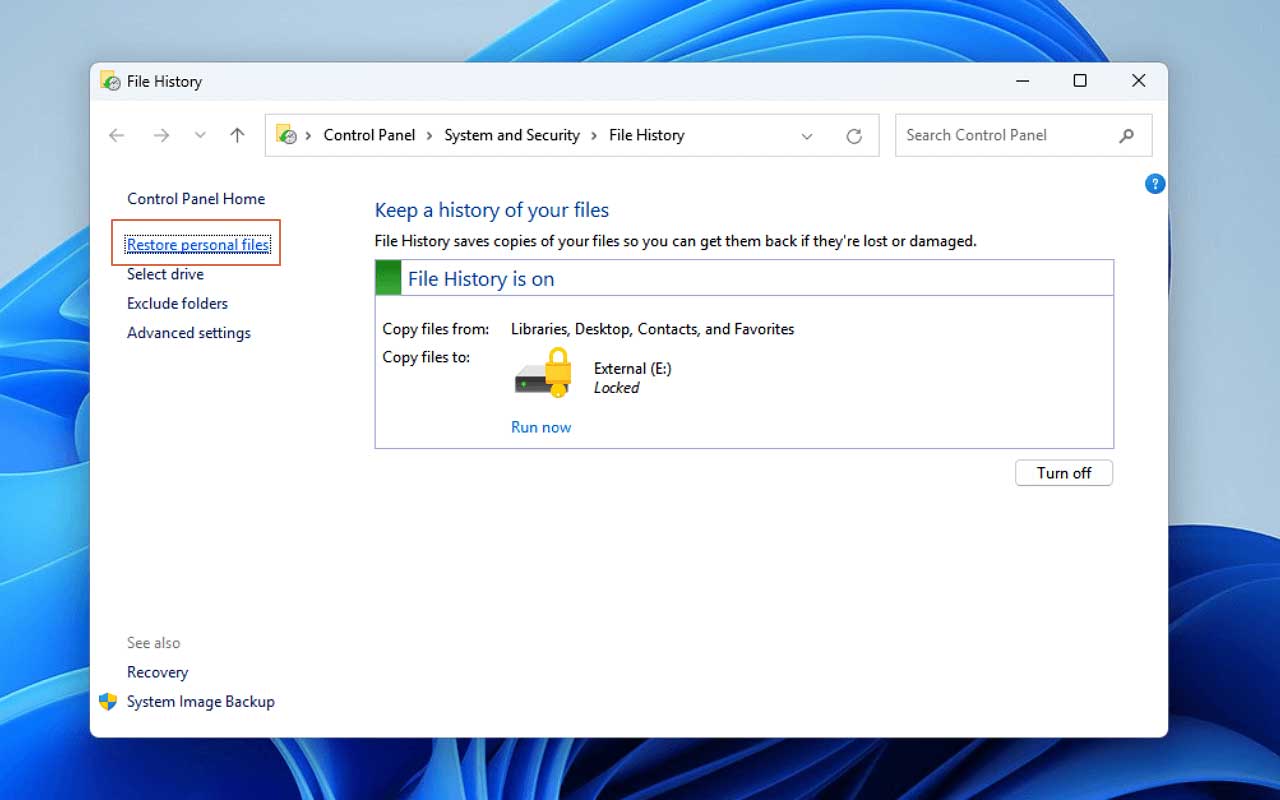
Step 3. Then, folders and files saved during past backups appear in a new window. Now, find what got erased from the USB flash stick.
Step 4. Pick what you need. The green Restore button returns them to their original location. To keep things safe, use the right-click menu. Choose “Restore to” instead and save them to a new location.
2. Restore USB Data Using Cloud Backup
You can restore deleted data from cloud drives like Google Drive, OneDrive, Dropbox, etc. It’s simple to restore deleted files from a cloud drive; just log in, check, and download.
Step 1. Start by launching a web browser. Sign in to your account on storage platforms like OneDrive. Another option is logging in through Google Drive. Or access files using Dropbox instead.
Step 2. Open the directories you once used for saving USB data. When devices connect, certain online storage platforms copy contents without asking.
Step 3. If you cannot find the wanted files, check the trash folder. All the recently deleted items will be here.
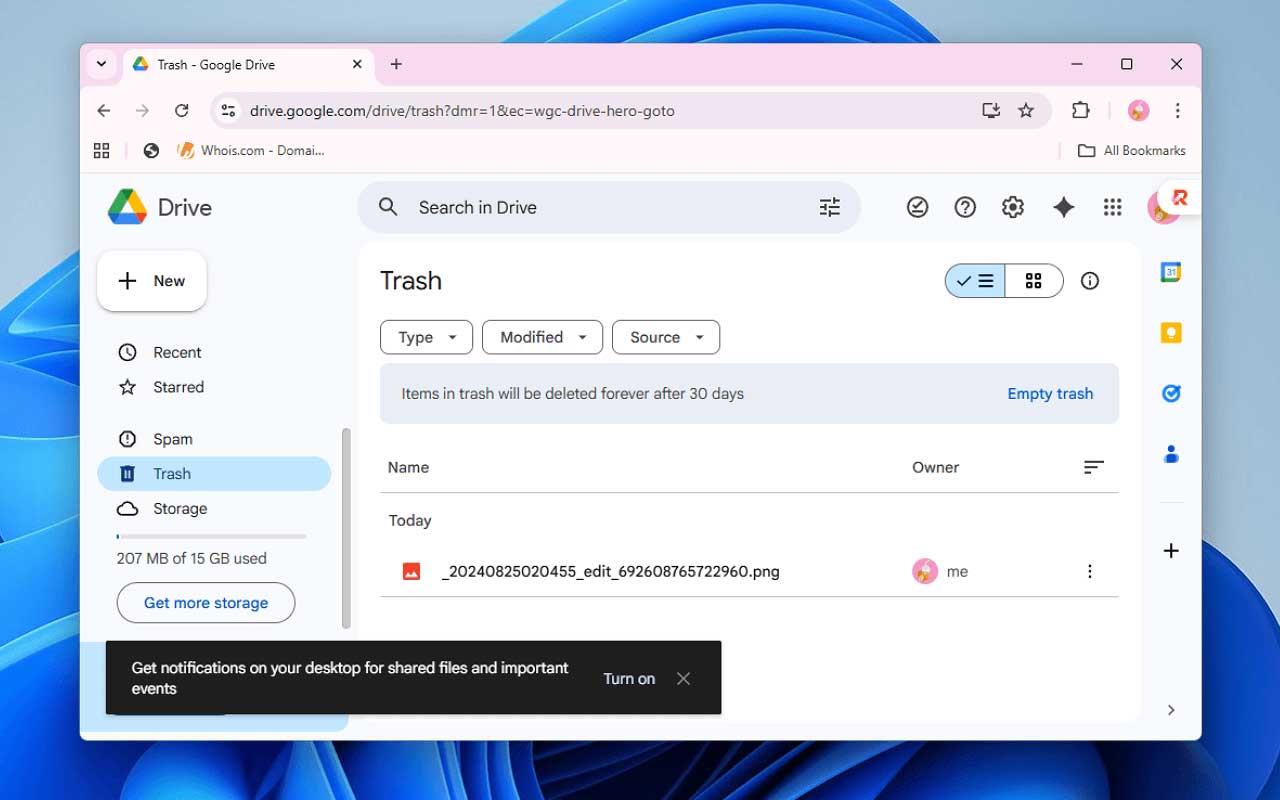
Then, you can select and download the files that you want to recover. Do not save the files to the USB again; choose a new location.
Why You Cannot Recover Deleted Files from USB via the Recycle Bin
Feel surprised when you find out that deleted files from a USB stick skip the Windows Recycle Bin entirely? It’s not the system errors – just built that way for portable drives like USB flash drives and pen drives.
Files and folders vanish quickly on USB drives because they use different file systems. Some USB drives run on formats like FAT32 or exFAT – systems that lack the safety nets found in NTFS, the standard for built-in disks. Without those safeguards, deletion skips the waiting zone entirely. That means once files are deleted, there is no second chance in the Recycle Bin.
Delete files on a local drive with the Shift + Delete shortcut, also bypassing the Recycle Bin. For these “permanently deleted” files, the best way is applying a professional data recovery tool.
To Sum Up
Most times, deleted files on a USB flash drive can come back – if you move fast enough. The way you try to get them matters just as much as speed.
Once a file is deleted from a flash drive in Windows, it skips the Recycle Bin entirely. That makes having backups important.
Avoid any further activity on the USB device immediately, and use a reliable USB data recovery tool to restore data. If someone else handles missing data on a USB drive, they might find this guide useful as well. Feel free to share this page with friends or colleagues!