

MacBook is one of the most optimized and efficient computers. This PC is designed for the purest forms of cost-efficiency. However, no technology is perfect, and issues might appear occasionally.
In this regard, there has to be some significant backup plan for resolving performance-related issues. This way, people do not get stuck when their computers develop minor problems.
Note: We will review minor problems the average individual can resolve in a few steps.
This article will review some common Mac performance issues. It will also proffer solutions on how individuals can either solve the problem or manage the situation.
Apps Freezing or Crashing Unexpectedly
Sometimes, you may just be using an application on your computer that unexpectedly shuts down. Other times, the app may refuse to close and you have to shut it down via other means forcefully. This problem can involve one or more software programs on your Mac.
There are many possible reasons for this occurrence. One of them includes interference of external devices like printers connected to your computer. It is also possible that you may have installed a software or plugin that is not compatible with the operating system of your device.
Sometimes, it may be something as seemingly insignificant as updating an already installed plugin on your device. Perhaps, it’s your OS that needs updating. As long as it does not work well with your macOS, there’ll certainly be clashes.
Possible Solutions
One sure way to overcome this challenge is by disconnecting every secondary device, like printers, from your computer. After doing that, try launching the particular app again by clicking “Reopen” in the dialog box that appears. If the problem persists, you may need to restart your computer from the Apple Menu.
Another thing to do is check the properties of the plugin to confirm that it is compatible with the operating system of your device. You may also need to upgrade your macOS if it does not work well with updated software.
Slow or Unresponsive Mac
The major issue with a MacBook’s performance is when it is either sluggish or unresponsive. Your superfast device gradually becomes some slug that you cannot recognize. You are probably wondering, why your Mac is so slow.
One of the possible reasons is that the computer storage is full. Another reason may be that there is a faulty app operating in the background, damaged RAM, outdated macOS, or other software-related issues.
Possible Solutions
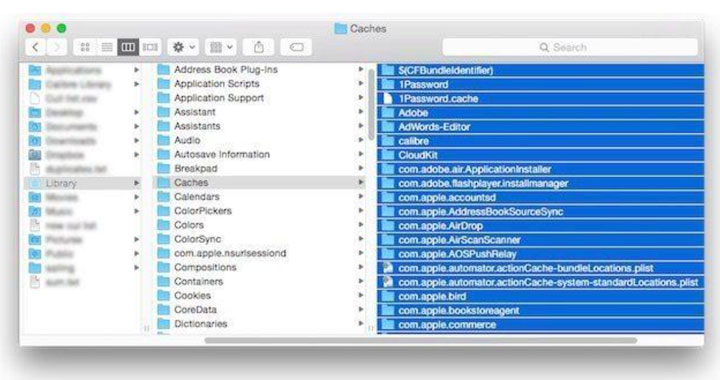
One possible solution is to clear up your computer’s short-term memory space. Simply delete unwanted information like videos, pictures, apps, and temporary you no longer need from your Mac. Simply follow this dialogue below:
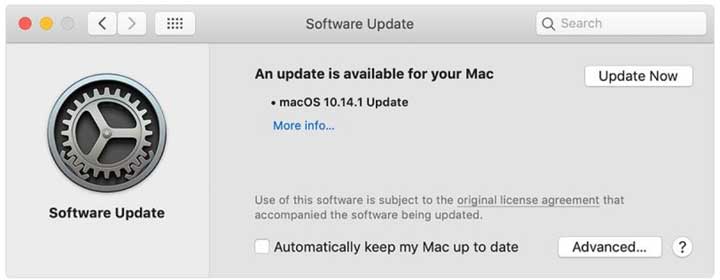
If that does not work, you can try updating your macOS. The reason is that running an old or outdated operating system version inhibits the performance of your computer. Navigate to “Software Update” on your Mac, check for an update, and install it.
If the above does not work, you should visit a professional MacBook technician to examine your device. This individual is well-equipped to change or repair the computer’s hardware. There is little or nothing an average person can do if they have faulty RAM.
Battery Drains Very Quickly
One of the major highlights of almost every MacBook is that they have very solid batteries. Practical experiments show that even used Apple-manufactured computes have a standby period of at least 8 hours. This means something is wrong with your Mac if it runs out in less than four hours.
There are some possible causes that are somewhat similar to a slow or unresponsive Mac. One of them is that you are overusing or wrongly using your computer. This includes opening too many apps at once, even the ones you are not using.
Doing this overworks your computer and causes it to drain the power source faster. It is also possible that too many background apps (including spyware) are running simultaneously. Another case is a battery, which is often unlikely.
Possible Solutions
According to my friend at bettingsites.ltd, one of the possible solutions is to monitor and restrict the activities of specific applications. Use the Activity Monitor to track which apps are consuming power the most. Restrict them from running in the background from your computer settings.
In addition, you should avoid charging your computer while it is in use. Heat is one of the major killers of batteries. A plugged-in laptop while using it at full capacity is a certain way to generate heat.
If your battery is damaged, you should see a technician. You can also purchase a replacement from trusted retail outlets.
MacBook Refusing to Power On
This is a terrible problem with multiple causes. It can be a serious headache pinpointing the actual factor responsible. However, we will still list a few possible ones.
The easy prediction is that the MacBook is out of power. This may probably be due to a dead or dysfunctional battery. However, it may be something more technical.
This includes a corrupt hard drive or other internal components. The problem may also be that the bootloader is faulty, or system files are damaged.
Possible Solutions
The first step is to check the battery and ensure it is not damaged. Once confirmed, plug in a charger and confirm that the device is charging. After a while, try to boot up your computer to see if it works.

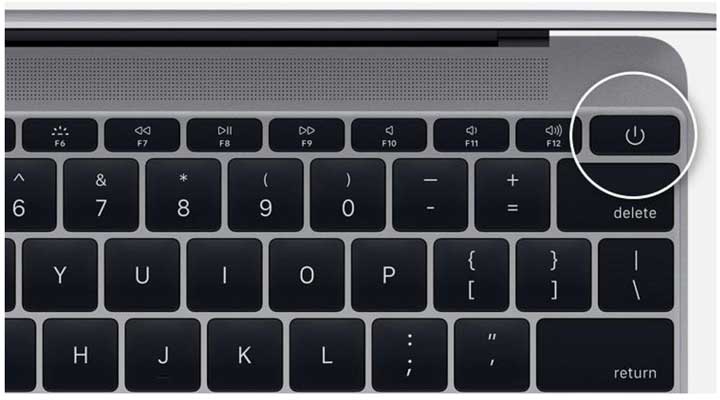
If it does not work, you may have to reset the System Management Controller on your Mac. This is a special chip that controls peripheral devices and manages power. To do a hard reset, press down and hold the Shift, Control, and Options buttons as shown below.
Wait for 10 seconds and press the power button. If it still does not work after this step, you probably need to see a technician.
Conclusion
There are times when your Mac will develop some minor issues. While there may not be specific explanations for these happenings, there are significant ways to resolve this. Even better, many of the steps mentioned in this guide are things the average person can do without needing help.