

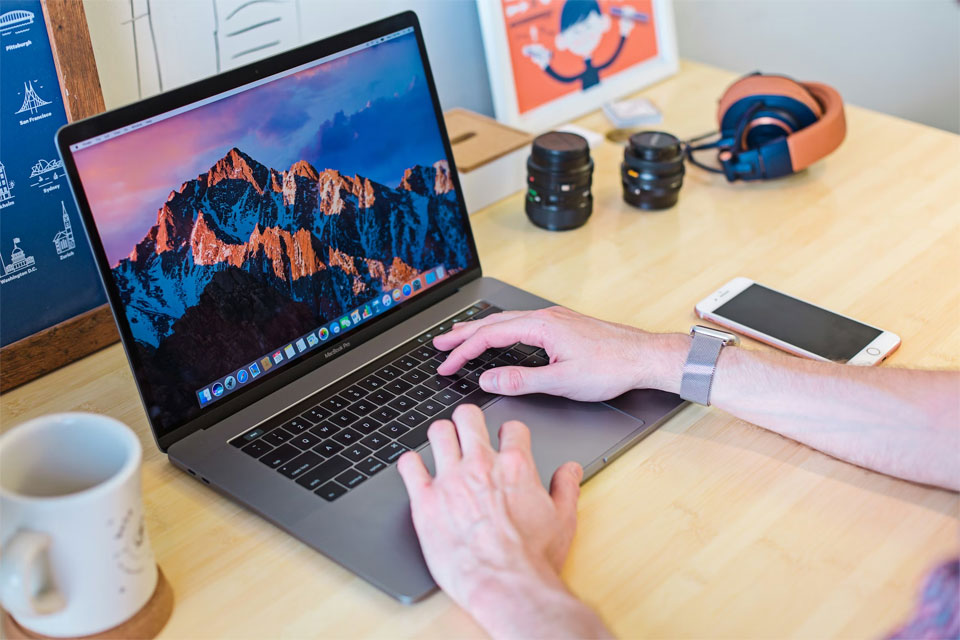
It’s difficult to imagine a more frustrating problem than your space bar suddenly refusing to work. Few users think that Mac can have issues like these: they’re used to the flawless work of their devices, and realizing they can’t type properly because all words and sentences become glued together can be a startling, deeply unpleasant surprise.
Why Your Mac Space Bar Stops Working
Your first thought might be that your space bar is simply broken. In reality, though, most Mac keyboard issues are caused by system overload, app glitches, and USB connectivity issues. It can grow into a serious problem, so find out how to solve it before it ruins your workflow and makes you waste hundreds or even thousands of dollars on hardware repairs. See detailed overviews of space bar common causes and ways of addressing them.
We won’t discuss physical damage among the key issues behind Mac space bar not working, as this problem can only be solved by taking your Mac to a repair shop. Sometimes, removing the dust and debris is enough, but sometimes experts will have to come up with a physical fix, which will cost you a ton of time and money.
Before you resort to this unpleasant solution, you should eliminate other common reasons behind the space bar’s refusal to work on your Mac. There are three potential causes you need to consider.
Software Bloat
Over time, your Mac accumulates various background processes, outdated drivers, and unnecessary apps that clutter your system and lead to the bloat effect. Let’s say your Mac comes with 100 different features, but 99% of users will use only 25 of them. The remaining 75 are completely redundant, and they overload your system to the point where it struggles to work.
This is what might happen in this case:
- Your Mac will start ignoring some keystrokes, including the space bar; in less severe instances, it might work with mind-numbing delays.
- Driver conflicts might start popping up, as excessive software can easily interfere with keyboard drivers, causing your Mac to misinterpret your space bar requests.
- Different apps will have different reactions to your attempts to push the space bar; some will listen to your command, while others will ignore it or do something else.
Software bloat is a pretty common MacBook Pro space bar issue, especially if you haven’t been maintaining your device at regular intervals.
App-Specific Glitches
Another common problem lies in app-specific glitches. It’s possible that a specific app is not recognizing your space bar commands; if you work with it on a constant basis, you might not realize that the issue is local, not global.
It gets even more confusing when the space bar works well, and then it breaks down, and then it works normally again. Usually, it happens after you restart an app: things might be going fine for a while, but at some point, you’ll run into the same roadblock.
USB Connectivity Issues
The third widespread Mac space bar problem is rooted in USB connectivity. Plenty of users prefer to use external keyboards, but this often leads to temporary disconnections. This is what you should look out for:
- The USB port on your Mac might be dirty and blocked, which will strain the connection and make the system numb to your attempts to hit the space bar.
- Outdated USB drivers can clash with your system, so macOS won’t be able to interpret the signals from your keyboard correctly.
- A low battery in your wireless keyboard can also lead to issues with your space bar; the same goes for instances where many devices use the same USB hub.
Partial or complete failure of your space bar is often the result of problems with USB connectivity.
How to Fix Mac’s Space Bar If It’s Not Working
Now, let’s consider the best solutions for fixing the problems we’ve outlined. If you get your Mac keyboard spacebar stuck physically, you can simply adjust it or clean it by using specialized tools. When it comes to software issues, you’ll have to follow these steps:
- Restart your Mac. This is the simplest potential fix: if the problem is a temporary glitch, going to the Apple menu and restarting your Mac can solve it. If it keeps occurring, then you’ll need to move to more complex solutions.
- Check your apps. Try hitting the space bar in different apps to localize the problem; remove the offending app if that’s where the issue keeps happening.
- Check USB connectivity. Reconnect your USB keyboard to another port and try toggling Bluetooth off and on. Repair the wireless keyboard to see how it’s working.
- See accessibility settings. Go to your Apple menu and click on System Settings. Then, go to Accessibility, and choose Keyboard from the options you see. Toggle the Full Keyboard Access off, and then test your space bar in Notes or Safari.
- Clean up your system. Run Apple diagnostics by using Mac cleanup tools. Apart from killing malware, they can also solve glitches and app errors, as well as remove a ton of junk you didn’t know you had.
The latter solution is mandatory, as it has the power to solve your space bar problems and prevent similar issues from occurring in the first place. Modern Mac cleanup tools go beyond clutter removal: they can do driver diagnostics and pinpoint the issues that would have taken you ages to identify.
Take Care of Your Mac
Mac space bar not working? You know what to do now. Localize the problem by checking under what circumstances it occurs, and rely on Mac cleaners to identify and eliminate the reasons behind it. Run diagnostics and perform macOS maintenance regularly to make certain that your system is fully functional, and chances are, you won’t run into the space bar problem ever again.