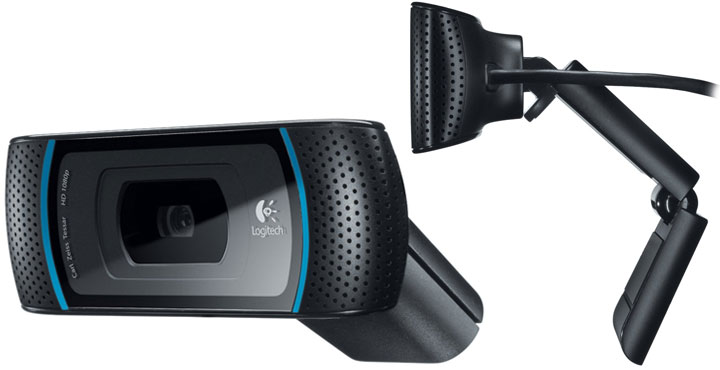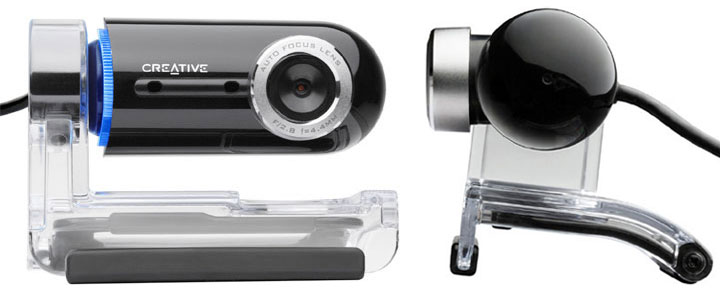
In a marketplace thick with competition, any webcam that has a hope of making an impact has to not only do the basic video and still function to the best of today’s technological standard but add in new features that might make you rethink how to use your camera. That seems to be the idea behind Creative Live! Cam Optia AF, a 2.0-megapixel webcam that builds some unexpected features – like motion tracking and time-lapse video – in the standard package. Do those secondary options make this camera worth your purchase? Today, we’re going to find out.
Contents
Webcam Design
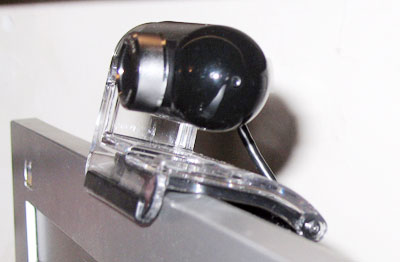
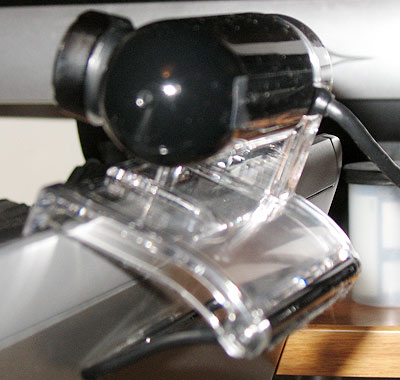
I appreciated the thoughtful design of the Optia AF from the moment I took the camera out of the box and saw how Creative had attached the Optia AF’s body to a plastic mounting system via a ball and socket hinge, which has about ten degrees of lateral motion and 270 degrees of vertical motion, eliminating a lot of the positioning problems I’ve encountered elsewhere and giving the Optia AF an immediate edge in situations where versatility (like moving from a laptop screen to a desktop monitor) is the rule. As an added bonus, swiveling the camera down so it faces the camera mount disables the Optia AF without having to unplug it from the USB port.
That versatility extends to the camera’s body, too: matte plastic construction that doesn’t hold fingerprints and gives the Optia AF a durable feel, coupled with a camera mount that’s simultaneously secure and easy to use by incorporating a hinged flap for use on flatter screens with a U-shaped body for use on wider screens. There’s also a blue in-use LED that rings the side of the body attached to the camera mount, coupled with two built-in adaptive array microphones and an auto-focus lens with a 4.36 mm maximum aperture and a 2.0 MP sensor.
Live! Cam Center Software
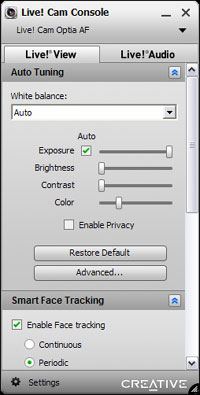 Although the Optia AF drivers include a piece of software called the Live! Cam Console that handles all of the camera’s settings and adjustments, it’s the Live! Cam Center program that handles the Optia AF’s multitude of video and still options. Each of the Cam Center’s six tabs fronts a different task – video recording, photo capture, motion detection, remote monitoring, time lapse video, and your collection of recordings – presented with some basic instructions and a large start button that makes you feel right at home with what are definitely some fairly advanced-sounding features. A settings button on the lower left-hand side of the window opens up a dialog box with more in-depth settings for each task, and the Cam Center calls up the Cam Console whenever necessary to fine tune any adjustments, creating a seamless package. I’ll be demoing the Optia AF’s image quality for both videos and stills below, but first let’s talk about the other four available tasks.
Motion Detection
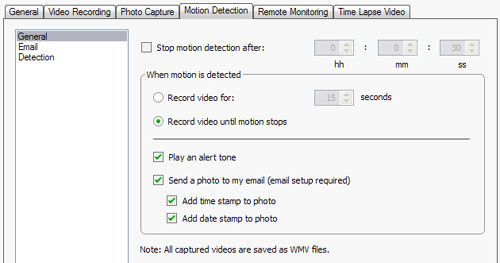
The Optia AF’s motion detection feature acts like an alarm system for any objects moving within the camera’s field of view, tracking and recording motion when the sensors notice something different. It’s a cool little extra that might help you figure out which pet is jumping on your computer while you’re at work or whether or not your coworkers are snooping around your desk while you’re at lunch, and it has all kinds of customizations. You can choose to record either for a specified period of time or until the motion stops, play an alert sound when motion capture starts, have your computer send you a time- and date-stamped screenshot of the motion by email, see the gallery of saved WMV files from your captures, and even adjust the sensitivity and size of the sensor viewport. The motion capture is pretty effective, too; while the email setup will require a little bit of technical knowledge and access to your email system’s outgoing settings, all of the features work as advertised, and the sensitivity settings include a built-in preview so you can see what will trip the alarm without having to run tests. The sensor’s range is particularly impressive, running the gamut from detecting micro tremors in my stationary head to ignoring my wildly-waving hands and arms.
Remote Monitoring
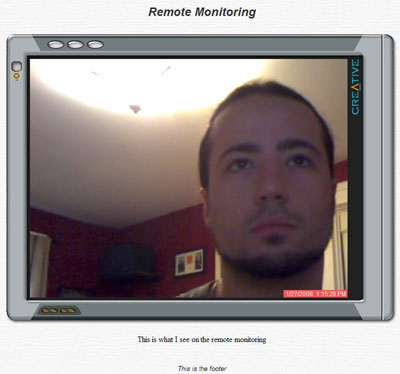
Unlike motion detection, remote monitoring is an always-on visual security system that lets you watch the capture from the Optia AF through a combination of FTP upload and a web browser. There’s another difference, too: remote monitoring only creates still images on a time delay basis (with a range of once a second to once every 121 hours), so you’re not overloading your web server with full motion video captures. Like motion detection, remote monitoring adds a number of cool secondary applications to the Optia AF, ranging from the dot.com era “here’s a feed from our office” to keeping an eye on a controlled science experiment. You can even customize the look of the feed’s output page, adding a few differently-themed frames and some captions so that an observer knows what he or she is watching.
There’s one problem with the remote monitoring settings that Creative needs to address, however: the FTP settings don’t play well with all web servers. The Cam Center settings require you to specify a server address, a username, a password, and the path of the remote directory where you want to store the images from the feed, then allow you to test the connection before starting to record. In both my tests and messages from other users posted to Creative’s support forums, the connection software could never find the remote directory. Creative’s help files don’t offer any solutions to this problem either, and I suspect there’s some sort of bug in the software that’s causing the issue, perhaps only with certain servers. However, no matter what the source of the problem, the end result is still the same: remote monitoring may not work with your web server.
Time Lapse Video
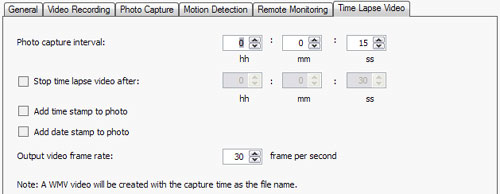
Ever wanted to create a smaller version of those movies where an entire day happens in a matter of seconds, or a plant grows from a seed to a full-grown flowering stalk in a matter of minutes? That’s the purpose of time lapse video, which uses the same image capture options as remote monitoring (including the enormous range in capture times) but assembles the end results into a WMV file so you can see the changes in one long stream without any additional editing. I tried out time lapse by taking a video of myself over the first two hours of my day at my computer, and the feature really does work as advertised – although I’d suggest using it for more creative projects. As with motion detection and remote monitoring, time lapse video is a cool and unexpected addition to the Optia AF’s capabilities, and helps the camera stand out from the crowd.
My Recordings
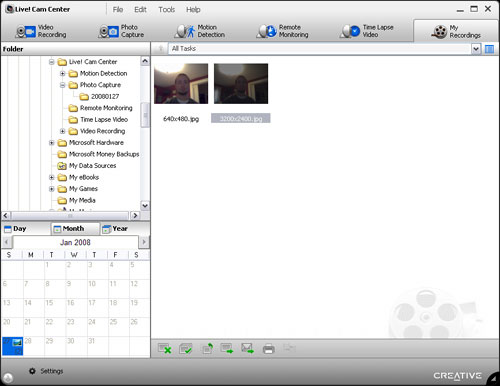
The My Recordings tab of Cam Center is the program’s built in media organizer, offering two different ways to find and view the media you’ve recorded using the Optia AF: a Windows Explorer-style file browser, and a calendar that shows you media you’ve recorded by hour of the day, day of the month, or month of the year. The system is well-designed, and only missing a search function: the calendar includes an icon and a number for each entry that contains media, so you can tell at a glance how many items you recorded at (for example) 11 AM on January 27, 2008. As an added bonus, the central window lets you limit the file display to files of a certain type, so if you’re only looking for time lapse videos from January, 2008, Cam Center will find them and show them to you.
Picture Quality
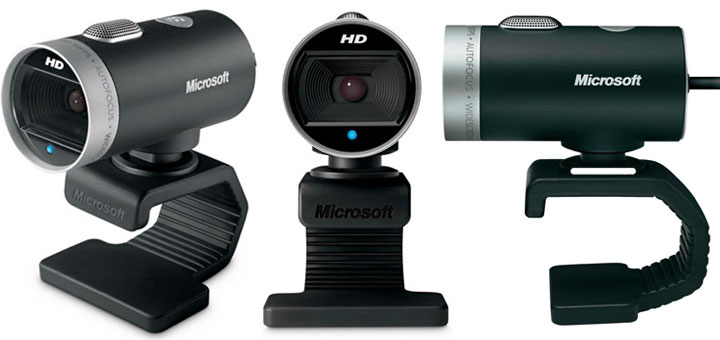
Video from the Optia AF has a maximum size of 640 x 480, which seems especially small when compared to the output of the Microsoft LifeCam VX-7000, another webcam with a 2 megapixel video sensor. However, the Optia AF also avoids the VX-7000’s problem with image ghosting at higher quality levels, and the overall image at 640 x 480 is a higher quality. I did notice that the video from the Optia AF does tend to suffer from some pixilation at all quality levels in the lower light levels of my living room, but I suspect this problem is a function of the unusual environment and not the camera. On the settings side, Cam Center gives you the option of recording to AVI or WMV files, with a few different audio and video compression (AVI) or video quality (WMV) options available for each file type. The program also includes a countdown timer of up to 10 seconds, your choice of audio source, and the option of limiting the length of the video to anywhere from 10 to 3600 seconds.

There’s one problem with video recording that I was not able to resolve: all of the recordings I made have a very noticeable lag between the audio and video playback. The amount difference in the lag changes depending on the file format of the recording – uncompressed AVI fares better than either low or high quality WMV – but the half word difference in AVI files is more than enough to be distracting. To eliminate computer speed as a problem, I made recordings on a desktop and a laptop with two different chipsets and USB 2.0 connections and encountered the same problem both times.
Still pictures from the Optia AF have higher quality options than video, ranging from 320 x 240 to 3200 x 2400. The two highest quality levels seem to be interpolated – it takes the camera several seconds longer to switch between those two modes and the other quality options – but the quality algorithm works consistently across all quality levels, rendering an image that’s usable if not quite up to the quality level from a digital camera. The still mode also includes a countdown time, and adds a burst mode where you can take up to five images in rapid succession.

The Live! Cam Console includes a group of image adjustment controls that give you control over most aspects of the image recorded by the camera. Most of these settings use sliders, which is odd – the settings variables are discrete, not continuous, which suggests the need for buttons instead of sliders – but there are also checkbox adjustments for local power line interference, and a dropdown menu for selecting one of four white balance settings. All of the well-labeled settings changes update the image in real time, which makes figuring out adjustments a much quicker process, and there’s a handy restore defaults button in case you really mess up something. All of that said, I found that letting the camera determine all of the settings automatically led to the best results, so you can plug and record with confidence.
Face Tracking and Auto Focus
The Optia AF includes face tracking and auto focus features that are supposed to keep the camera focused on your face during recordings, even if you’re moving around on the screen. Perhaps because of the bright light facing the camera screen from behind my head, I found that the auto focus was frequently confused about the proper level of focus and could end up switching to a very blurry image without warning. However, as seems to be the case with everything involving this camera, there’s a fix: Cam Console includes different levels of sensitivity for auto focus, and changing the setting from the default eliminated the problem.
The face tracking feature also works with Creative’s set of video overlays; together they add fun animations that follow your face as you move around the screen. Most of the animations aren’t of the best image quality – pixilation is usually the rule – and they tended to work better when I wasn’t wearing glasses, but their level of interaction with the face on screen is very impressive. The Optia AF comes with a set of twenty two animations, but Creative offers more effects – and the software to create your own – for free on their website.
Audio Quality
Although Creative makes a point of calling out the Optia AF’s built-in adaptive array microphones and their supposed superior audio quality on the Optia AF’s product page, I found the audio quality to be serviceable but not spectacular when using the camera to do video recordings. The Live! Audio section of the Cam Console section includes a noise reduction algorithm that Creative enables by default, but although this algorithm helps the microphone produces recordings with a more consistent audio contour by reducing sibilance, it also seems to operate like a high-pass filter, cutting out any frequencies below the middle range of my voice. The result on recordings made on two different computers was a bit like the thin sound of an old telephone speaker: perhaps useful for video conferencing, but certainly nothing you’d want to use in a video podcast. Though eliminating the noise reduction made the recording much more susceptible to the varied dynamics of my voice, the addition of the missing frequencies for a fuller sound made it my preferred option.
Recap
The Creative Live! Cam Optia AF has a smartly-designed durable shell and ball and socket connection between camera and stand, some great secondary recording features like motion capture and time lapse video, and an intuitive software suite that has the options to solve potential problems. However, the software suite also has some bugs, the face tracking and auto focus don’t adjust very well under extreme light conditions, and – most importantly – audio and video don’t sync up in recordings. While the secondary features are very cool, unless you’re setting up a home security system, you’ll probably want to look at other webcam options.
[ico type=”icon-shopping-cart”] Latest Webcam Deals




Pricing is last updated by Amazon on 2026-06-17 at 04:16. When you buy through Amazon affiliate links on our site, we may earn an affiliate commission.