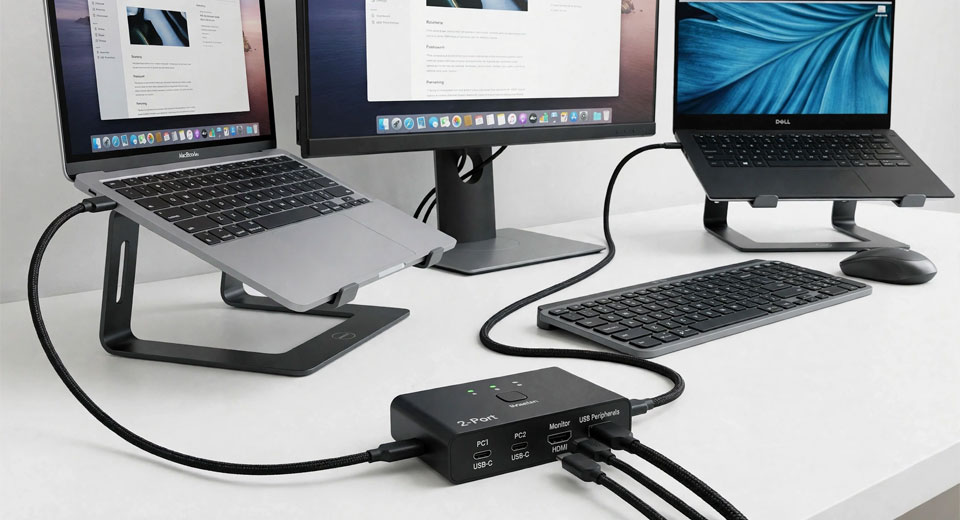
A USB switch moves your keyboard, not your screen. Here’s what to check before you buy a USB-C KVM: video support, monitor limits, charging and EDID.
Sharing a keyboard between two laptops is easy. Sharing the screen too, with one USB-C cable per laptop, is where people get burned. They buy a “USB switch,” plug in both laptops, and the monitor still shows only one of them.
A KVM switch is the fix, but a USB-C KVM comes with fine print: which ports can carry video, how many monitors you get, and whether anything charges. Here’s what the makers publish about four popular boxes, and what it means for your desk.
Using HDMI or DisplayPort instead of USB-C? Our best KVM switch roundup covers those models. This piece sticks to USB-C.
Three boxes with nearly the same name
A USB switch shares peripherals: a keyboard, a mouse, maybe a drive. The monitor stays on whatever input you picked by hand. A KVM switch shares the keyboard, the video and the mouse. A KVM dock does that and adds charging, Ethernet and extra ports.
If your monitor already has two inputs and you only need to share a keyboard and mouse, a plain USB switch may be all you need. Everything below is for the other cases.
Your USB-C port has to carry video
Not every USB-C port can drive a monitor. A USB-C KVM takes its video from the laptop’s port, so that port needs DisplayPort Alt Mode, or USB4 or Thunderbolt. Cable Matters says its 201085 isn’t meant for HDMI-only or DisplayPort-only desktops, Chromebooks or USB-C portable monitors. A data-only USB-C port won’t carry a picture, so look for a DisplayPort or Thunderbolt symbol next to the port or check the laptop’s spec sheet.
Thunderbolt laptops work as hosts, with conditions. Cable Matters calls its switch compatible with Thunderbolt 3, 4 and 5 laptops as long as the video leaves over DisplayPort Alt Mode. IOGEAR names Thunderbolt 3 and 4 hosts for its GCS1602CC, and StarTech lists Thunderbolt 3 only for the SV211HDUC. The fastest USB ports on any of these boxes run at 5Gbps, so don’t plan on Thunderbolt-speed drives behind one.
Two monitors over one USB-C cable
One USB-C connection can feed two monitors only through DisplayPort MST, which splits the stream in two. On Windows and Linux, the Cable Matters 201085 and the AV Access iDock C20 both use it, and both need a laptop port that supports it.
On a Mac, both makers say the same thing: one display extends and the second mirrors. If you want two separate screens on a Mac, neither box will do it. The laptop has its own display limit too, and the lower of the two limits wins.
AV Access adds a practical note. It recommends Windows laptops with discrete graphics, and warns that Intel integrated graphics may flicker, so it suggests keeping both monitors at 1080p60.
Charging is where the boxes differ most
Of these four, only two pass power to a laptop through USB Power Delivery. The iDock C20 supplies up to 60W to each laptop at once, from its own 20V/10A adapter. The IOGEAR GCS1602CC supplies up to 100W on port 1 only, from a charger you provide, and port 2 is limited to 5V 3A.
The Cable Matters 201085 and the StarTech SV211HDUC don’t pass power at all, so each laptop keeps its own charger. If both laptops live on USB-C power, that one line settles the shortlist.
Why your windows jump after a switch
Monitors identify themselves to a computer with EDID data. A box without EDID emulation can make a monitor look unplugged the moment you switch away, and the laptop then rearranges your windows when it comes back.
Cable Matters is upfront about this: the 201085 has no EDID emulation, so displays may disconnect or rearrange after a switch. AV Access lists EDID emulation as on for the iDock C20. IOGEAR and StarTech don’t state it either way.
If you already own a Thunderbolt dock
A non-Thunderbolt KVM can’t sit between a computer and a Thunderbolt 4 or 5 dock. The dock stops seeing a Thunderbolt host and falls back to USB-C DisplayPort Alt Mode, so you lose what you bought the dock for.
Which box fits which desk
Two laptops, two monitors and both need power? That’s the iDock C20, and it’s the only one here that also adds Ethernet. Two monitors on laptops that bring their own chargers? The Cable Matters 201085 does it with a pair of 4K@60Hz outputs and four USB-A ports.
One 4K DisplayPort monitor and one laptop that needs a charge goes to the IOGEAR GCS1602CC. One HDMI monitor with just a keyboard and mouse is the StarTech SV211HDUC’s job. It runs off the host laptop, has two USB 2.0 ports at 480Mbps and no hotkey, and that’s about it. Simple is the point.
A five-point checklist
- Confirm the laptop’s USB-C port carries video, not just data.
- Count your monitors. On a Mac, plan for one extended screen and one mirrored.
- Decide whether the box has to charge, and which laptop gets the 100W if it’s the IOGEAR.
- Check EDID support if you care where your windows land.
- Compare warranties: one year on the AV Access and Cable Matters boxes, two on the StarTech, three on the IOGEAR.
That’s the fine print. Check the port, count the monitors and decide who needs charging, and the right box usually picks itself.
Yamato Nakamura writes about KVM switches and multi-computer setups at ByrdPilot.