If you’re trying to figure out how to reduce input lag in Valorant, think of it as a chain: mouse or keyboard input goes through USB, Windows, the game, your CPU and GPU, and finally your monitor. A delay in any link makes your aim feel “floaty” or late.
Fortunately, there’s a way to reduce some serious latency without upgrading your entire computer system. The first thing that should be done is to look into the easy fixes before moving on to hardware and USB-related issues. While performance optimization can improve responsiveness, players focused on climbing the competitive ladder sometimes also explore options such as Valorant boosting to reach their ranked goals more efficiently.
What is Input Lag in Valorant?
Input lag is the time between you doing something (clicking, flicking, pressing a key) and seeing the result on screen in Valorant.
It’s easy to confuse it with other problems:
- Input lag: your crosshair reacts late even in the Range.
- Low FPS or bad frame pacing: the game feels choppy and inconsistent.
- Network latency: you shoot “on time” but hits register late, or you die behind cover.
A simple test: go into the Practice Range, strafe and do quick taps. If it still feels delayed offline, you’re dealing with local input lag, not your internet.
Why Input Delay Happens in Valorant
The majority of input lag issues come from one of these categories:
- Display lag: insufficient refresh rate, improper Windows refresh rate setting, or additional processing done by the monitor.
- GPU rendering queue and synchronization: V-Sync, buffering, or driver settings that favor smoothness over responsiveness.
- CPU/GPU bottlenecking: when your computer can’t produce enough frames in time, input lags “accumulate.”
- USB/peripheral lag: wireless controllers, slow polling rate, problematic ports, or hubs.
- Windows-related and background process latency: overlays, recording applications, power-saving settings, or scheduling functions.
Important mental transition here: you are not looking for that one magical switch that will fix everything. You need to eliminate small amounts of lag throughout the whole chain.
How to Fix Valorant Input Lag on PC
Work top to bottom. After each change, test in the Range for 2-3 minutes so you actually know what helped.
1) Use the right in-game display and latency settings
List the buffers that work most of the time for adding bufferbusting.
- Video -> General -> Display Mode: choose Fullscreen.
- V-Sync should be Off.
- If NVIDIA Reflex is available in Valorant, choose On setting. Choose On + Boost only if you’re GPU bound and your clocks drop.
Your game looks great, but it has some spikes? Then stability comes first. Your gameplay will feel less latency compared to high but inconsistent frames per second.
2) Lower graphics options that cost frames without helping fights
Highly aggressive settings are not required to duel well. The objective is to ensure that you have more consistent and higher FPS for faster inputs to register.
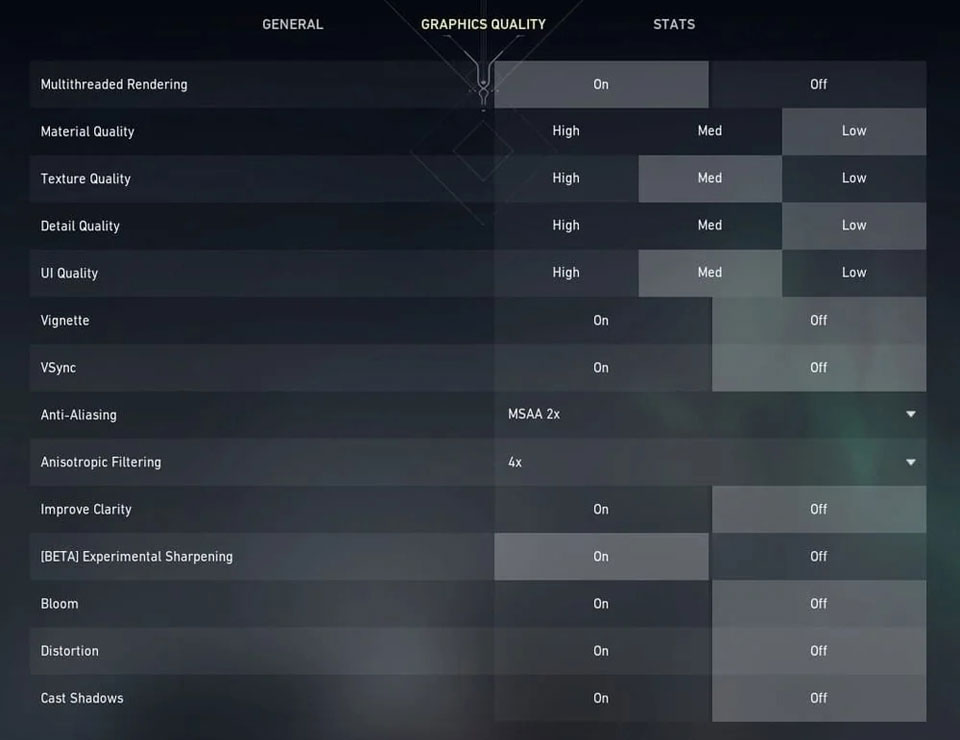
Responsiveness setting recommendations include:
- Graphics/Material Detail/Quality/UI Quality: low to medium
- Bloom, Distortion, Cast Shadows: disabled
- Antialiasing: light (or none if you require the extra FPS)
Multithreaded rendering should also be turned on if possible. It is helpful for frame consistency on many systems.
3) Cap FPS the smart way (and avoid wild swings)
Uncapped FPS works out well; however, it might result in inconsistent frames according to the performance of your system and your background load.
Try out the following strategy:
- Choose a cap that would represent your maximum FPS value when you are actually playing the game rather than in its menu.
- If your monitor supports high refresh rate, then try to cap it below its maximum.
What you are trying to achieve is a “consistent and steady” number that would fall during each gun fight.
4) Fix your monitor and Windows display output
It’s a classic blunder – using a 144 Hz monitor on a 60 Hz frequency.
- Windows Settings -> System -> Display -> Advanced display
- Set refresh rate to the maximum available
- Disable any additional modes on the OSD of your monitor (usually referred to as “Movie,” “Dynamic” or excessive sharpening. Low latency or gaming modes are good alternatives.)
If you are experiencing screen tearing on a non-V-synced screen, try to set up a frame cap instead.
5) USB and peripheral tips that actually matter
As your title has mentioned USB as well as hardware, then you can make following changes which generally help out in practice:
- Always use wired mouse for minimum and consistent latency.
- Mouse polling rate should be 1000 Hz (mouse utility).
- Plug the mouse directly into a rear motherboard USB port, not the front panel and not a hub.
- If you’re using a high-end wireless mouse, it can still be excellent, but make sure the receiver is close and on a stable port. Avoid placing it behind the PC.
Also disable Windows mouse acceleration:
- Control Panel > Mouse > Pointer Options
- Uncheck Enhance pointer precision
That doesn’t reduce latency by itself as much as it improves consistency, which makes your aim feel more “locked in.”
6) Turn off Windows features that can add latency or conflicts
Guides are split on this issue due to differences in Windows version and hardware. The best way to proceed is to test.
Checks that usually help:
- Disable fullscreen optimizations for the Valorant executable (Compatibility tab).
- Turn off overlays and capturing programs that are not necessary (Discord overlay, GeForce overlay, Xbox capture, websites in browser tabs that contain videos).
- Change Windows Power Mode to Best Performance during gameplay.
On Windows Game Mode: some people find that it helps, while others see worsening of their frame pacing. If you experience any input lag inconsistencies, disable it and test in the Range.
7) Update GPU drivers and keep Windows current
The driver and Windows update will help with odd latencies, particularly after major updates.
- Install the GPU driver from NVIDIA or AMD.
- Check for Windows update, and then restart your computer.
If you’ve been ignoring those updates for months, it’s better to do this first.
8) Prioritize Valorant correctly (without breaking things)
Setting the priority level to High can be effective at times when other background processes try to grab the CPU, but this isn’t going to work all the time.
To do this:
- Launch Task Manager when playing Valorant
- Go to Details tab
- Change the priority of Valorant to High And check for the results; in case of issues, turn it off.
9) Advanced: BIOS and system stability (only if you’re comfortable)
These tips could be useful for consistency if you know what you are doing:
- Enable XMP/DOCP to make your RAM work at the specified speed.
- Maintain stability and temperature of your system. Thermal throttling may seem to you like random delays of input during the match.
The BIOS update could potentially enhance the behavior of your computer, but there is always danger in it, if done incorrectly.
Quick troubleshooting checklist
- Fullscreen mode, turn V-sync off, use Reflex if it is available
- Correct refresh rate in Windows settings
- Rear mouse USB port, 1000Hz polling rate, no mouse acceleration
- Close overlays and background applications
- Update GPU drivers and Windows
- Turn off fullscreen optimizations and compare results
Even if you’ve done all that mentioned above and yet experience lag, even when you are in the Range, then your suspects should be unstable frame times (which means CPU bottleneck), monitor with high processing time, or faulty USB configuration.