You probably are here because someone told you a cooling pad is a fix to your laptop’s thermal throttling problem. Most USB-powered laptop coolers employ one or more axial fans that blow cool air into the intake vents located on the underside of a laptop. In most cases, they work particularly well for laptops often under heavy load and keep the CPU and GPU inside from throttling.
However, if the placement of the heat exhausts is at the bottom of a laptop, the same coolers won’t work as their fans would work against the ones on the laptop. In this case, you are probably better off lifting the laptop with a simple stand that provides more room for heat dissipation. Other than traditional axial-fan coolers, there is an assortment of USB laptop coolers including ones that use a centrifugal turbine and also ones with a crossflow fan. You will be able to check them out below.
Gamer Laptop Cooler Boasts 6 Fans
The MeFee is unmistakably an ambitious notebook cooler for gamers. It is designed for heavy-duty purposes, supporting mammoth laptops with up to a 21” screen. A whopping six fans of two sizes sit underneath the cooler’s metal mesh surface. That’s likely the most number of fans you can ever find in a product like this. The larger three fans spin at 1400 rpm whereas the smaller ones are rated at 2400 rpm. Noise level is measured at 20 dB even with all the fans going full throttle.
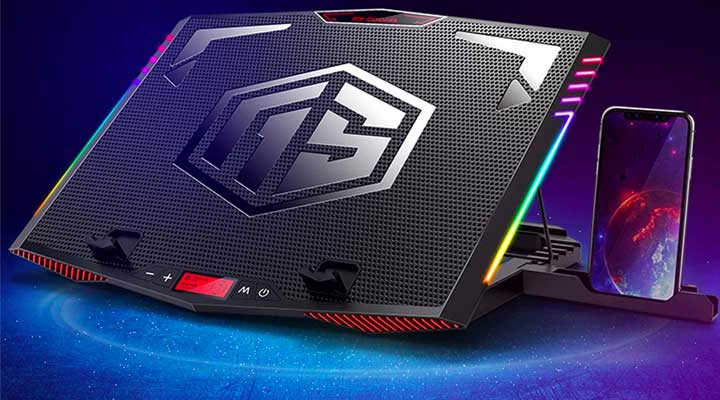
As far as customizations go, you have an option to activate all six fans, three large ones or three small ones. Fan speeds are controllable via the on-board 6-step control. As nothing is complete these days without RGB lighting, the MeFee is equipped with LED light strip on the left and right side of the cooler. There’s also an LCD that gives visual indications of the fan speed as well as the lighting effect is selected. Last not but least is the cooler’s seven-step height adjustment settings to tilt the laptop at various angles as well as a built-in smartphone stand.
- 🌟【Metal surface, 6-Core Deep Cooling】Metal surface: The cooling pad with metal large...
- 🌟【Cooler With RGB Light, 7 Kinds of Light Effect Modes】Exclusive Surrounding RGB Light...
- 🌟【LCD-Visual Interface Design, Set Lights And Fan Speeds Effortlessly】Through the visual...
Centrifugal Cooler with Built-in Thermometer
In contrast to traditional pad designs, the KLIM Tempest Laptop Cooler with its clamps mounts itself firmly to a laptop’s side or rear air vent and then rapidly extracts heat from there. This kind of vent is usually found on desktop-replacement and gaming notebooks. So having something like the KLIM with its centrifugal fan should really help with overall heat dissipation.
According to KLIM, its laptop cooler has the capability to lower a laptop’s temperature by 18 to 50F in just under a minute. What we like about this cooler is that there’s a Japanese-made fan motor in addition to a 13-speed mode to manage airflow and noise. You can expect a noise level of approximately 70db when the fan is operating at top speed. To top it off, a built-in LED screen reports back air temperature from a laptop’s vent in real-time.
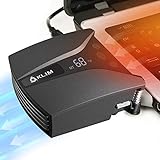
- ✅DESIGNED FOR MAXIMUM COOLING. KLIM Tempest features a high-powered reliable motor that spins...
- ✅TEMPERATURE DETECTION AND OPERATING MODES. If you use the Automatic mode, the KLIM Tempest...
- ✅COMPATIBILITY AND USAGE. The KLIM Tempest works with laptops that have a side or rear air...
Crossflow Fan Laptop Cooler
The Olmaster deviates from conventional laptop coolers by adopting a crossflow fan – rated at 2900 rpm. Such a cooler design has the advantage to take up much less space than one that uses axial fans. So, the Olmaster is somewhat more portable.

Built-in retractable stands also raise your laptop to allow airflow to reach the air intakes. However, it doesn’t seem like a one-size-fits-all solution as the airflow doesn’t effectively help heat dissipation on a laptop with rear exhausts. Rather, it’s more for laptops with heat exhausts on the sides. Those who are willing to give this a try may want to know the Olmaster can also be placed vertically to double as a 3-speed desktop USB fan.

- 【Innovative Laptop Cross-Flow Turbine Cooling Fan】- OImaster laptop cooler equipped with a...
- 【3-Speed Mode Adjustable】- Laptop cooler has 3 speed modes for your choice. Low/medium/high...
- 【Space saving Wide application】- Put the laptop fan cooler vertical standing,it like a...
Dual Centrifugal Fan Laptop Cooler for Desktop Use
KLIM Mistral is a laptop cooler with dual 4500-rpm centrifugal fans. Unlike an axial fan, which uses brute force to push as much air as possible to the air intakes on the bottom of a laptop, the KLIM cooler cools down the surrounding area by bringing in air from the back with its pair of centrifugal fans. For this reason, the KLIM Mistral is not suitable for laptops with bottom air intakes.
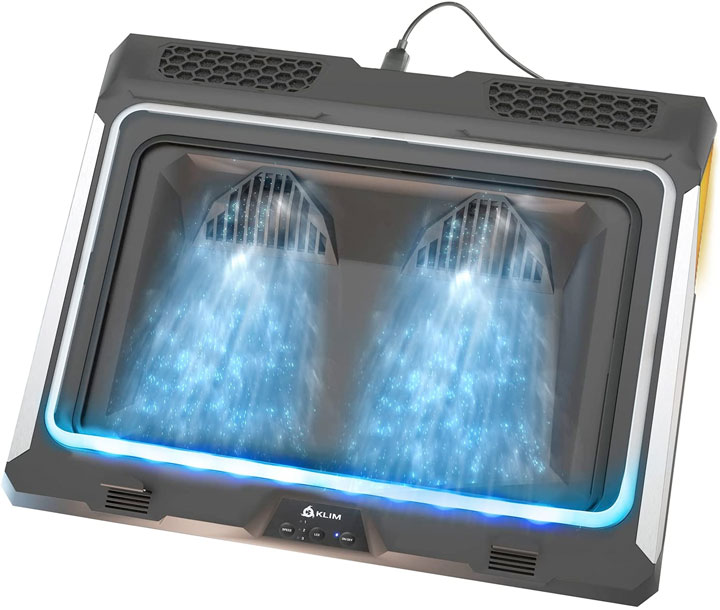
The laptop cooler is complete with RGB lighting, dust filters, and a USB port for daily-chaining another device. There are 3 wind speed as well as 5 lighting modes to choose from. Physically, KLIM Mistral is good for laptops from 15.6” to 17”. Lastly, it also comes with a pair of retractable rear legs to lift several inches up with 8 adjustable inclination levels.

- 📈 PROTECT YOUR LAPTOP & MAXIMIZE ITS PERFORMANCE. Laptops suffering from overheating risk...
- ❄️ THE MOST POWERFUL COOLING PAD TO DATE: Unlike traditional cooling pads, the KLIM Mistral...
- 🌈 CONVENIENT CONTROLS + ELEGANT RGB LIGHTING: Use the three frontal buttons to better...
USB Air Duster
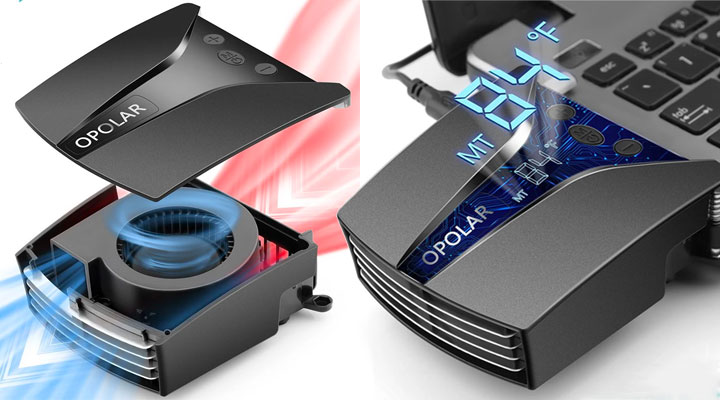
Well, this isn’t a notebook cooler. But to prevent a laptop from thermal throttling, it’s important to keep heat vents and air intakes from clogging. This is where the OPOLAR Air Duster comes in.

The USB rechargeable gadget sports a 33k RPM motor attached to a fan that is able to produce wind speed at up to 28m/s to blow away stubborn dust accumulated in the air vents. The built-in 6000mAh battery lasts about 30 minutes of continuous use. Recharge time is approximately 3 hours with a 10W adapter. Compared to canned air, the OPOLAR is more environmentally friendly, and safer to use in the long run.
And there you have it. Here’s our list of laptop coolers that are worth checking out. Also be sure to check out our list of must-have laptop accessories for road warriors.