Things used to be simple. I could always count on the lack of left-handed Logitech employees to protect my right-handed superiority complex. But now, they have upset things by releasing an ambidextrous Logitech G300 Gaming Mouse. I’d like to simply deny its existence as I do with The Matrix sequels and the Vanilla Frosty, but I can’t. You see, the numerous buttons, tricked out custom lighting and $40 price tag all call out to me from the store shelves. They sing their siren song of impulse purchases and ambidextrous madness. I don’t think I’ll be able to hold out much longer. By the time you read my in-depth review, I may even be a lefty. This is it…
G300 Loves Lefties
It was over six years ago that Logitech first started catering to gamers with the classic MX518 optical mouse, the first in a long line gaming-oriented mice that valued buttons, precision, and right-handedness. Well, apparently now that the MX518 is finally off the shelves, the world is finally ready to accept Logitech’s first ambidextrous mouse. Either that, or Logitech figures we’ll simply overlook this madness because it’s $10 cheaper than the MX518’s designated replacement, the G400.
So what does the Logitech G300 have to offer besides its symmetry and low cost? Well, it works as a claw mouse for starters. If you’re not familiar with the concept of a claw grip versus a palm grip, think of the G9x vs the G500. In a claw grip, the mouse is moved mostly with the finger tips instead of the whole hand, whereas in a palm grip the palm is rested on the heel of the mouse and movement is accomplished through the wrist and arm.
The G300 can be operated in both fashions, but if you prefer a palm grip and are right-handed, you may want to pony up an extra $10 and get a G400 just for the added comfort. Measuring 2-3/4″ at its widest point, the G300 is incredibly narrow and is in fact narrower than the G9 and its “precision grip”. When measured at the Logitech logo, the top heel of the mouse is only 1-3/4″ wide. This causes me undue strain if attempting to play any extended gaming sessions with a palm grip. As a claw grip mouse, however, I have no problems gaming for hours on end in Magicka or Team Fortress 2. For reference, my hand measures 7″ long by 3-1/2″ wide above the thumb.
Flashy Gaming Design
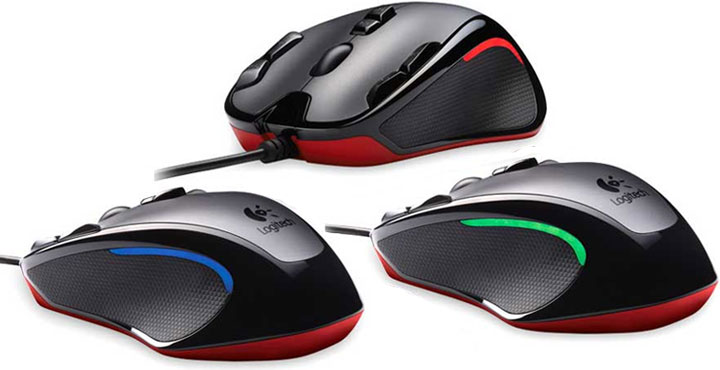
It’s quite visually apparent from a distance that the Logitech G300 is no ordinary office mouse. That’s not to say that the design is some gaudy gaming monstrosity like I’m accustomed to seeing at LAN parties, but the high-contrast two-tone design with glowing accents and a bright red underbody place it firmly in gaming territory. There may even be an ulterior motive to the G300’s styling; the flashy design in its translucent packaging is certain to catch the eye of impulse shoppers at Best Buy, and with a comparatively low price of $40, who can say no?

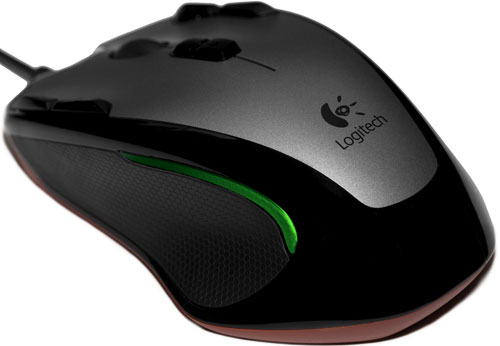
Plastic coloring aside, let’s talk about the other physical traits of this mouse. Dual concave thumb grips adorn the sides of the Logitech G300 in a honeycomb-textured rubber, providing a perfectly secure grip in the heat and sweat of battle. The grips work magnificently, besting the G9’s textured grip by a long shot. Above the thumb grips are stealthed LED accents, also sporting a honeycomb pattern. They don’t glow bright enough to blind, but still manage to stand out in a well-lit room. Optionally, these can lights can be disabled in the drivers on a per-profile or global basis.
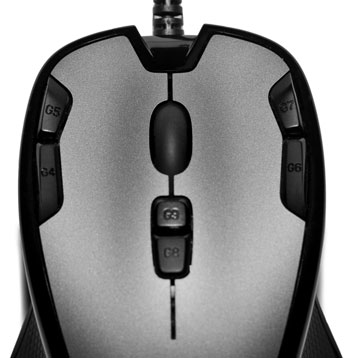
Four programmable “G-buttons” have been positioned at the extreme top edges of the mouse, angled in such a way that they can be activated by leaning against them or pressing down directly. A distinct valley helps keep the buttons separate. Logitech’s use of top-positioned extra buttons do indeed reduce the usable width of the primary and secondary mouse buttons, but that’s a small price to pay for all of the buttons being within reach. The primary buttons are also concave, so despite the narrowing of Mouse1 and Mouse2, my fingers had no difficulties with accidentally clicking the wrong button. Two additional G-buttons lie under the scroll wheel, bringing the total button count to nine.
The scroll wheel is rather ordinary, lacking the side-scroll and free-spin features offered by more expensive mice. Stepping down from my usual G500 workhorse to a standard scroll wheel makes me sorely miss the ability to reprogram side-scrolling into two extra buttons and go free-spinning through websites, but at least the wheel ratchets for weapon selection and requires only a modest amount of force to click.
Config & Software – Onboard
The Logitech G300 offers gamers a choice between using three simple profiles stashed in the mouse’s onboard memory, or creating much more versatile profiles through the downloaded drivers from Logitech.com. Yes, downloaded. Logitech curiously decided not to include a driver disc with this mouse, something that’d quickly be made redundant anyway based on the frequency of Logitech software updates. The installer disc isn’t really needed for the sake of the environment.
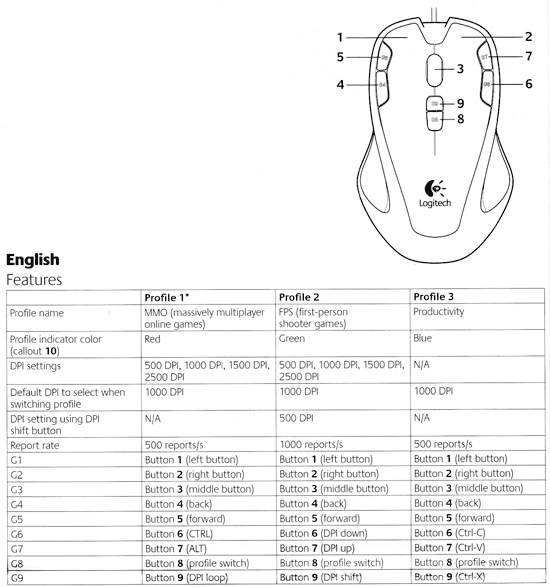
For those forgoing the driver install, Logitech pre-configured three profiles optimized for massively multiplayer games, first person shooters, and productivity apps respectively. I use the term “optimized” loosely because seriously, who is going to move their index finger off the trigger button in order to hold down the default DPI Shift button? (DPI shifting will be covered later in the Optical Performance section.) You can see the default assignments in the chart below.
The three onboard profiles can all be overwritten, of course, if you elect to download the latest Logitech Gaming Software package from Logitech.com. Now at version 8.01, LGS provides a unified interface for configuring most of Logitech’s gaming peripherals including all of their G-Series keyboards, the G35 and G930 surround headset, and the latest batch of G-Series mice. Joysticks and gamepads seem to be oddly excluded from the mix, left to an older version of Logitech Gaming Software v5.10 that can be run in tandem with v8.01.
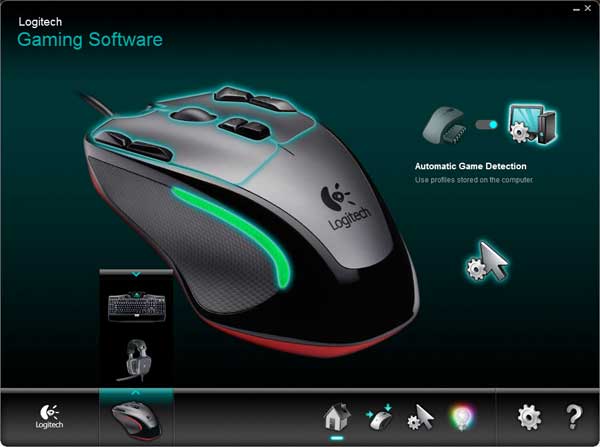
Troubleshooting tip: If you’re getting errors when LGS 8.01 launches related to a faulting QTCore4.dll file, try backing up and removing any residual profiles left over from older Logitech software, located at C:\Users\[USERNAME]\AppData\Local\Logitech.
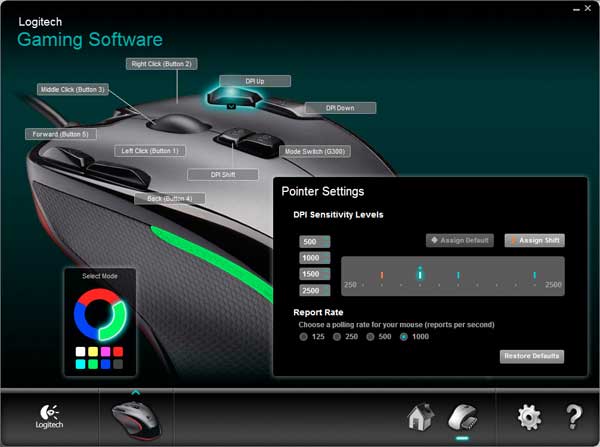
The advantage to using the onboard profiles as opposed to profiles stored on the computer is that they’ll work on any other computer or tournament machine without the need to install drivers. Colors, buttons and DPI sensitivity can all be assigned, though you’re limited to programming simple clicks and keystrokes. DPI sensitivities for the X and Y-axis must also be linked together in this mode.
Config & Software – Driver-based
Electing to use profiles stored on the computer opens the door for a lot more customizations. In this setup, you can can have a profile configured for each application or game, automatically applied when the program is active in the foreground. Each application profile contains a subset of three mouse profiles, again identified by LED color. If you’re familiar with G-series keyboards, the concept is exactly the same as the M-buttons.
Here, mouse sensitivity can be set on a per-profile or global level, complete with up to five DPI stops instead of the usual four. X and Y-axis sensitivities can also be set independently of each other. Unfortunately the Gaming Mouse G300 doesn’t have a DPI indicator to show which sensitivity is currently active, though one could make use of the mode LED colors as a workaround if the only difference between modes is sensitivity.
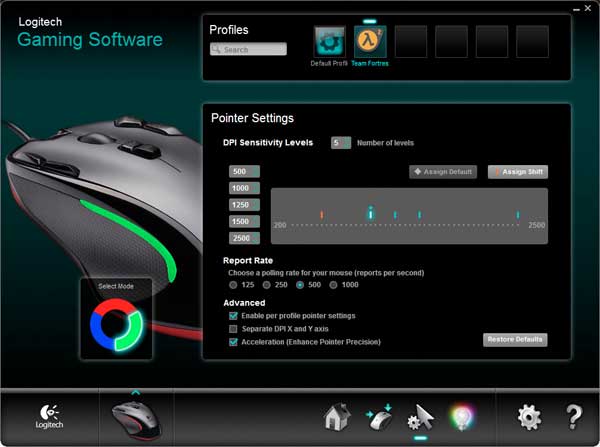
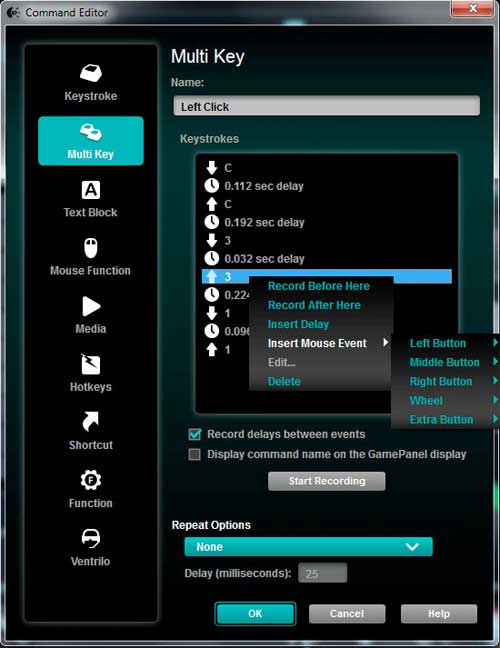
Button programming is also greatly expanded upon, featuring the same excellent macro editor that’s been coupled with all of Logitech’s G-Series keyboards. Macros can be programmed with a seemingly-unlimited number of steps, complete with adjustable timing and a repeat function as a hold or toggle. Unfortunately, the Logitech G300 cannot record macros on the fly while in-game, even if used in conjunction with a G-series keyboard. Other commands including Ventrilo shortcuts, text blocks and media controls can also be bound to each of the buttons including Mouse1 and Mouse2.
One nice thing about LGS v8 is that it stores settings across multiple devices in universal profiles. In other words a keyboard, mouse and headset will all make use of the same Team Fortress 2 profile. As an added bonus, this means that the G300-specific settings can successfully be saved onto Logitech devices that feature “Profiles to Go” including the G19, G510, and G13 gameboard.
Logitech has one other program available for download for the G300 – Logitech Scroll App. This browser add-on helps smooth page rendering as the mouse wheel is turned in Internet Explorer on Windows 7. Scroll App is also said to work in Firefox 6, but makes no noticeable changes for Firefox 7 as of v2.00.43. Not that this really matters, since Firefox provides its own Smooth Scrolling feature. Bottom line: if you don’t use Internet Explorer, there’s no reason to have this installed.
Optical Performance
Let’s talk about the G300’s LED optical sensor for a minute, an oddity when the majority of gaming mice now sport laser or hybrid “4G” sensors. Despite the older tech, the G300’s 2500 dpi sensor tracks rather well, with no noticeable jitters or skips when used mouse pads or the synthetic black finish of my computer desk. Movement at low sensitivity is smooth enough that to handle everything from headshots to lassoing objects in Photoshop. Unlike a 4G sensor though, the G300’s optical sensor is prone to slight movement on pickup much like the vast majority of mice, and the optical sensor is not as forgiving as a laser on some surfaces like hardwood desks.
Perhaps more importantly (or not) is the complete absence of any angle snapping / prediction in the G300. Contrast this to the MX518 and G400 optical mice which leave it permanently enabled, or the G9x, G500 and G700 which present it as a toggle. For the uninitiated, angle snapping is where the mouse assists you in drawing straighter lines, potentially boosting your headshot stats. The debate rages on about whether or not mouse prediction is truly useful if designed unobtrusively, with professional gamers coming out both in favor of and against this feature. It benefits “flat” games like Counter-Strike, while more unpredictable death-from-above games like Team Fortress 2, Call of Duty, and Quake Live are best left to raw chaos. Don’t fret too much over this; I’d be surprised if the majority of gamers even noticed the difference.
A new feature introduced with this generation of G-series mice is the “DPI Shift” function, where the mouse will switch to a pre-defined DPI sensitivity whenever the DPI Shift button is held. This is incredibly useful in games that don’t automatically lower the sensitivity of a scoped-in rifle, or the Battlefield series of games where you may need to turn a tank turret quickly. By default, the DPI Shift button is directly underneath the scroll wheel, making it near impossible to snipe with if you actually intend on firing. Reassigning the button to the right of Mouse2 and relocating the DPI Up/Down buttons to underneath the scroll wheel cleared that issue right up.
Weight and Movement
Movement of the mouse itself is incredibly smooth thanks to the three oversized teflon feet, with no major drag encountered on my desk or Artisan mouse pad. The mouse is a mere 85 grams without the cable, so expect it to glide a fair distance before stopping on a decent surface. Unlike more expensive gaming mice, the cable is traditional plastic instead of braided fabric, so expect to clean it every now and then unless you invest in a Mouse Bungee.
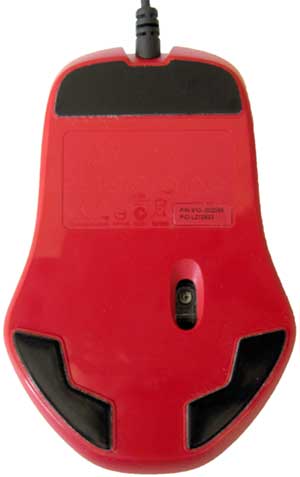
The G300 lacks any form of weight management system, so gamers who prefer heavy mice will feel at odds with this featherweight mouse. That said, this is an incredibly well balanced mouse across both the horizontal and vertical axes, so there shouldn’t be any real need to make adjustments as I did with Logitech’s bean-shaped mice.
Recap
There’s a lot to like about the Logitech G300 Gaming Mouse; it features several highly-programmable buttons, boasts smooth tracking at high and low sensitivities, works with a claw grip, and presents the best custom lighting we’ve seen in any Logitech mouse to date. The few G-series features missing in the G300 such as customizable weights and free-spin scrolling seem acceptable trade-offs for the reduced price, but Logitech should have included a tilting scroll wheel for the extra buttons. Indeed, the only major flaw of the G300 is it’s smallish profile, a tad too narrow for a comfortable palm grip.