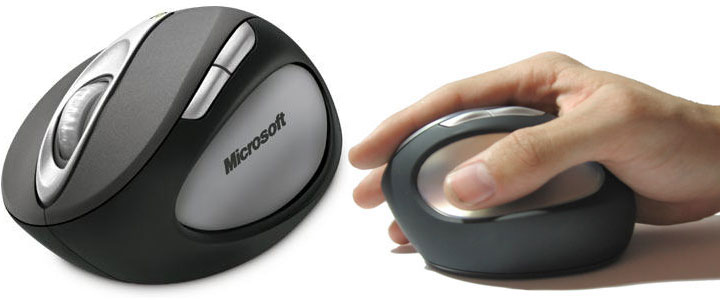
It’s about time that Microsoft released a mouse to accompany their keyboards in their Natural line of ergonomic hardware. Sporting a high-precision laser tracking engine, the latest IntelliPoint 6.0 drivers for Windows, and the incredibly high and angled positioning designed to reduce pressure on the carpal tunnel, is Microsoft’s new Natural Wireless Laser Mouse 6000 the next greatest thing to happen to the wrists of people stuck looking at a screen all day? Read on to find out.
Mouse Design
Microsoft’s first “Natural” entry into mice differs greatly from traditional mice, and even from other right-handed mice including Microsoft’s own IntelliMouse Explorer and Logitech’s MX line of high-end mice such as the MX Revolution. Whereas those mice were asymmetrical with a slight arch, thumb groove, and buttons, the Natural Wireless Laser Mouse 6000 takes this several steps forward by shortening the base and raising the height of the mouse enough to keep your wrist off the table entirely. Additionally, a near 45° angle keeps the angle of your wrist in a more natural position.
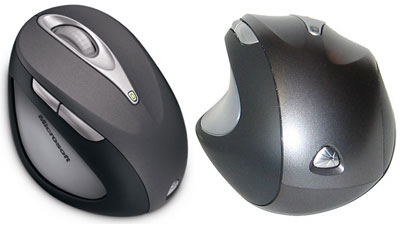
To illustrate this, try the following. Stand up, and let your right arm go limp. Now raise it straight in front of you, leaving your fingers relaxed and not tilting your wrist. This is more or less the position your hand will assume when grasping the Natural Wireless Laser Mouse 6000 – a loose grasp without tension, and utterly comfortable to use assuming your seating posture is correct. Microsoft solidifies this by including a leaflet and sticker that initially covers the USB plug, instructing you to rest your hand vertically to the right of the mouse and let your hand fall into place, ensuring that your wrist remains lifted from the mouse pad.

Users will find that such a comfortable position is only attainable when having a good sitting posture, and that means no slouching or having the mouse at an inconvenient height. When sitting back for watching DVDs on my computer, I found that my wrist found its way back onto the desk more easily than if I were sitting upright, and as such, the mouse was actually more painful to use than a regular mouse due to the increased height and associated strain on the carpal tunnel. Users with adjustable chairs may find it beneficial to adjust the height of the armrest to help their elbows keep a 90-100° angle so that the wrist is properly lifted.
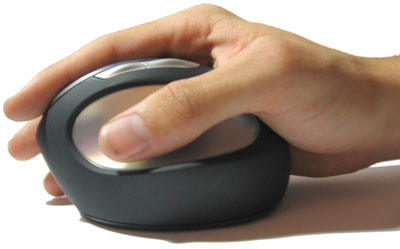
So how well does this ergonomic design work? Well, like anything radically different, it takes some getting used to. I found it took about 20 or so minutes of continual usage before I was accustomed to the design. You see, with the angled wrist, it’s actually easier to move the mouse from place to place by using your arm and not your wrist and fingers, as I have typically done with ordinary mice. Combine this with the lack of pressure on the wrist when used properly, and I must say that this is by far the most comfortable mouse I’ve ever used. When used with a low-friction mouse pad, it literally feels as if your hand is free-flowing across the desk. When used while slouching, well, just don’t do it unless you really hate your hand. It burns.
I Click, Therefore I Am
Grasping the mouse, you’ll find that the base is high enough that the ring and pinky finger may lie against the side of the mouse while the index and middle finger can sit on the recessed grooves, the thumb lying in the anti-slip rubber groove. The two thumb buttons are situated a little over a centimeter above the thumb, but still well within comfortable reach, for navigating back and forward between sites or activating extra features within the IntelliPoint drivers.
All of the buttons are finely tuned for a perfect balance of ease of clicking without the problem of accidental clicking that befell another Microsoft-badged mouse I previously reviewed. The result is a perfect tactile click with a good sound to match.
While I’m not a heavy IntelliPoint user myself, typically relying on default Windows functions for Microsoft mice I did find a few things in the latest 6.0 release of IntelliPoint that perked my interest. By default, the middle click has been re-mapped to a new feature known as Instant Viewer, the Microsoft equivalent of “Show all windows” in Apple’s Exposé. As soon as Instant Viewer has been activated, a grid of thumbnails for each window (minimized or open) on all monitors is presented before the user, so that a single click may bring the selected window to the front. This feature is by no means pretty, and without any animations, it takes about a second to generate the thumbnails, but hey, it’s free and supported by Microsoft. (Although users of other mice can get the same functionality from numerous other programs for windows here, here, and here.)

The second interesting feature is “Magnify”, which brings up a rectangle that can be adjusted both in size and the depth of zoom. This is a great feature for those with poor eyesight, as it not only magnifies text, but also graphics, icons, and anything else under the cursor, and does a much better job than the Windows XP magnifier (Windows Key + U) by allowing much more customization and actually keeping up in real-time.

Other interesting features that make a return from the IntelliPoint 5.5 include a precision booster that can slow down the mouse cursor by an adjustable percentage between 10% and 90% to aid fine-pixel work, great for Photoshop users selecting pixels with the lasso or gamers looking to snipe a quick headshot. This can be activated by a toggle or push-and-hold. The Gaming Toggle (on-the-fly 16-key macro recorder) is also present, as is the ability to setup different button functions for different applications.
User Experience
The laser engine does the Natural Wireless Laser Mouse 6000’s steep price tag justice, as tracking across various surfaces was on par with other Laser Mice I’ve tasted in the past. While Microsoft hasn’t disclosed any DPI ratings, it feels as if the laser wireless mouse is somewhere between 800 and 1000 DPI, plenty for zipping across the desktop without having to lift the mouse, an otherwise burdensome task due to the weight and center of gravity towards the rear of the mouse.
Drag is considerably less than most Microsoft mice thanks to the three large feet that I’m assuming are Teflon, hindered only by the actual weight of the mouse. A moderate nudge will move the mouse about 7 inches before friction stops it on the smooth side of a gamer’s mouse pad.
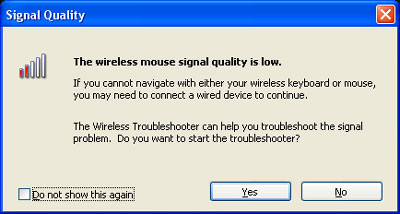
Wireless performance is a bit of give and take. The Natural Wireless Laser Mouse 6000 uses Microsoft’s standard 27MHz radio, and as such is extremely limited in range. Additionally, it is easily susceptible to interference from other electronic devices including your own metal-cased desktop sitting on the floor. In other words, forget about using the mouse as a wireless remote to control your MP3s as I have done with 2.4GHz mice. However, because the mouse does not operate on the 2.4GHz range, it is immune to the interference that plagues some mice in Wi-Fi saturated areas.
Blunders
There are a few issues I have, some minor, some major with the Natural Wireless Laser Ergonomic Mouse 6000, besides its incredibly long name. First, there is no power button. While I have been using the mouse constantly for over a week now and the batteries still say “Good”, the lack of a power button means the mouse is still using some power even in standby mode and that means I have to buy or recharge batteries more often. I’m not sure how such a simple feature could have slipped the minds of the developers.
Second, there is no way to remap the left and right scrolling to more useful features such as keystrokes or application shortcuts, or even the more interesting features such as the magnifier that I mentioned above. If implemented, this would be very useful for those that aren’t interested in side-scrolling and prefer using the thumb buttons for forward/back.
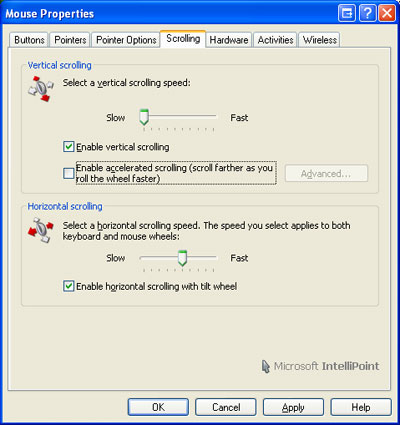
Third, the mouse wheel does not ratchet. While this is fine for the majority of office users, it’s outright terrible for anything outside of document and webpage scrolling. As such, gamers such as myself will despise it, as it will constantly over-scroll during weapon selection. Now typically when I review a product I use it exclusively throughout the duration of my testing. However, when attending a recent LAN party (where games are played all day for 12 hours at least), I found that in games such as Quake where weapon selection outgrows the 1-5 keys I found myself unable to select a weapon in a timely manner, utterly distracted by the fine scrolling back and forward until I finally got the right weapon.
As you might expect, usually by the time I got the right weapon pulled out, it was too late and my enemy had the best of me. This was so bad in fact, that I had to drive back home just to get a mouse I could use for the rest of the night. Were the wheel actually ratcheting, I might have considered using it to replace my primary mouse at home.
Recap
Overall, I think the Natural Wireless Laser Mouse 6000 is a great addition to any office user’s desktop. The comfort provided is extraordinary so long as posture is maintained, and the Instant Viewer and Magnifier provided within IntelliPoint help improve productivity. The laser engine and smooth (but close-range) wireless performance make for a smooth mousing experience. Your wrists will love you for it. But be warned, slouchers and gamers will feel the pain from using this mouse, both ergonomically and through the non-ratcheting scroll wheel.