



A phone can have a fast processor, a bright display and excellent cameras, yet still be a poor fit for…
January 2023 Ian Chiu
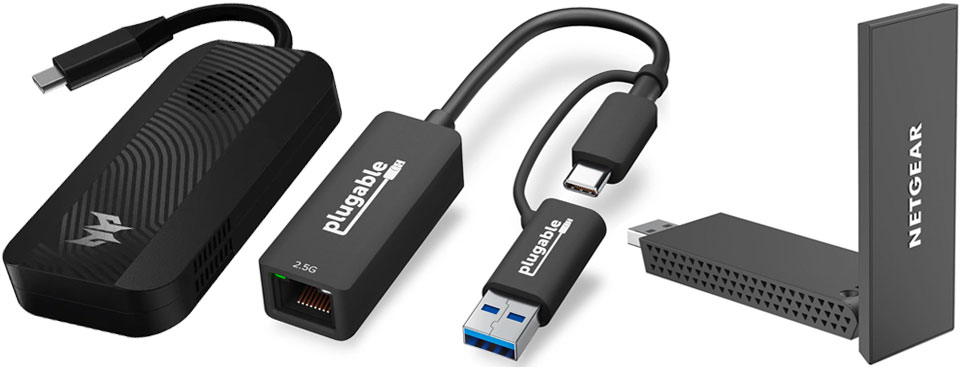
When you need to quick and easy way to upgrade your laptop and desktop to the latest wireless and wired network standards, nothing beats the convenience of a USB adapter. Wi-Fi 6/E and 2.5GbE options are available with some shipping in a small, pocketable dongle. And since virtually every USB port supports at least 5Gbps, bandwidth bottleneck has become a thing of the past even with the network adapters going full throttle. Last but not least, you will find Realtek chipset in almost all of these adapters listed below as the company traditionally has been the dominant force in this market sector.
On the wireless front, households and small offices are beginning to jump onto the Wi-Fi 6 bandwagon. USB dongles like D-link DWA-X1850, MSI AX1800, and NETGEAR Nighthawk AXE3000 make it easy for outdated laptops and desktops to make the upgrade.
D-link DWA-X1850 is one of the first dual-band USB Wi-Fi 6 (802.11ax) adapters. Being a 2×2 device, the D-link can reach a top speed of 1200Mbps theoretically on 5Ghz waveband and 574Mbps on 2.4Ghz. This suggests the adapter is capped at 80Mhz channel width.
Whereas the previous Wi-Fi 6 adapter features internal antenna, TP-Link Archer TX20U Plus features external dual-band 5dbi high gain antennas. Being able to adjust the antenna depending on the environment makes a world of difference. It’s crucial if you choose to go with 5Ghz when you need all the signal strength to maintain a strong connection with your Wi-Fi 6 router through walls and floors. Upon connection, the adapter would try to mount the onboard driver as a USB drive volume which can result in it being flagged as a high level threat by some malware scanners. In case this happens, it’s best to grab the latest drivers from TP-Link.
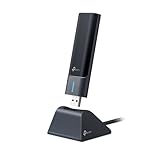
If you don’t like a pair of antennas sticking out, then four-inch long MSI AX1800 may be a better option. It still provides a flip-out antenna for improved wireless reception while keeping its dongle form factor. Also being a dual-stream device, expect the top speed to be around 1200Mbps on 5Ghz band.

Opening up 6Ghz band for unlicensed use by FCC in the States and its equivalents worldwide has also put Wi-Fi 6E on the fast track. If you have a compatible router, the Nighthawk AXE3000 is the right dongle on the receiving end.
NETGEAR Wi-Fi 6E USB adapter – the first of its kind- is a tri-band device that takes advantage of the relatively unused 6Ghz wireless spectrum. Maximum performance to be around 1200Mbps even on 6Ghz since the NETGEAR – like the D-link – also lacks 160Mhz data channel support. Having said that, those who already run a heavily congested Wi-Fi network should find AXE3000 works better as it has a lot more channels to avoid overlapping with other clients on the same network.

Lastly, there’s a Wifi 6 USB adapter from Asus not much larger than a Logitech Bolt receiver. Asus USB-AX56 Nano succeeds AX55 as the smallest 802.11ax dongle, with dimensions measuring 25 by 16 by 9mm. For reasons unknown, Asus only supports USB 2.0, which definitely hurts the wireless range and speed. The other four models discussed above all support USB 3.2 Gen 1 (5Gbps) in comparison.
One thing you won’t find on modern ultra-thin laptops is an Ethernet jack. As few manufacturers would include a discrete network adapter with their notebooks, USB-C Ethernet dongles like Plugable USBC-E2500 and Belkin USB-C to Ethernet with Charge Adapter the will remain indispensable for some time to come.
Plugable USBC-E2500 is a compact adapter with an RJ45 connector on one end and a short USB-C cable tethered to the opposite end. Powered by Realtek RTL8156B, the USBC-E2500 goes beyond Gigabit performance to deliver 2.5Gbps with ubiquitous Cat 5E cabling. The adapter comes with a built-in driver that works with major OSes including iPadOS and ChromeOS. For additional performance boost and compatibility, Plugable provides updated drivers on its website.

Belkin USB-C to Ethernet with Charge Adapter is another option. This one delivers Ethernet speed up to a gigabit and includes a USB-C jack as power pass-through that delivers up to 60W for the host. Normally, most users wouldn’t need the power pass-through except on an Apple iPad or an Android tablet in which case there’s only a single USB-C onboard. For handheld PC gamers, the adapter will also charge Steam Deck at full speed while you enjoy lag-free competitive gaming over wired Ethernet.

A phone can have a fast processor, a bright display and excellent cameras, yet still be a poor fit for…

Building genuine closeness with customers has become a defining challenge for businesses that, because they rarely meet their audience face…

Cheap Instagram followers usually cost more in the end, because premium picks like Buzzoid, Twicsy, Rushmax and iDigic deliver real,…

“Data is the new oil,” runs the tired but accurate cliché, except unlike oil, contact data degrades the moment it…

The journey from the humble USB device to a comprehensive software platform is the key story of the modern world.…

Do you remember the moment when remote work suddenly exploded during the pandemic? Back then, people thought that it was…
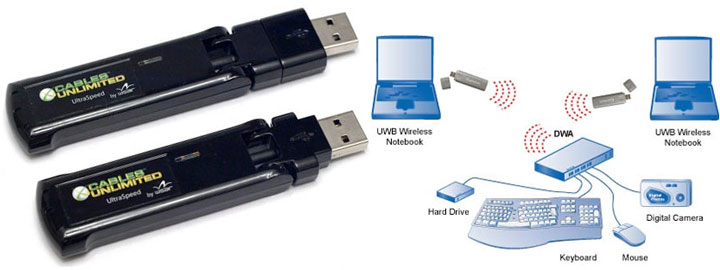
One of the early players to the party, Cables Unlimited’s Wireless USB Adapter Set promises the elusive cable-less connection of…