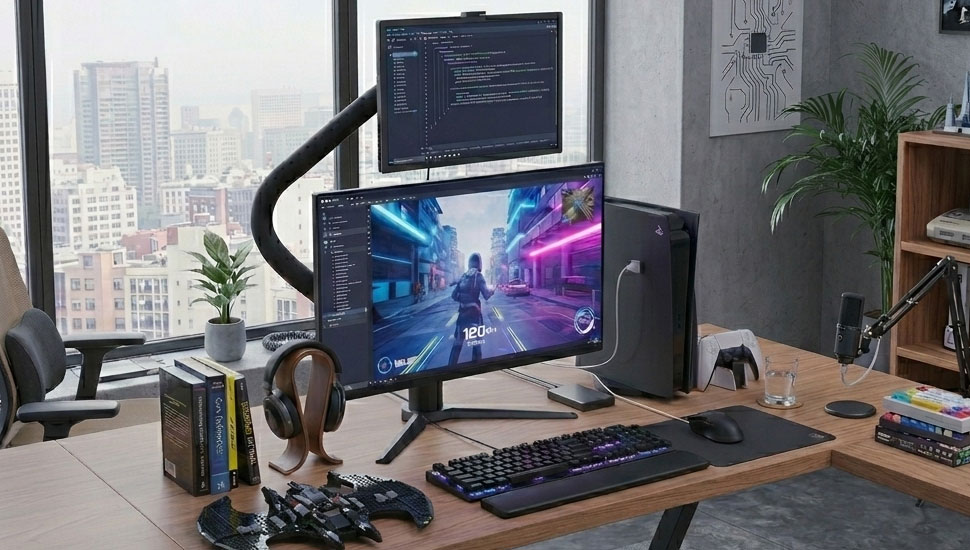
Ever feel like monitor manufacturers have forgotten about people with small desks? Walk into any electronics store in 2026, and you’re walled in by massive 32-inch ultrawides and 42-inch curved behemoths. If you live in a dorm room, work in a cramped city apartment, or travel frequently, these large-screen monitors are not only impractical but simply impossible to use.
For a long time, buying “small” monitors (under 24 inches) meant settling for cheap, low-quality products: distorted colors, blurry text, and ghosting issues that made gaming a nightmare.
Thankfully, that’s finally changing.We’re seeing a surge in what I call “Hybrid Monitors.” These are compact screens that don’t compromise. Whether you need a permanent compact fixture (anywhere from 21 to 24 inches) or a slim 16-inch travel companion, the latest models are finally hitting that sweet spot: high refresh rates (120Hz+) for gaming, paired with the color accuracy you need for actual work.
The following is a practical guide recommending the best small monitors currently available on the market.
Quick Comparison: Top 5 Small Monitors at a Glance
If you only want to know the main points and don’t want to delve into the details, here’s a brief overview.
| Category | Model | Best For | The Killer Feature |
|---|---|---|---|
| Best Portable (16”) | UPERFECT UGame C2 | Work & Play | 2K Resolution (16:10) & 120Hz |
| Best Small Desktop (23.8”) | Dell UltraSharp H2424H | The Home Office | 120Hz refresh & single-cable daisy chaining |
| Best Small Desktop (24.5”) | Alienware AW2524HF | Competitive Shooters | 500Hz speed (it’s ridiculously fast) |
| Best Ultra-Compact (21.5″) | KOORUI 22-Inch Monitor | Tight Spaces & Budget | Space-saving footprint & 100Hz for ~$100 |
| Best for Mac Users (23.7″) | LG UltraFine 4K | Creatives | 24″ class 4K with perfect macOS scaling |
Buying Guide: How to Read the Specs
Before you throw money at a screen, you need to know what you’re actually looking at. “Small” usually means two very different things: a Compact Desktop (typically 21 to 24-inch) or a Portable (16-inch).
1. The Resolution Trap
Many people make mistakes here.
- On a 21.5 to 24-inch screen: 1080p resolution is sufficient. This is the standard configuration. You might see a pixel or two if you look closely, but the overall effect is good.
- On a 16-inch screen: What you really need is 2K (2560×1600) resolution. Because you’re usually closer to a portable monitor (it’s usually right next to the keyboard), 1080p resolution will look somewhat blurry. At this size, a 2K screen provides a very sharp display, almost “Retina” level – perfect for viewing spreadsheets or code for extended periods without getting a headache.
2. Why You Need 120Hz (Even for Excel)
There’s a common misconception that high refresh rates are only useful for gamers. This idea is outdated.
If you stare at text all day, a 120Hz refresh rate will definitely improve your experience. It makes scrolling through long documents, web pages, and Slack chat logs incredibly smooth. Once you’ve experienced 120Hz, going back to a laggy 60Hz screen will feel very uncomfortable.
3. The Secret Weapon: 16:10 Aspect Ratio
Most standard screens have a 16:9 aspect ratio (widescreen). But for increased productivity, you need a 16:10 aspect ratio. While this extra vertical space doesn’t seem like much, it allows you to see about 11% more of your document or code before scrolling. For small screens, this is a huge productivity boost.
Part 1: Best Small Desktop Monitors (Permanent Setup)
If you have a dedicated desk but limited space, these products will be your best choice.
Best for Office (23.8″): Dell UltraSharp U2424H
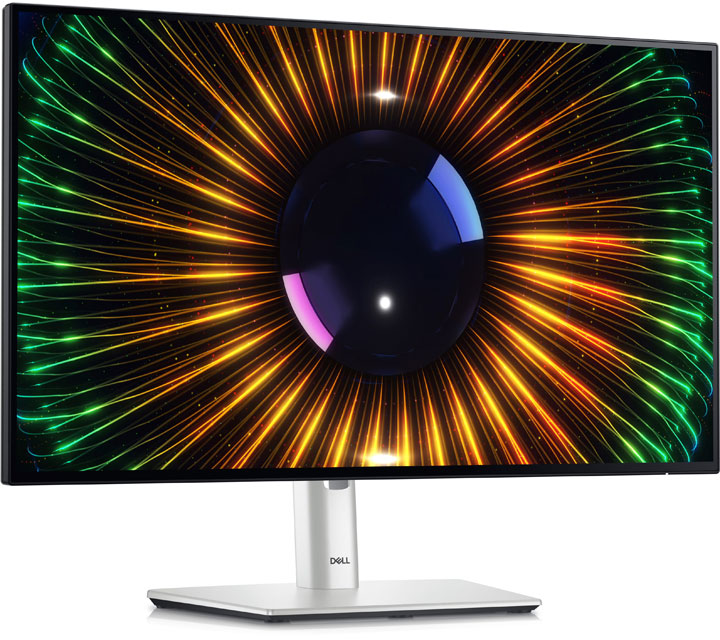
If your home office is essentially a closet, but you still want a traditional desktop experience, a 23.8-inch display is the sweet spot. Dell finally updated their reliable UltraSharp line to 120Hz, and the difference is immediate.
- The Real Sell: It cleans up your desk. It supports “Daisy Chaining,” which means you can connect this monitor to your laptop and then connect a second monitor directly to this first one. This reduces cable clutter and makes a cramped desktop incredibly neat.
Best for Gaming (24.5″): Alienware AW2524HF
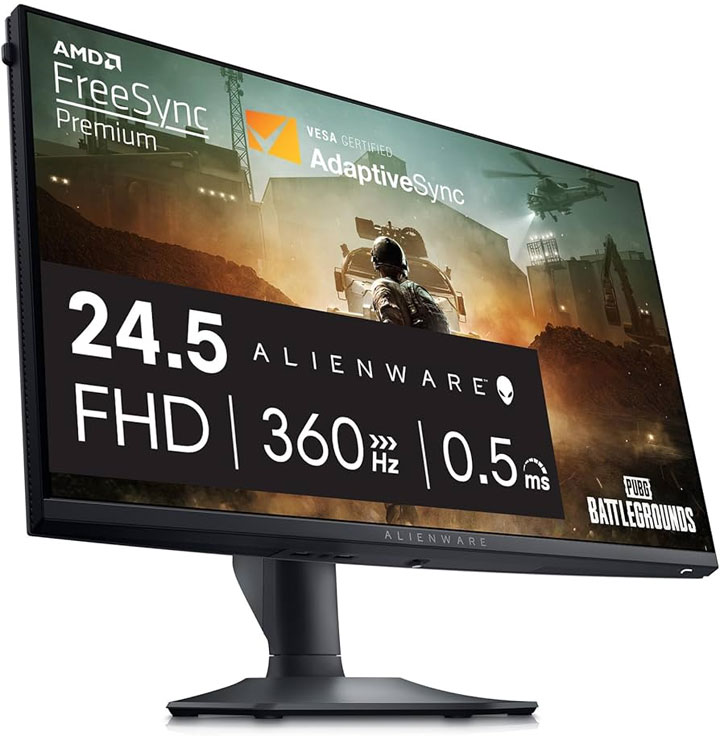
Ask any pro Valorant or CS:2 player, and they’ll tell you: this specific size is the esports standard. At 24.5 inches, it’s the upper limit of a “small” desktop monitor. It keeps the radar, health, and ammo counts perfectly in your peripheral vision so you don’t have to turn your head to track the action.
- The Real Sell: Speed. 500Hz is overkill for most of us, but if you’re trying to climb the ranked ladder, it offers motion clarity that feels almost like cheating.
Best Ultra-Compact (21.5″): KOORUI 22-Inch Monitor
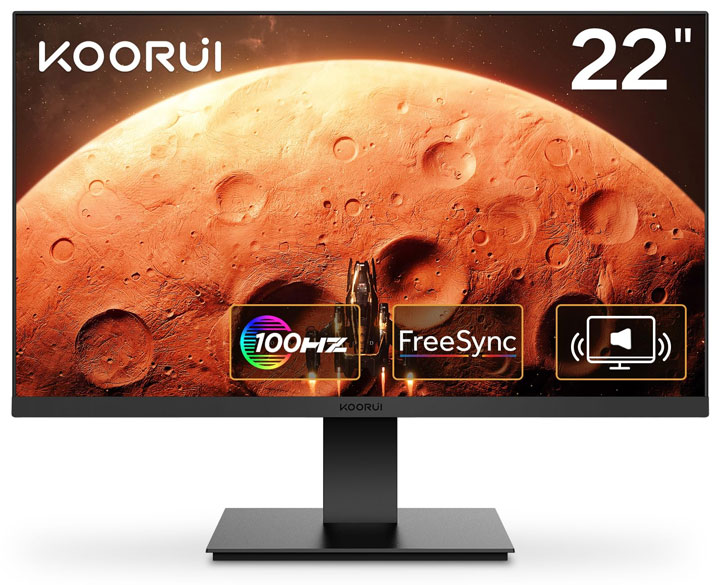
Sometimes a 24-inch monitor physically overhangs the edges of a dorm shelf or a cramped city apartment desk. Stepping down to a 21.5-inch screen is the perfect space-saving compromise. It offers a “real” permanent monitor feel while shaving off crucial horizontal inches.
- The Real Sell: You aren’t paying for a massive footprint or fancy stands. You’re paying for a surprisingly decent panel that often hits 100Hz for around $100. It’s the best “bang for your buck” option if your budget—and your desk real estate—are strictly limited.
Part 2: Best Portable Monitors (Travel & Flex Setup)
Feature Spotlight: UPERFECT UGame C2 (The Hybrid Pick)
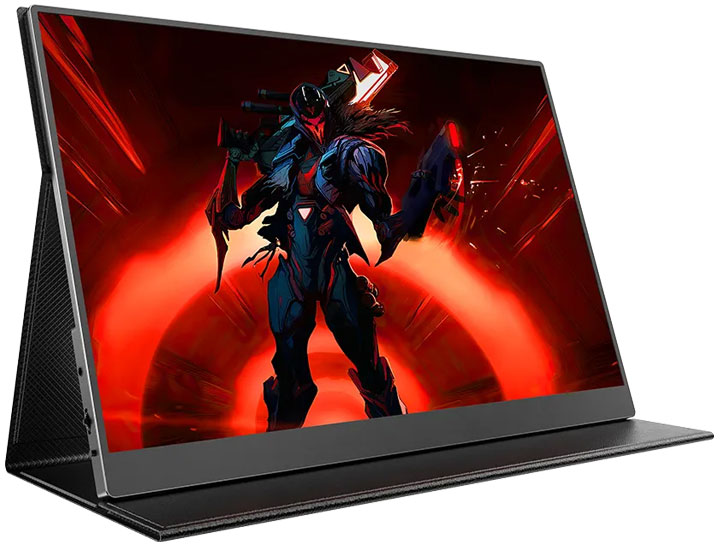
This is the monitor that actually prompted this guide. The UPERFECT UGame C2 is arguably the best example of a “Hybrid” monitor—it doesn’t force you to choose between gaming specs and work clarity.
Why It Hits the Sweet Spot
Most portables cut corners. They give you a fast screen with bad colors, or a pretty 4K screen that’s stuck at 60Hz. The C2 sits right in the middle:
- It’s 16:10: You get that extra vertical room for work apps.
- It’s 2K QHD: Text is displayed very clearly (even clearer than on a 27-inch small 4K monitor, due to the smaller screen size).<.li>
- It’s Bright: With a brightness of 350 nits, it performs well even in brightly lit rooms, whereas lower-priced monitors often appear dim and unclear in such environments.
Three Ways to Actually Use It
- The “One-Cable” Setup
If you’re using a modern laptop (such as a MacBook, XPS, etc.), simply plug in a USB-C cable. It’s easy. The cable carries the video signal and power. You can set up a dual-monitor workstation in a library in about 10 seconds.
- The Console Travel Kit
This is a favorite for console gamers. You can connect your Xbox Series S or PS5 to the Mini-HDMI port (and power the screen via the USB-C interface). Because it supports a 120Hz refresh rate, you can use your console’s “performance mode” while on the go.
- The “Floating” Discord Screen
Here is the cool part: unlike most portable screens that just have a kickstand, the C2 has VESA mount holes on the back.
- Pro Tip: Get a cheap microphone arm or a small monitor arm and mount this screen vertically next to your main monitor. It takes up zero desk space and becomes the perfect dedicated screen for Discord, Spotify, or OBS controls.
If you’re using a modern laptop (such as a MacBook, XPS, etc.), simply plug in a USB-C cable. It’s easy. The cable carries the video signal and power. You can set up a dual-monitor workstation in a library in about 10 seconds.
This is a favorite for console gamers. You can connect your Xbox Series S or PS5 to the Mini-HDMI port (and power the screen via the USB-C interface). Because it supports a 120Hz refresh rate, you can use your console’s “performance mode” while on the go.
Here is the cool part: unlike most portable screens that just have a kickstand, the C2 has VESA mount holes on the back.
- Pro Tip: Get a cheap microphone arm or a small monitor arm and mount this screen vertically next to your main monitor. It takes up zero desk space and becomes the perfect dedicated screen for Discord, Spotify, or OBS controls.
Perhaps you’re a digital nomad, or perhaps you simply want a second screen that can be tucked away in a drawer when guests come to visit.
Best Budget Portable: Arzopa Z1FC
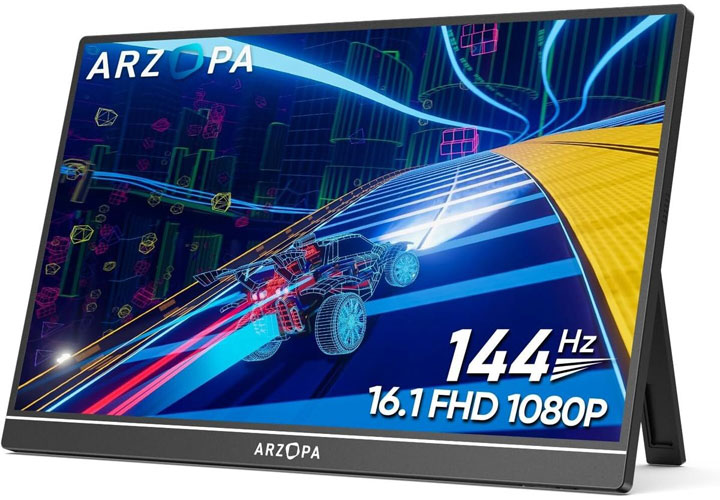
You’ll see this one all over Amazon sales. It’s fine for the price.
- The Verdict: It’s lightweight and has a great refresh rate of up to 144Hz. However, it’s worth noting that the screen brightness isn’t very high (approximately 300 nits). If you want to use it in a brightly lit café, you might have trouble seeing the screen.
Best for Business: ASUS ZenScreen MB16AC
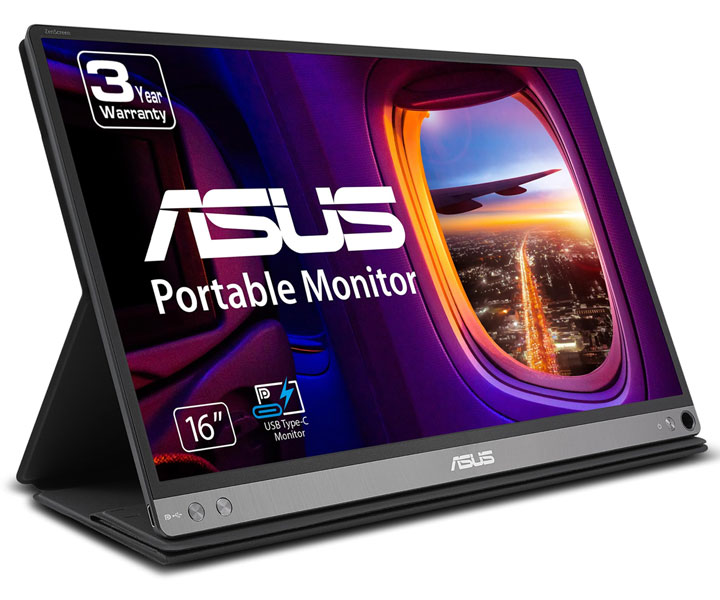
The corporate standard. It’s reliable, well-made, and has a professional appearance. What are the drawbacks? Many models are still stuck at a 60Hz refresh rate, which might feel a bit sluggish if you’re used to the screens of modern iPhones or Galaxy phones.
Which Setup Fits You?
The “Dorm Room Minimalist”
You have a tiny desk that needs to hold a laptop, textbooks, and dinner.
- Go with: UPERFECT UGame C2.
Why: It can function as a 120Hz high refresh rate small gaming monitor or as a high-resolution screen for studying. After using it, simply unplug it and put it away in a drawer.
The “Vertical Coder”
You spend your life in VS Code or reading endless documentation.
- Go with: Dell UltraSharp U2424H (Rotated).
Why: The stand pivots 90 degrees easily. Reading code on a vertical 120Hz screen is a wildly better experience than trying to cram it onto a horizontal laptop screen.
The “Coffee Shop Warrior”
You work from everywhere—hotels, WeWork, cafes.
- Go with: Portable 16″ (UGame C2).
Why: It fits in the laptop sleeve you already carry. It transforms the inconvenience of a single-screen laptop into a highly efficient dual-screen work experience, easily achievable wherever you can find a table.
FAQ: Common Questions
Is a 16-inch screen really too small for gaming?
Honestly? No. Because portable monitors are closer to your face than desktop monitors (typically only 1.5 feet away), they occupy roughly the same amount of your field of vision as a 27-inch monitor placed further back on a desk. Additionally, the high pixel density makes game graphics look exceptionally sharp.
Can I use a portable monitor as my MAIN desktop screen?
You can, but I’d recommend mounting it. If you use the VESA holes to get it up off the desk and at eye level, it works great as a primary screen for focused tasks.
Does running at 120Hz kill my laptop battery?
Yes, it does drain it faster than 60Hz. Your GPU has to work twice as hard to push those frames. But for the smoothness you get in return? Most people believe this trade-off is entirely worthwhile.