

It’s a marvel to think just how far webcams have evolved over the last twenty years. Back in 1991, it…
February 2023 Ian Chiu
The need for a discrete USB webcam for video conferencing is almost rendered unnecessary as nearly every shipping laptop is equipped with one. The fact however is that most built-in cameras are merely serviceable for family video calls. For any professional purposes, you are going to need something better. Whether you’re tasked with hosting virtual conferences or committed to excelling as a pro-streamer, you need to step up your game with these webcams.
Most remote workers looking for a webcam upgrade usually come from a built-in 720p camera plagued by abysmal low lighting performance. Lumina, like other offerings in the mid $150 range, delivers clear images with sharp details through improvements in lens and sensor.
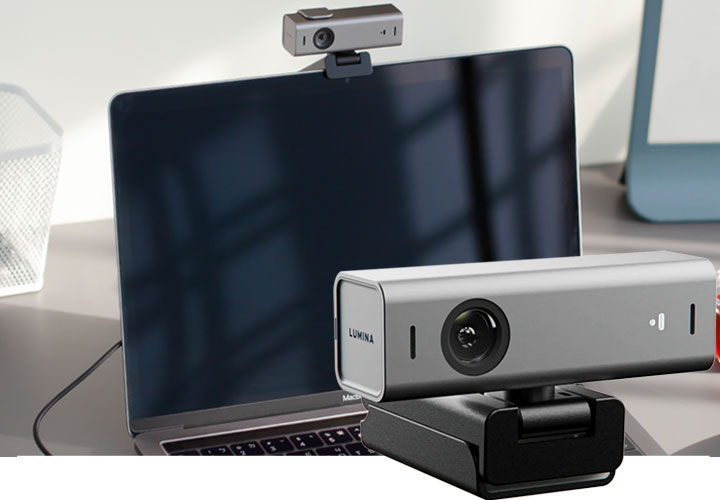
In this case, it’s powered by 8.3MP 24mm 4k Sony sensor with f2.0 five-element glass lens. That compares very favorably to 9mm sensor found inside Dell UltraSharp Webcam and Razer Kiyo Pro. Generally, a larger sensor translates to better dynamic range and low-light performance, resulting in less grainy video.
Lens and sensor aside, good software also makes a world of difference since tweaking settings within conferencing apps can only do so much. In this respect, the webcam ships with polished software that, according to Lumina, optimizes video stream with its AI. Not only can it automatically zoom in to keep you in the frame but also adjust exposure level, white balance, and color saturation on-the-fly. In addition, there’s also an option to blur but it doesn’t remove the background. All these CPU-hogging features, however, sound like the job of some algorithms as there’s no evidence of the software actually improves based on past performance.

Dell has been in the personal PC business since day one, yet it’s only recently the company decided to venture into the now-thriving webcam business. Its first foray into the crowded camera market is the UltraSharp Webcam – encased in a 3.5-inch cylinder-shaped aluminum-alloy exterior. Mac fanboys with a good memory may recall Dell’s design is reminiscent of Apple’s iSight first released in 2003.
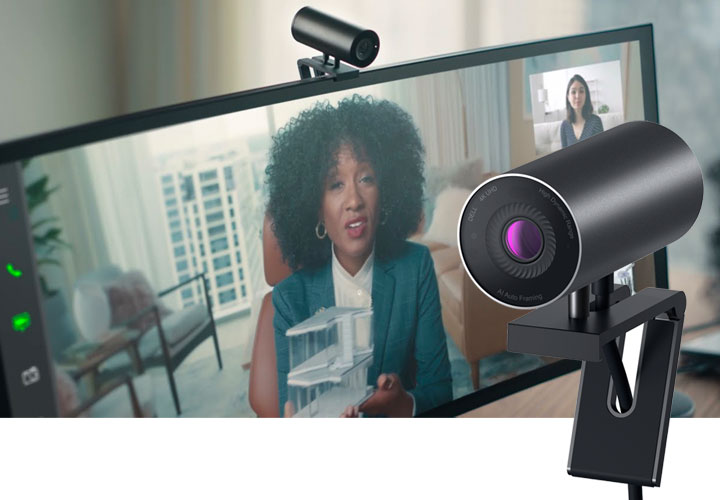
Nearly two decades have passed and we are now looking at a USB-C webcam powered by Sony’s STARVIS 8.3MP image sensor that is capable of up to 4k 30fps streaming with HDR support. With STARVIS, the webcam is able to deliver low noise performance even with minimal illumination. Grainy and washed-out videos are a thing of the past. Combine that with HDR to further enhance the images’ dynamic range, and you see the favorite version of yourself with more clarity in facial details and improved color accuracy whether you are in a live stream or Zoom meeting.
There’s also auto-framing. Similar to Apple’s Center Stage, Dell’s AI detects the subject (you) and attempts to pan and zoom to keep you in the center of the video stream. This feature will however limit frame rate to 30fps for any resolutions, and you may notice the auto-framing lags when the software tries to catch up with your movements.
Interestingly, given the $199 price tag, the UltraSharp Webcam doesn’t come equipped with a built-in microphone. Perhaps most remote workers have long turned to headsets or speakerphones. But for the price, you will get Windows Hello for facial recognition login as well as a tripod and a foldable monitor clip. There’s also a magnetic cover that snaps on the lens for foolproof privacy protection.

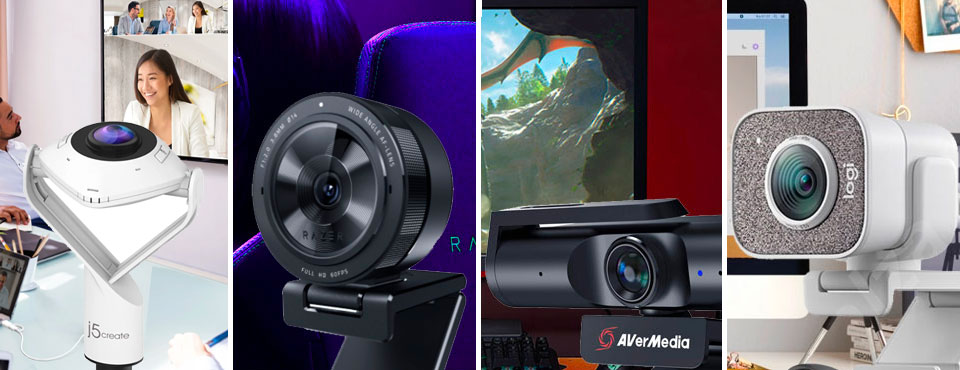
The j5create is a rare breed as there are few webcams that do 360-degree videos. If you and other colleagues sitting around a round table all want to join a video call, this is where the j5create 360-degree All Round Webcam comes into play.
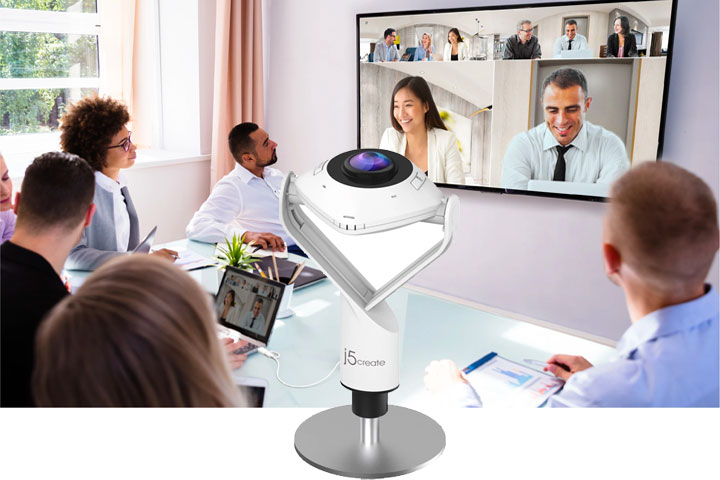
Similar to others of its kind, the j5create dynamically stitches video streams from different angles to form one panoramic view of the conference room. Participants can choose from 6 different view modes – as shown in the illustration below – to fit their needs. Depending on the split-view settings, the user can swipe on the touch-sensitive dial around the lens to manually bring the speaker into focus.
When rotated, the j5create becomes a regular webcam with a field of view (FOV) of 90 and 120 degrees to choose from. The latter FOV allows up to 3 persons to fit on the same screen. Hardware-wise, the j5create only supports up to 1080p at 30fps but you still need a USB 3.0 connection since panoramic mode takes up quite a bit of bandwidth. There’s also a built-in omnidirectional microphone as well as an adjustable stand that can raise the webcam to a height from 19.3 to 23.5cm.
Razer’s Kiyo Pro is the company’s third attempt at the webcam market. It sports a circular design that inherits from its predecessor but that’s where the similarities end. USB 3.0 has now returned to boost uncompressed 1080p video streaming at 60fps. (Oddly, the last model comes with only USB 2.0.). There are also more field of view options, allowing you to pick from 103, 90, or 80 degrees.
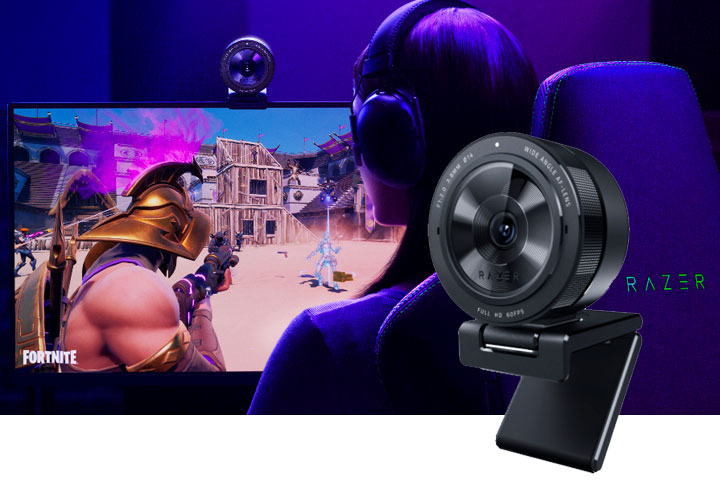
And this time around, the Kiyo Pro has also dropped the previous model’s signature LED ring light that emulates studio lighting in favor of Sony’s IMX327 1/2.8” CMOS sensor with STARVIS and HDR to enhance low-light performance in varying environments.
STARVIS is Sony’s proprietary solution to boost visibility in surveillance cameras. HDR further fine-tunes to provide more depth to the images. And at the same time, it balances the lighting on the fly to improve exposure so details don’t get washed out. HDR can be enabled through Razer’s Synapse software but it comes at the cost of frame rates. 1080p with HDR is capped at 30fps. Nevertheless, the reduced frame rate should be fine for most streamers.
For durability, you will also find the Kiyo Pro’s lens is protected by Gorilla Glass 3, providing scratch-resistance that you would normally find on smartphones’ screens. For flexibility, the webcam’s L-shaped stand that can be mounted atop a monitor can be detached and be fixed on a tripod of your choice. There’s a USB-C port on the back unit in case you need to swap out the accompanying 60-inch braided cable. Lastly, the webcam is equipped with omnidirectional microphones for stereo audio recording.
AVerMedia’s Live Steamer CAM 513 is currently the company’s top-of-the-line webcam powered by Sony’s Exmor R 4k CMOS sensor. It’s capable of up to UHD but since Zoom doesn’t do 4k and the fact that streamers don’t exactly need such high resolution, the webcam’s 4k30p mode may only have limited applications for now.
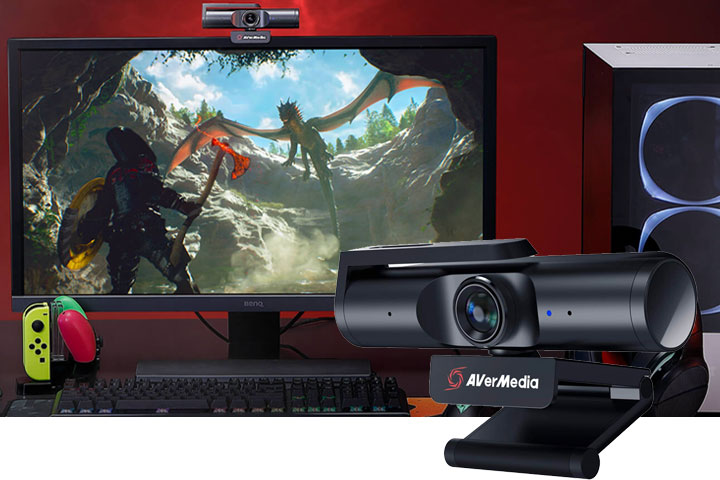
The webcam has an impressive 94-degree field of view. If that isn’t enough, the unit sits on a 360-degree swivel base to aim the camera where you need it. This provides far more flexibility than webcams that can only be tilted up and down. On the back, an open USB-C port allows users to swap for a longer USB-C cable of their choice. Like the Razer Kiyo Pro that comes with a lens cover, the AVerMedia has an integrated webcam shutter to give you peace of mind when it comes to privacy.
The Live Streamer CAM 513 ships with a utility called CamEngine, which gives you basic control adjustments over your video output. In addition, you get ePTZ feature with A.I. facial tracking. Our guess is that this feature dynamically crops the video to only include your face in the live stream. For some reason, the UVC-compliant webcam has an issue with macOS in that one needs to manually delay audio by 200ms to even 1000ms in order to sync audio to video.

Logitech is no stranger to webcams. In fact, it’s one of the few companies to continue updating its webcams to meet today’s standards of technology and needs. Its latest StreamCam – the company’s first USB-C only webcam – is the follow-up to the C922 that was released in late 2016.
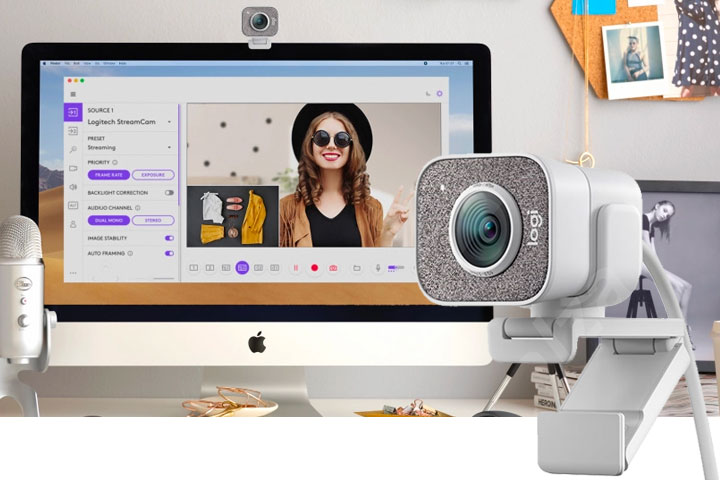
The most notable improvement is the StreamCam’s ability to stream 1080p at 60fps whereas its predecessor maxes out at 30fps at the same resolution. Its aperture size is now at f/2.0, which also compares favorably to f/2.8 found on the C922. A larger aperture allows more light into the sensor and hence provides better low-light performance. The StreamCam’s field of view – 78 degrees – remains unchanged from the previous model.
For customization, the StreamCam comes with Capture 2.0 software for those who need to fine-tune color saturation, white balance, sharpness, and etc. If you work with a green screen, the software can add chroma key effect to your stream. Face-tracking is also an integrated component of StreamCam to speed auto-focus of the video host.
Another nice touch is the flexible monitor mount that can be rotated to allow your videos to be recorded either in portrait or landscape mode depending on the content platforms you are targeting. The mount can even be angled face down for top-down video recording. Last but not least are front-facing dual microphones for stereo audio recording.
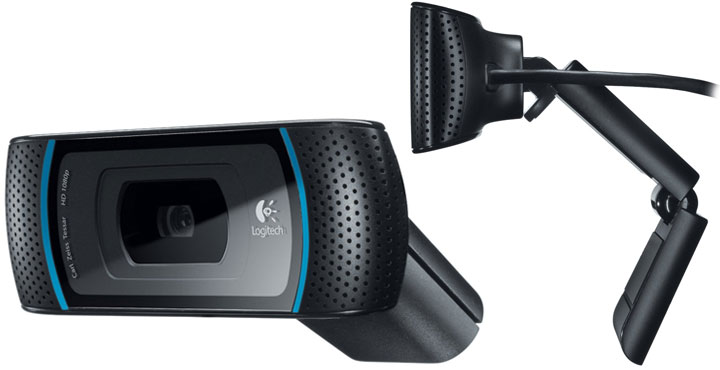
Windows Hello is Redmond’s own eco-system for biometric security. There’s certainly an appeal for end-users to log into their PC instantly just by staring at the webcam. However, one can only do this with depth-sensing cameras, which rely on infrared lights to recognize faces past makeup and facial hairstyles under diverse lighting conditions. But unless you have a top-of-the-line laptop, you will need something like the Logitech 4k Pro Webcam.
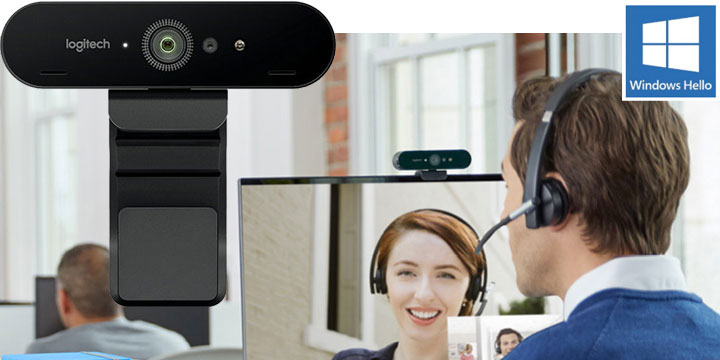
Under the hood, there’s a lot going on there: 4k streaming, USB 3.0 (USB-C), HDR, and the aforementioned depth camera. It is immediately clear 4k is the spotlight but the reality is that not everyone is quite ready for this – especially the amount of bandwidth it requires for live streaming as well as the computing horsepower it takes for post-editing. Another look into the specs reveals something else equally useful. The webcam is also capable of delivering 1080p60 as well as 720p90. These high frame-rate modes are key to making more fluid videos for Skype calls and YouTube alike.
The HDR is also present to allow the Logitech webcam to adapt to different challenging light conditions while maintaining video quality. This is particularly useful if you move out of your perfect studio environment to a dimly lit hotel room. Last but not least is the selectable field of view that you can choose between 90, 65, and 78 degrees. If you want to unlock the potential of Windows Hello, this webcam gives you everything you need and more.
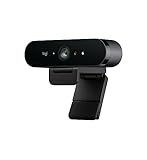
It’s a marvel to think just how far webcams have evolved over the last twenty years. Back in 1991, it…
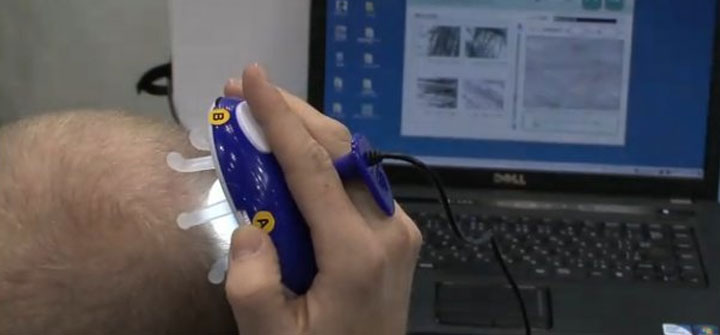
Japan certainly is known for many things, but among those the one thing that most non-Asian (and sometimes even non-Japanese)…
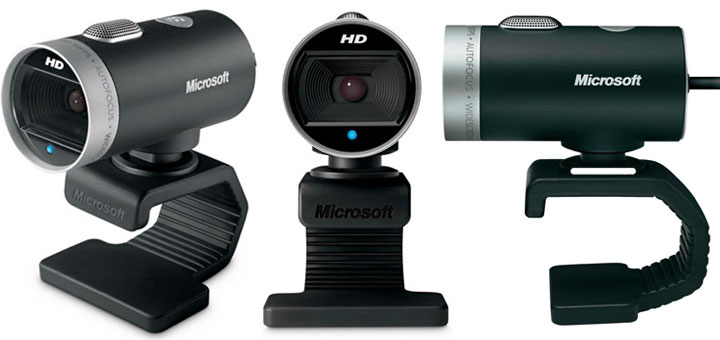
High Definition. Those two words are the very soul of what’s driving consumer electronics and pushing broadband Internet, and Microsoft’s…
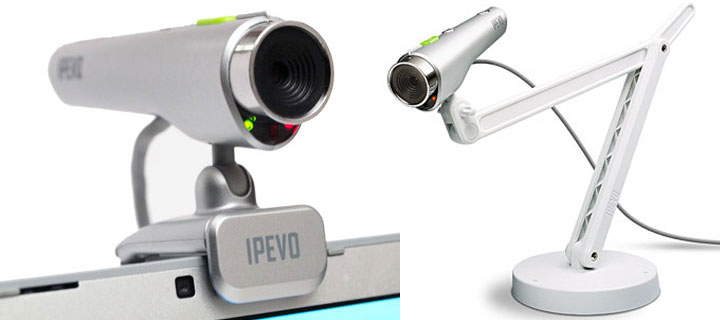
The Point 2 View (P2V) from IPEVO is a tethered USB camera designed to free users from the shackles of…
In a marketplace thick with competition, any webcam that has a hope of making an impact has to not only…