It’s a marvel to think just how far webcams have evolved over the last twenty years. Back in 1991, it all began when geniuses at Cambridge University streamed a 128×128 representation of a coffee pot in glorious grayscale – serious business, no doubt. Today webcams can still be used to monitor coffee, of course, but they more frequently play a role in connecting families, friends, service members, and business professionals all across the globe. And thanks to the High-Definition craze, we’re just beginning to see webcams that can do it all in 1080p, well over 125x the resolution of the first CoffeCam, and in super glorious 24-bit color.
Refined Looks
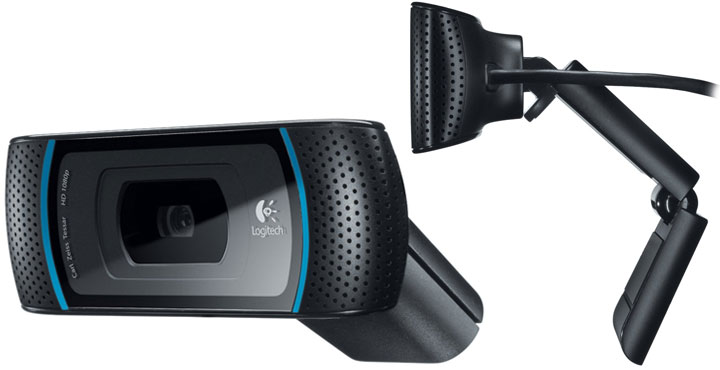
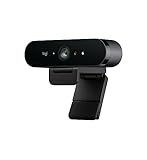
The C910 marks an important milestone where Logitech has finally cast off the child-like playfulness of their QuickCam heritage with a new industrial design that seems less like a toy and more like a piece of professional equipment. The shiny, round, and eccentric elements of the previous webcam generation have been traded in for a flat, minimalist profile that feels more at home atop modern LCD screens. The camera lens sits straight in the middle, surrounded by a set of blue activity LEDs and dual microphones. It’s this symmetry that truly makes the C910 appear classy.
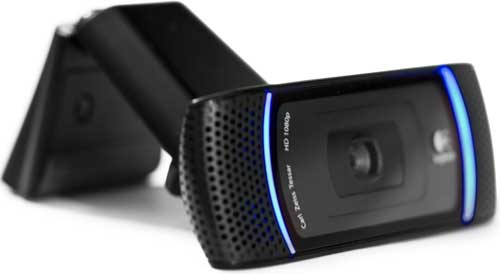
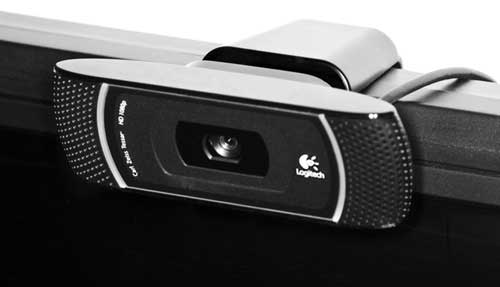
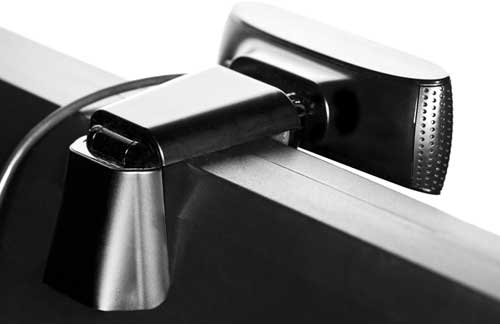
The mounting hardware has also been improved over Logitech’s older webcams. A more prominent front lip grasps onto the front of the monitor, while a shorter L-shaped hinge provides a fair amount of tension with its wide, rubber padding. A second hinge just behind the camera itself allows for vertical tilt adjustments independent of the mounting hardware, though horizontal panning is still a lost luxury. Overall, the new mounting hardware does a good job of removing unwanted camera motion, but still lacks a tight grip on thinner laptop displays that a spring-mounted clip would provide.
On a sour note of caution, the cable length of the C910 has been shortened to just under five feet, down a whole foot from the last generation. This poses a serious issue for some larger desktop arrangements, and affected buyers may need need to invest in a quality powered USB hub to bridge the gap. When trying to do so using a simple 12-inch USB extension cable or a cheap built-in hub, a menacing high-pitched pulsating tone was introduced into the audio stream whenever the camera’s optics were active. The other party was quick to point out the agitating noise during a Skype call, but the problem was quickly fixed by plugging the camera into a different hub.
Software
The C910 is fully compliant with the USB Video Class (UVC) specifications, allowing it to be used in standard and widescreen aspect ratios on just about any computer without the need for extra drivers. The lighting-adjustment algorithms known as RightLight along with focus and white balance are also built into the camera hardware, able to be manually adjusted or set to auto from within Microsoft’s drivers.
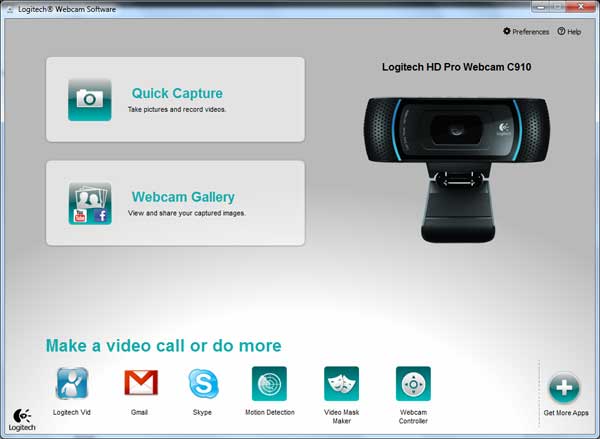
If you do happen to install Logitech’s Windows drivers, however, you’ll be treated to a newer version of Logitech Webcam Software v2.30 that again sheds the quirky look of the older QuickCam generation. The new, more modern interface of LWS is rather bulky but effectively uses white space to present a simple, uncluttered look. All of the features of the older drivers are present and accounted for, but many have been repositioned more or less intuitively across the software.
Quick Capture & Image Controls
At the forefront of Logitech Webcam Software package is the classic Quick Capture utility, which makes it a breeze to capture photos and videos in a wide array of resolutions both widescreen and 4:3, up to a native 2592×1944 (5MP) native resolution. Photos are captured as JPEGs, and videos as Windows Media WMVs using one of three compression settings.
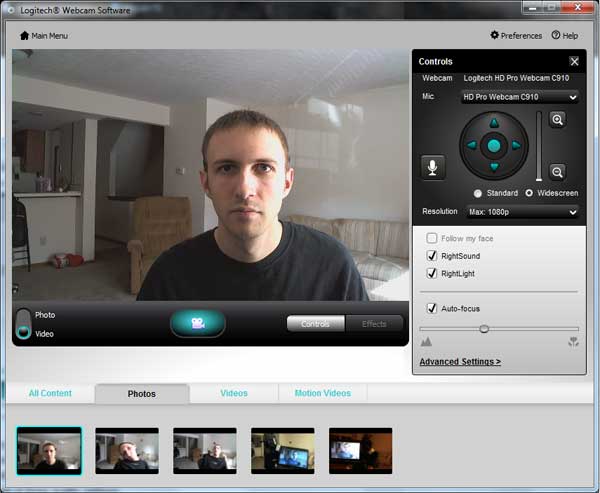
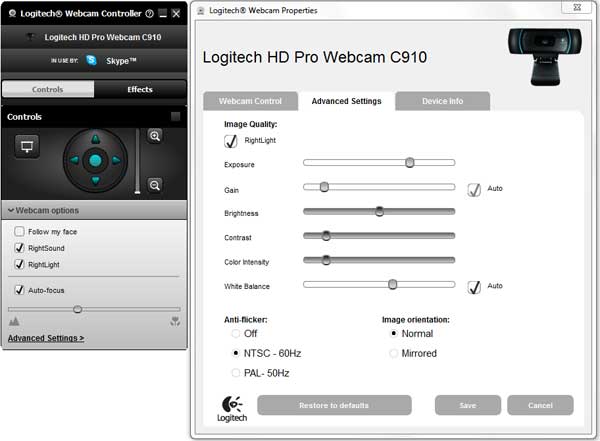
Image controls will appear to the right of Quick Capture for basic adjustments like face tracking, zoom, panning, and focus. These same controls can also appear in a pop-out controller whenever the camera is accessed by a third-party program like Skype, though the audio mute button will be missing. Advanced settings are accessed in a separate oversized window, providing granular controls over the camera’s exposure, color balance and more. The camera image can also be mirrored here, but only horizontally. In the main preferences menu, the twin blue LED indicators can be set to turn on whenever the camera is active or switched permanently on or off globally.
Also accessible from the main menu is the Webcam Gallery. This serves as a quick way to preview all content captured by the Logitech applications, sorted chronologically in a filmstrip. The main focus here is automation shortcuts; a simple menu makes it easy to quickly import a photo or video into an editing program of your choice, or share content via social media and email. Logitech has heavily advertised MAGIX Video easy and Photo Manager for editing content, but after trying both and seeing how basic they are, I’d advise you to stick with Windows Live Movie Maker and Google Picasa.
Video Surveillance
Still included in the software bundle is Logitech’s Motion Detection program, allowing the recording of any event that exceeds a predetermined motion threshold. Timestamps and basic scheduling are supported, though masking zones with independent sensitivities is still a missing feature. Video resolution is also rather limited at 800×600, but this is probably done to minimize CPU usage.
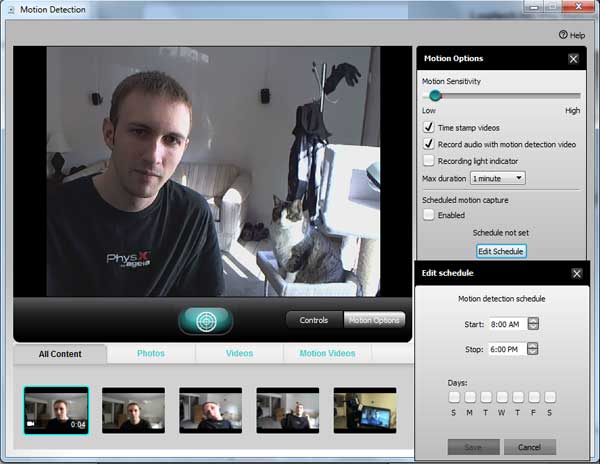
Perhaps the biggest improvement to the Motion Capture program in LWS 2.3 is that audio is finally able to be recorded as an option. Contrast this to previous versions of QuickCam software, which cited wiretap law for disabling it by design. Wiretap law differs state-by-state, and many times the audio recording of conversations is perfectly legal so long as there isn’t a reasonable expectation of privacy.
Logitech Video Effects
Entertaining small children is still made easy by Logitech’s video effects, a collection of simple filters and camera distortions, as well as facial accessories and 3D avatarsthat track your movements. The majority of these have remained the same since the Logitech’s QuickCam Ultra Vision, but they’re still fun to play with and are of generally higher quality than the comparable effects from Microsoft LifeCam Cinema offerings.

To keep things fresh, a new toy has been added to the Video Effects suite in Logitech Webcam Software 2: video masks. Have you ever wanted to substitute a ravenous baby’s eyes and mouth with your own? No? Me neither, but Logitech makes it possible.
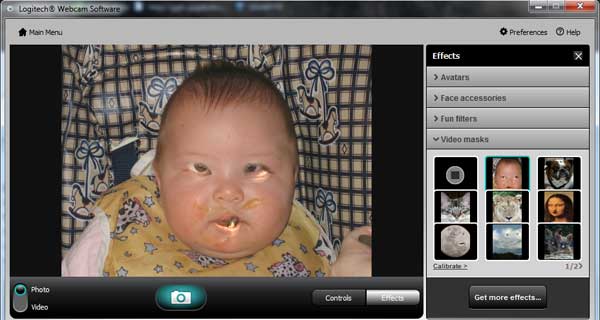
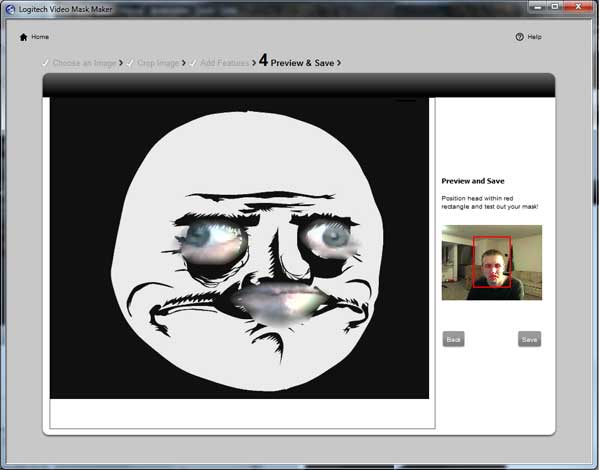
A limited selection of pre-built video masks is included with the software, but this is quickly expanded upon by Logitech’s Video Mask Maker. Any image stored on your computer can be turned into a video mask, allowing for multiple sets of eyes and mouths that can be rotated and resized about the picture. It remains to be seen if Internet culture will embrace this as a natural extension of memes or not.
FastAccess Facial Recognition
Beyond hosting Logitech’s own software, LWS v2.3 serves as a gateway for downloading other webcam-enabled software endorsed by Logitech. One of these advertised programs for download is FastAccess from Simple Vision, a facial recognition utility that automates Windows logins and internet passwords. It can also be configured to lock the computer automatically whenever you walk away. FastAccess is limited to a 15 day trial, however, after which you’re expected to pay $30 for the full version.
First off, this program has some serious bugs to it. FastAccess installs a webcam splitter so that it’s able to constantly monitor for faces, yet still provide webcam access to programs like Skype or Quick Capture. This workaround has some interesting quirks such as reduced picture quality, certain camera resolutions displaying nothing, and other resolutions showing an awkward green border as shown in the screenshot below. Oh, and switching between camera resolutions in Quick Capture while FastAccess is running will cause a blue screen of death about half of the time.
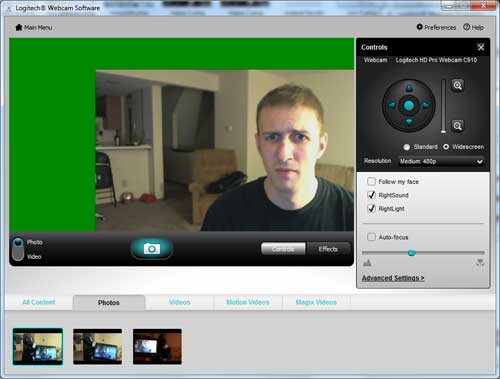
Even ignoring these bugs, there are some fundamental issues with the very concept of face recognition software. Running the camera and facial detection algorithms constantly will take a toll on battery life and CPU usage, roughly 10% on a 3.0GHz Core 2 Duo. Facial detection is also far from secure, easily hacked with a photograph. The linked article is now over two years old, and yet so far the only improvement the industry has made in the interim is to check for eye movement. This isn’t good enough.
Let’s say that you video chat with a friend every now and then, only that friend isn’t so friendly. Or perhaps the significant other you Skype with is a bit nosy. It’s absolutely trivial for them to take two consecutive screenshots during the conversation, one with your eyes open and one with them shut, and then save them to their computer for future hacking. Later while you’re away, a laptop can be held to the camera with the photos maximized on-screen, alternating to simulate human blinking. Access has been granted.
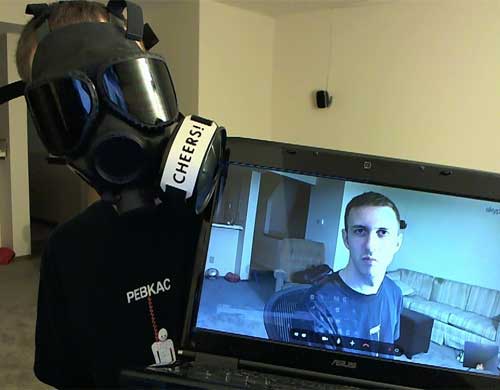
This is not a theory, it’s an easily verifiable fact. It took me less than five seconds to break into my own computer with a laptop display while wearing a mask to ensure my own face didn’t thwart my mischief. The bottom line is that if you want to stay secure, you should stick to passwords, thumbprints or two-factor authentication. Logitech should strongly consider pulling FastAccess from their site until the price and vulnerabilities are better identified to customers upfront, and Sensible Vision fixes their horrendously buggy software.
HD Picture Quality
The Logitech C910 features astonishing visual quality thanks in no small part to the RightLight image correction algorithms embedded in the camera’s firmware and drivers. RightLight does an impressive job managing the camera’s exposure, color balance, and saturation, doing its best to ensure a face is always visible. The following photos demonstrate the camera’s ability to compensate for a variety of lighting conditions with all settings set to automatic.




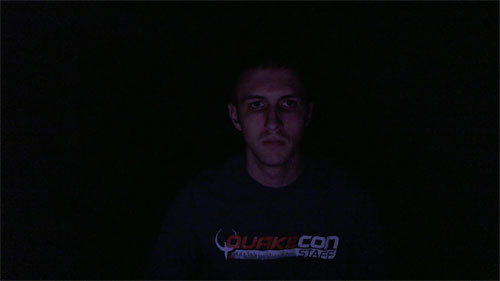
The C910’s color management is also nothing short of phenomenal. The automatic white balance did an excellent job making sure images didn’t appear too warm or cool for comfort, and the default color intensity was also to be commended. Oversaturation only posed an issue when all of the room’s lights were turned off, but even then the C910 still managed to keep the blue graininess to a minimum. Framerate expectedly suffered in low lighting as the exposure was turned up, but remained fluid enough to hold a video conversation.
Now, there are many things that don’t deserve the title of HD, but thankfully the C910 isn’t one of them. The Carl Zeiss Tessar glass lens and native 5-megapixel image sensor are fantastic for picking out the fine details, even going so far as to make me self-conscious about my clogged pores. Autofocus was equally impressive, keeping things sharp and never going crazy like the Microsoft LifeCam Cinema’s focus did at random intervals.
The high resolution does have its limits though, with some video light noise and compression visible at the full crop. This could perhaps be attributed to the webcam’s lossy MJPG compression at high resolutions, required to maintain a decent framerate whilst fitting within USB 2.0’s tight bandwidth limit of 480Mbps. This leads me to believe that the next generation of Logitech cameras will either employ a USB 3.0 connection or perhaps a H.264 hardware video compressor, similar to what we’re seeing out of FaceVsion’s camera line. Only time will tell.
So how does the overall value of HD come into play? Well for one, the widescreen picture coupled with a 78-degree wide-angle lens makes it easy to include the entire family in a video chat. Skype, Logitech Vid, Windows Live Messenger 2011, and now even Google Chat all make use of widescreen aspect ratios, so a HD camera is a particularly good investment.
The 1080p resolution, however, is only ever handy in the case of taking photographs or uploading videos to YouTube. Even then, this is limited to 15fps when the Logitech Drivers are installed, so don’t expect to replace your digital camcorders anytime soon if you’re serious about broadcasting from home. As far as video conferencing is concerned, 1080p is a no-go. To date, there’s no popular video conferencing program capable of streaming 1080p, including Logitech’s own Logitech Vid software.
720p is bit more manageable but still poses a challenge, requiring an internet connection with a 1Mbit upload. This is out of reach for many American households, where cable and DSL providers have tried their hardest to convince us that 512kbps is sufficient, only ever-increasing speed if there’s increased competition from a newcomer like Verizon FIOS. If you’re living in the USA, check out https://broadband.gov to see the options available in your area.
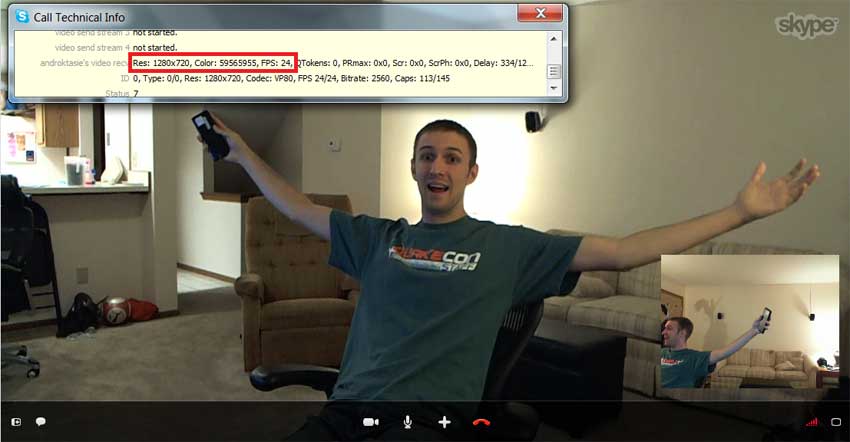
When the Webcam C910 first came out, there was much chagrin over its lack of Skype HD certification. Previously, Skype would only certify webcams with a H.264 onboard video encoder, though it appears as though that requirement has since been relaxed and the C910 is now on Skype’s certified list. This means that Skype will stream 720p at a pleasant 24fps with the C910, though you’ll need to wait a minute or three before the resolution switches from VGA, if it ever switches at all. Skype still has room for improvement in this regard, but that’s Skype’s problem to deal with, not Logitech’s.
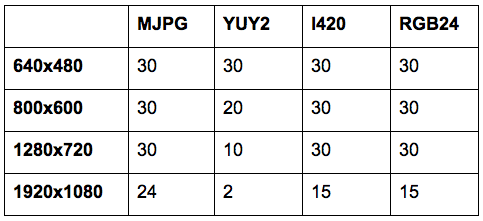
The C910 HD Pro Webcam’s framerate will naturally vary depending on the camera’s exposure setting, along with the resolution and codec being employed. For the video geeks reading this, the C910 natively supports YUY2 and lossy MJPG codecs when used as a UVC camera with the Microsoft drivers. Installing the Logitech drivers will convert these into I420 and RGB24. Below you’ll find a table I’ve compiled with a few of the C910’s supported resolutions, along with the framerates achievable by each codec at that resolution.
Audio Quality
One of the most-touted features of the Logitech C910 HD Pro Webcam is its dual microphones, allowing for stereo audio recordings at up to 16-bit 32kHz. The microphones are extremely sensitive, able to pick up speech a fair distance away, and keep things intelligible. The sensitivity of the microphones can be a problem, however, if only their being too sensitive. There’s a constant hum picked up by the mics, and every keystroke is made to sound like an old Model M keyboard.
Thankfully, the hum can be completely eliminated by enabling RightSound, Logitech’s branding for noise filtration and echo cancellation. RightSound does a fantastic job doing what it was designed for, though my voice did sound slightly compressed with it turned on, but no less clear and understandable. There is one ultimate disappointment to RightSound however, and that’s the lack of stereo processing. Yes, despite all of Logitech’s boasting about dual microphones in the C910, RightSound downmixes everything into two channels of identical monaural sound.
Recap
As Logitech’s latest flagship webcam, the HD Pro C910 delivers impressive video at smooth a smooth 30 frames per second up to 720p, making it a surefire bet for anyone concerned about image quality even in the worst of lighting conditions. This webcam definitely gets recommendations for its picture quality. Audio quality was equally clear and impressive, though only when the RightSound filtration was enabled lest there be a dull hum.
The C910 also boasts 1080p with its new 5MP image sensor, though the lack of 1080p-capable video chat software and limited frame rate make this a niche feature. The stereo microphones are also called into question, downmixed into monaural sound whenever the noise filtration is active. This leaves the C910’s glass element lens as the only compelling feature over Logitech’s cheaper Webcam C510, and you’ll have to decide for yourself whether or not the lens justifies the $20 premium.
[ico type=”icon-shopping-cart”] Latest Webcam Deals




Pricing is last updated by Amazon on 2026-09-13 at 21:00. When you buy through Amazon affiliate links on our site, we may earn an affiliate commission.