

It is sad, but the fact still remains that no matter how new your system is, you are going to…
June 2022 Ian Chiu
Laptop docks are a common sight in an office environment; they allow a single link from a laptop (or an Android smartphone) to a larger display as well as a full array of peripherals through just one cable. Their potential is now further realized with the new USB-C connection, and here, we have five docks to show just that.
| Kensington LD4650P Dock | OWC Travel Dock E | Plugable Mini USB-C Dock | Targus USB-C Phone Dock | Satechi Hybrid Multiport Dock |
|
| Dock Type: | Desktop | Mobile | Desktop | Mobile | Mobile |
| Supported Platform(s): | Windows 10 | Windows Mac | Windows Mac | Samsung Galaxy | Windows Mac iPad Pro |
| USB PD Output: | 60W | 100W | 85W | 18W | 100W (85W when ports are in use) |
| Self- or bus-powered? | Self-powered | Bus-powered | Self-powered | Bus-powered | Bus-powered |
| USB Type-C Port(s): | 0 | 0 | 0 | 0 | 0 |
| USB Type-A Port(s): | 4 (rear) | 2 | 3 (rear), 1 (front) | 2 | 2 |
| Video Out(s): | DP 1.2 | HDMI 2.0 | HDMI 1.4b | HDMI 2.0 | HDMI 2.0 |
| Multiple Display Support: | Yes | No | No | No | No |
| Max Video Res. at 60Hz: | 2560 x 1440 (single) 1920 x 1080 (dual) | 2560 x 1440 1920 x 1080 | 2560 x 1440 1920 x 1080 | 3840 × 2160 2560 x 1440 1920 x 1080 | 3840 × 2160 2560 x 1440 1920 x 1080 |
| Other ports(s): | Gigabit Ethernet 3.5mm audio | Gigabit Ethernet 3.5mm audio | Gigabit Ethernet 3.5mm audio | 3.5mm audio Gigabit Ethernet SD card reader | None |
| USB-C cable length: | 1.6 ft. USB-C cable | 6" tethered USB-C cable with built-In cable storage | 12" USB-C cable | No cable included | 20cm tethered USB-C cable |
| Available Color(s): | Silver | Space grey | Black | Black | Space grey Silver |
| Dimensions: | 12.6" x 8.7" x 1.7" 320 x 220 x 83mm | 3.2" x 3.2" x 0.7" 80 x 80 x 17mm | 3.8" x 3.5" x 1.25" | 4.25" x 4.25" x 0.88" | 5.3" x 1.8" x 0.6" |
| Weight: | 1.47 kg 3.21 lbs | 120 g 4.16 oz | 0.64 lbs. | 3.8 oz | |
| Release Date: | 2019 | 2020 | 2017 | 2021 | 2021 |
| Warranty: | 3 years | 2 years | 1 year | 2 years | 1 year |
Full-featured USB-C laptop dock with smart lock protection
Kensington’s anti-theft lock has long proven itself to be an indispensable tool in deterring laptop theft in office spaces. So, it wouldn’t surprise us to see the lock becoming a staple feature in Kensington’s own USB-C laptop dock, LD4650P.
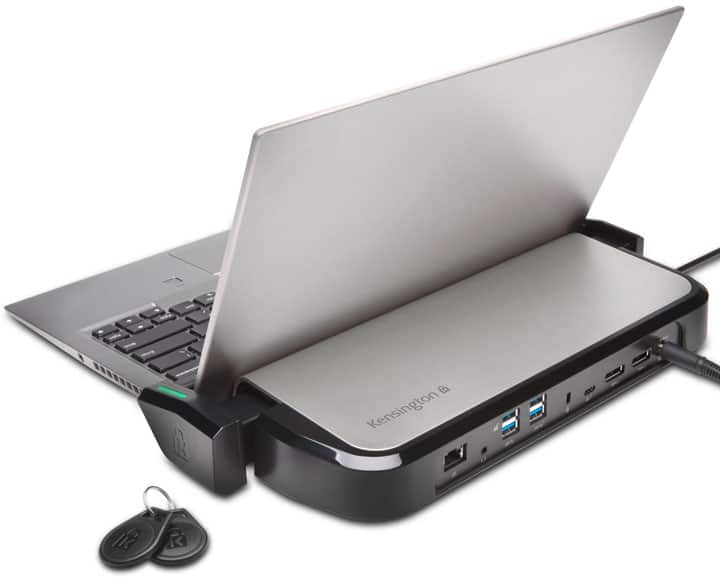
To secure your laptop, you simply adjust the dock’s security arms, which serve as a pair of brackets, to hook around your notebook’s screen above the hinge. The arms themselves can be extended to fit laptops from an 11- to 15-inch screen. Finally, simply tapping one of the two key fobs electronically locks the arms that hold the laptop in place. There are also scratch-resistant bumpers that act as a cushion along the base and back to protect your laptop. For additional security for the dock itself, you have an option to loop the accompanying lock cable to a table or to use Kensington’s trusty K-slot behind the unit.
In terms of connectivity, the Kensington USB-C laptop dock provides dual DisplayPort outputs that can drive two 1080p or one 1440p monitors at 60Hz. You will also find an abundance of regular USB 3.1 Type-A ports including a pair of 10Gbps variant. Lastly, there’a a Gigabit Ethernet as well as an audio combo port. Everything from video to data and power goes through a single USB-C port. USB power delivery is rated at 60W. The Kensington LD4650P dock requires Windows 10 laptops with DisplayPort alternate mode over USB-C. As the dock features are pretty much OS agnostic, there should be support for MacBooks, if not Chromebooks.

Mobile dock with enough passthrough power to recharge any high-powered USB-C laptops
When it comes to docks, functionality far outweighs looks. At first sight, the OWC USB-C Travel Dock E isn’t much to write home about its pedestrian design. Yet, the bus-powered mobile dock delivers the industry’s first 100W passthrough over USB-C. Even though we expect most laptop docks will eventually match this, the OWC, for now, offers a no-compromise solution for those who need a power passthrough that can recharge their laptops at full speed even under heavy load.
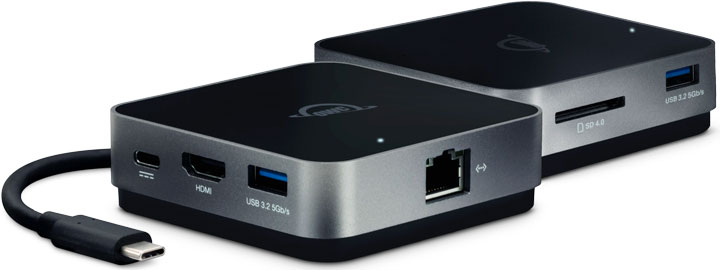
In the connectivity department, you will find a pair of USB 3.1 Type-A ports and a full-sized SD slot as well as an HDMI 2.0 jack and a Gigabit Ethernet port. Just don’t expect 4k output at 60Hz refresh rate. A 6-inch USB-C cable is tethered to the unit. So OWC thoughtfully provides a hideaway compartment on the underside of the dock to securely stow the USB-C cable. It’s worth mentioning that the OWC ships with a dock ejector software which, well, ejects all connected drives (whether they be a USB or SD) in a single click, giving you peace of mind that all data is being saved before drives are unmounted prematurely.

Compact USB-C docking station packing a punch in functionality
Having a full-featured USB-C laptop dock doesn’t mean you have to sacrifice precious desktop space. The Plugable UD-CAM Mini Docking Station, measuring at 3.75” x 3.5” x 1.25”, has nearly everything you need in a compact form factor. Despite its pedestrian design and size, you will find ample ports for your connectivity needs.
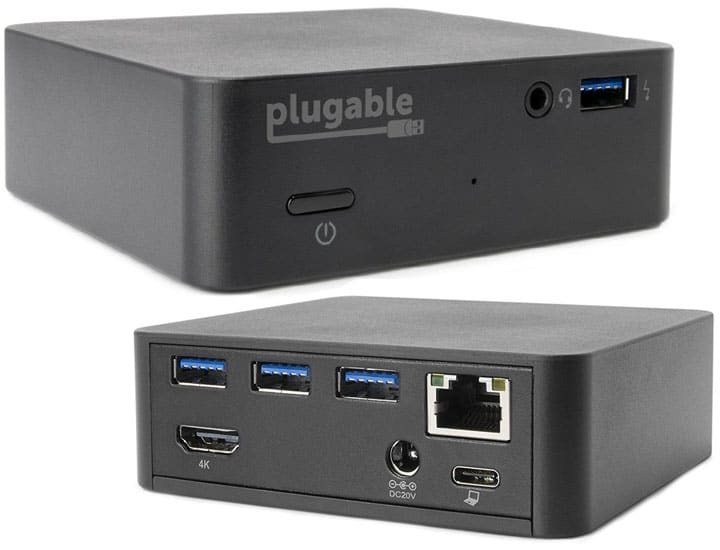
On the rear, you will find 3 USB 3.0 ports with Gigabit Ethernet powered by Realtek RTL8153 as well as HDMI 1.4 out. A USB-C jack on the same side has the capability of sending 85W of power to charge most USB-PD compatible laptops. Plugable has always been upfront with their docks’ compatibility. You can check the test results on their official site. To top it off, the supplied AC adapter is rated at 100W so there’s enough juice to power everything from a laptop to the most power-hungry peripherals.
On the front, there’s a fourth USB 3.0 port as well as a 3.5mm TRRS audio combo jack. The only missing is a built-in SD slot. Last but not least, the $129 Plugable Mini Docking Station also comes with a VESA mount which is immensely useful when paired with a compatible desk, stand, and monitor.

USB-C phone stand complements Samsung’s DeX platform
DeX has been a staple of the Samsung Galaxy line-up for some time, giving you a PC-like productivity experience on a USB-C monitor through the convenience of a smartphone. Yet, software will only get you so far before you realize you can’t get much done without your trustworthy mouse, keyboard, and other USB accessories. This is where the Targus Universal USB-C Phone Dock comes in.
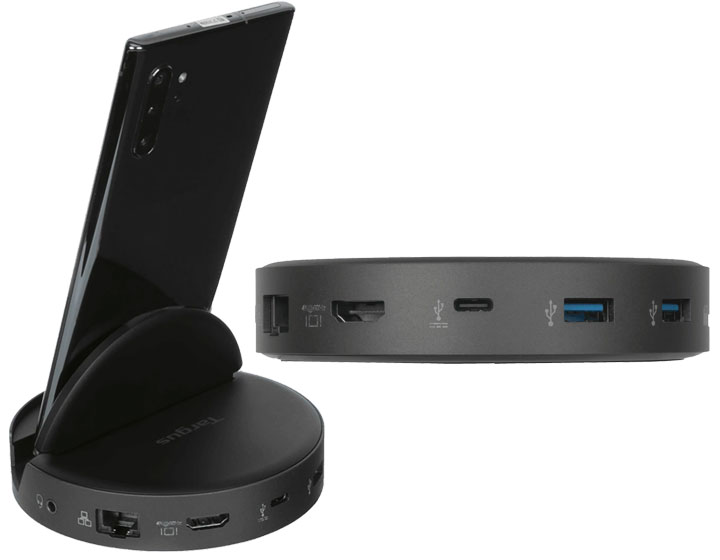
With the Targus, you get a nice phone stand with ample ports. That includes an HDMI jack that can send video at 4k 60Hz; a pair of 5Gbps USB-A ports for peripherals; an SD card reader; an Ethernet port; and last but not least, a 3.5mm audio jack. The base allows you to choose to tilt the phone at two different angles (i.e. 60- and 75-degrees) you like for making video calls and navigating the phone’s menus.
When connected to a Galaxy smartphone via USB-C, you will be greeted with a heavily tweaked version of Samsung’s Android desktop interface popping up on the USB-C display. Apps optimized for DeX will deliver desktop-like interfaces similar to their PC counterparts. Keep in mind if you connect anything other than a DeX-optimized Samsung Galaxy (S10 or later), you will only see a mirror image of your phone on the monitor.

Mobile USB-C hub designed to bring your M.2 solid-state drives with you on the go
This oversized dongle from Satechi is the company’s latest attempt at a mobile docking station for all USB-C laptops and tablets alike. Available in both space grey and silver, the USB-C Hybrid Multiport Adapter takes a new direction with a built-in SSD compartment. The socket will, however, only accept SATA M.2 (2230, 2242, 2260, 2280) so it won’t work with the more popular NVMe variant. That’s a bummer considering the average speed of a SATA6 SSD is around 500MB/s whereas NVMe SSD in a USB enclosure can easily reach 800MB/s or faster.
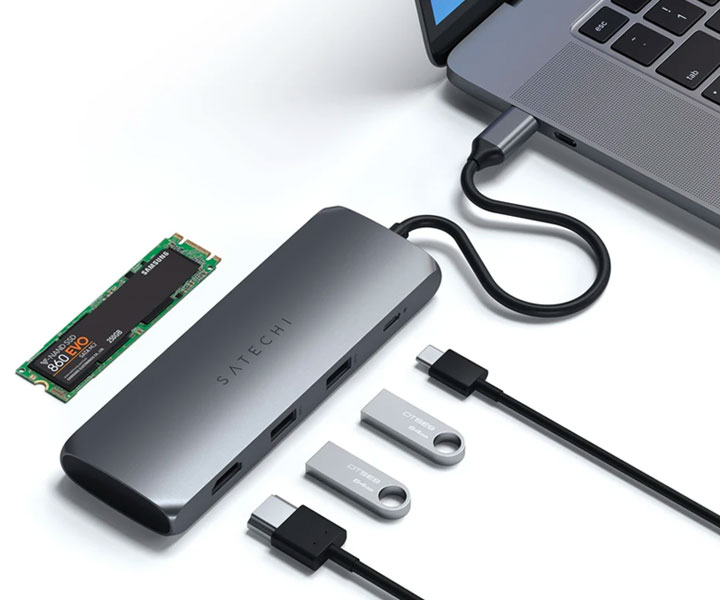
In the connectivity department, the Satechi is tethered to a 20cm USB-C cable and is packed with a pair of 10Gbps legacy USB-A ports as well as an HDMI 2.0 jack capable of sending video output at 4k 60Hz. The adapter can recharge a laptop up to 100W through its USB-C Power Delivery passthrough. 15W is reserved for the hub’s SSD and USB ports so you are left with 85W when the hub needs the power elsewhere. An Ethernet jack, a second HDMI port, and SD slot are absent. If you need these, you can find these from another Satechi model – the Dual Multimedia Adapter.

It is sad, but the fact still remains that no matter how new your system is, you are going to…
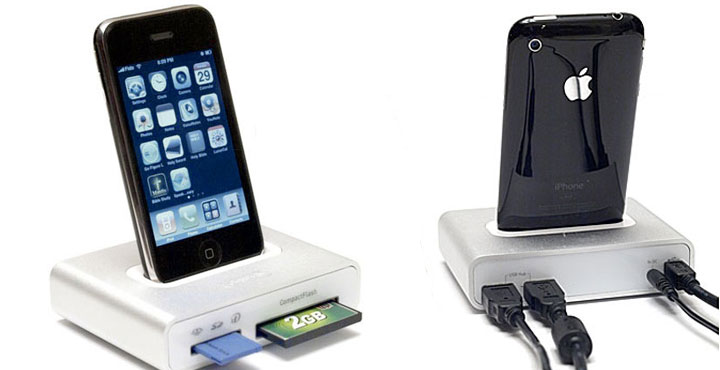
First Impressions There might be no more hotly-contested computer and peripherals accessory market than the iPod / iPhone ecosystem. Every time Apple…
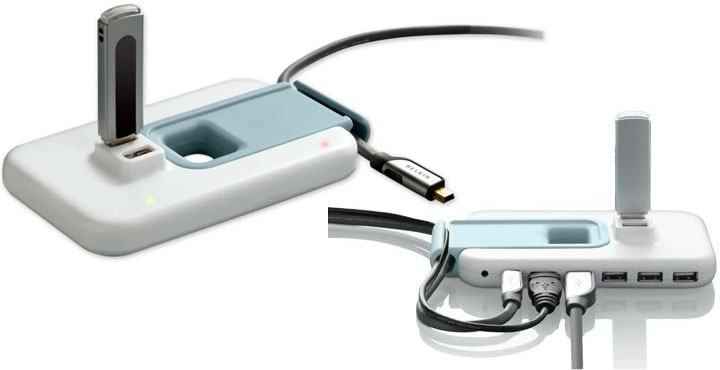
Hub Design The Belkin Plus Hub bears a rather unique design. Measuring 6″ x 3.5″ x 3/4″ (1″ tall at…
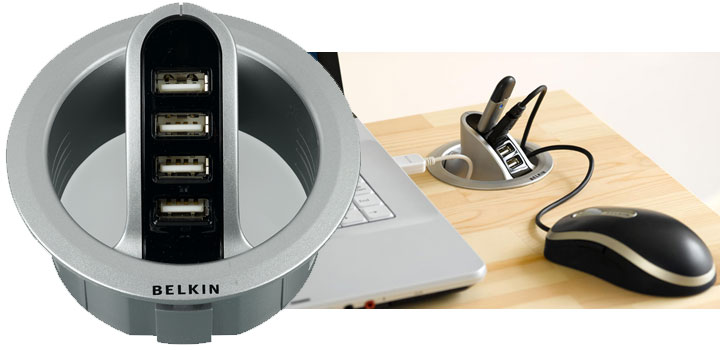
USB Hub Fills a Hole The Belkin In-Desk 4-port USB Hub’s design is quite pleasing. The flush mounting design allows…