Syndication

Web    Everything USB  
Everything USBHardwareUSB TV & Video Capture

Samsung 19" SyncMaster 940UX VGA / DVI / USB Monitor Review

  June 28th, 2007

Subscribe to our RSS:

 Via Feed    Via Newsletter

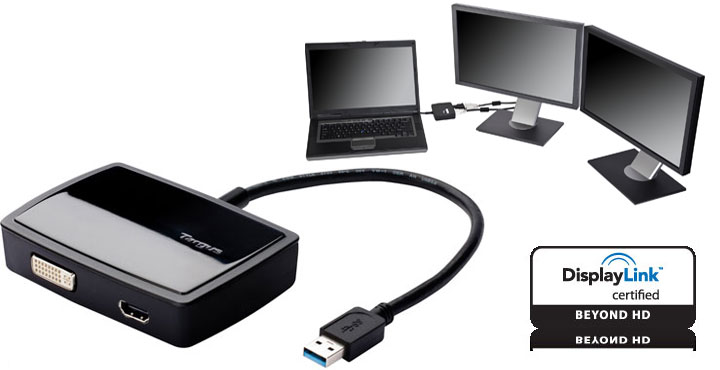
So you're in charge of setting up a multi-display workstation, but don't have the expansion room or dosh to shell out for the multiple video cards required. Well fear not, because in addition to the standard DVI and VGA interfaces, Samsung's latest 19" SyncMaster 940UX LCD monitor features a built-in USB video card powered by DisplayLink's scalable technology. If your USB mouse is any indication, this should be a breeze to setup. Read on for our full in-depth review below.
Review Verdict
  • Samsung's SyncMaster 940UX is a great flat panel monitor for office workers that want multiple displays without the hassle of installing and configuring them. CAD designers and 3D gamers should look elsewhere however, as the USB interface lacks 3D acceleration.

The Good & Bad
  • Sharp, vivid display with accurate colors
  • Hands-off USB installation
  • Snappy USB interface performance
  • Smooth DirectX video at high resolutions over USB
  • Features DirectDraw acceleration
  • Can daisy chain up to six monitors together
  • Built-in 2-port USB 2.0 hub
  • Relatively high pixel response time
  • USB video cannot be disabled for hub-only use
  • Virtual CD drive cannot be disabled
  • No 3D acceleration on USB interface

Package Content
  • Samsung 940UX 19" LCD display
  • USB A to Mini-B cable
  • Drivers and documentation CD
  • USB A to B cable
  • DVI-D (single link) cable
  • 15-pin D-Sub (VGA) cable
  • Quick setup guides
  • Warranty card and other documentation
The Basics
At first glance, the SyncMaster 940UX looks like any ordinary flat panel monitor. There are no distinctive markings that scream out to the world that this is the first display to feature a USB video card. Instead, everything about this display has a minimalist yet suave look, and the black and silver color scheme allows it to blend in to a wide variety of work environments.

Let's start with the ultra-thin 0.5" bezel that literally hugs the edges of the screen. Everything here is neat and to the point - at the top left corner of the display in gray lettering is the model name, while the Samsung logo sits calmly at the bottom center. The circular power and OSD controls also are on the front of the bezel at the bottom right-hand corner, perfect for quick adjustments without fumbling for the right button.

The stand of the monitor has a round medium-sized footprint, with roughly 5-1/2" of space between the front edge of the flat base and the vertical pole. While keeping workplace clutter to a minimum, this base also makes a perfect stand for the various trinkets that give each cubicle that personalized touch.

The stand also has plenty of adjustment abilities including swivel, vertical height, tilt between -3° forward and 22° backward, and the screen rotates 90° into portrait mode. When using the SyncMaster 940UX in portrait mode, you'll need to connect the monitor via DVI or VGA to a video card that supports screen rotation, as this orientation is not supported by the current DisplayLink USB drivers. Most ATI/AMD, NVIDIA, and Intel cards support this when using the latest drivers available on their respective websites. When transporting the 19" display, the monitor may be locked in place by lowering the screen and inserting the included pin into a small hole on the backside. Alternatively, the screen may be unscrewed from the stand for attachment to a standard VESA mount.

On the backside of the monitor, the silver and black color scheme continues onto the rounded stand with another clean Samsung logo. Here you'll find a small clip for routing cables, as well as a side mounted 2-port USB 2.0 hub. The underside of the monitor houses the three connection interfaces, as well as a standard IEC power connector next to a switch. That's right, there's no bulky transformer to be used with this monitor, as the power supply is built into the unit already. Also note that there are no doors to fiddle with or break when accessing the connectors, a great plus in my book.

940UX's Picture and Adjustment
By default, the SyncMaster 940UX is set at 100% brightness and 70% contrast. At these levels, text was crisp and colors were exceptionally vivid, but not over-saturated or washed out in any way. Also, for how bright the display was, the gamma curves proved to be mostly accurate, and there were no banding issues with displaying gradients. No hot zones or dark zones were encountered either, as the CCFL backlighting was evenly distributed.

In the On-Screen Display, options are provided for changing the monitor's gamma between 1 of 3 levels, as well as changing the color temperature between cool, normal, warm, and custom. Samsung's MagicColor also makes an appearance here, which renders images to appear even more vivid that usual by dynamically tweaking the color saturation. While this mode does enhance the appearance of a few DVDs in my library and skin tones looked noticeably better, I would not recommend this for use with regular office work, as my explorer windows appeared to be sun bleached.

When using the analog VGA input, picture controls for the coarse, fine, and sharpness settings are available, as well as the horizontal and vertical positioning of the monitor. I found myself not having to use these however, as the Automatic Adjustment feature takes care of all these settings very nicely. And while I personally can't tell the difference, Samsung recommends using the Auto feature while the AutoPattern.exe program included on the CD is running, for even sharper results.

The last important feature of the On-Screen Display is Samsung's MagicBright, providing one touch access to a number of profiles with their own brightness, contrast, gamma, and color temperature levels. By default, the SyncMaster 940UX is set to Custom for maximum brightness and the most accurate colors, but since that brightness can be hard on the eyes for some, there are MagicBright profiles for Text and Internet that lower the brightness slightly. Game mode increases the contrast, Sport and Movie modes apply the cool and warm color temperatures respectively, and Dynamic Contrast automatically adjusts the display on a case-by-case scenario, during which you may occasionally see the brightness flicker as large chunks of the screen are changed.

The only major con of the screen's performance is the lackluster pixel response time, causing streaking and ghosting problems with fast moving images. Using Pixel Persistence Analyzer's chase test as my benchmark, I recorded response times of 28.3ms, 16.7ms, and 15ms for the transitions between the default color combinations. These response times are great for general office work and most movies, but fast action sequences and first person shooter games will appear a little fuzzier than normal. This may be hardly ideal for the seasoned gamer, but the 940UX can still be used for those Friday afternoon frag sessions as I was able to hold my own in a few deathmatches of Unreal Tournament 2004, actually winning a few rounds.

Using 940UX's USB 2.0 Interface
Setting up the SyncMaster 940UX for USB is incredibly simple, as the entire driver installation process is hands-off. Simply plug in the USB monitor as an administrator, and an 8MB virtual CD drive will appear on your computer, similar to what we're accustomed to seeing on U3 flash drives. Once the virtual CD is loaded, Windows Autorun will automatically execute the setup program and install the drivers. Should the drivers already be installed, the full setup utility will not load and disturb you every subsequent time the monitor is turned on.

While I appreciate the simplicity of this installation method, I have a few quips with it. First, let's suppose that somewhere down the line the monitor is being handled by a second person or technician at a company, who actually intends to use the monitor solely with the DVI interface and use the USB only as a hub. Since there are no USB video card markings on the monitor, he won't know any better, and the moment he plugs in the USB cable, he'll face an unwanted driver installation. There is no way to disable this functionality within the monitor.

Also, every time the monitor is turned off, the USB interface is shut down, including any devices attached to the 2-port USB 2.0 hub on the side. As such, I recommend users put more reliance into using a screen saver instead of turning off the USB monitor if at all possible.

Still, despite the quirks the USB video input can be very handy for those who are unable to add additional video cards into their system, or are simply uncomfortable opening the case either due to fear of breaking something or voiding the warranty. Also, when you figure that six of these displays can be daisy chained together via USB, suddenly the small price premium of the 940UX actually becomes a cost saver as video cards no longer need to be purchased. Unfortunately I'm unable to test this daisy chain functionality, although I'd imagine that for static imagery such as explorer windows, office documents and internet browsers, this setup would be fine. When dealing with motion video however, you may encounter bandwidth issues when running video on two or more displays at the same time. Also, only four USB monitors may be used in a single chain, as illustrated by Samsung below.

USB Office Performance
At the heart of the SyncMaster 940UX's USB monitor interface is the DisplayLink DL-120 ASIC, which features its own lossless decompression engine for handling the day-to-day static imagery found in an office environment, as well as a 32MB of 200MHz DDR memory. The end result is a picture-perfect display at 1280x1024 (the native resolution of the monitor) in full 32-bit color at 75Hz. And while there are some limitations to the interface that I'll get to later in the review, just about everything pushed through the USB interface displays as it would on the DVI interface. Text, lines, colors, and gradients all maintain their purity.

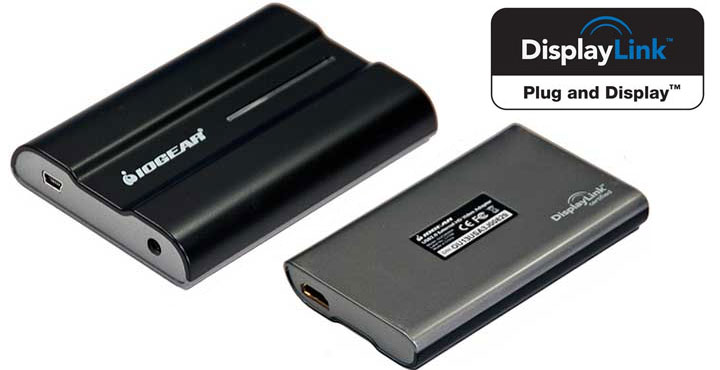
Moving windows around on the desktop and scrolling through long Word documents and Excel sheets was very fluid-like, as was general internet browsing on Firefox and Internet Explorer. Also, unlike DisplayLink's older FPGA technology found in the previously reviewed USB 2.0 External Video Card by IOGEAR, the DL-120 chip being used by Samsung supports DirectDraw acceleration. As such, small to medium sized fast moving objects in PowerPoint and the Windows screen saver appeared much smoother than they did on the External Video Card. Only larger moving pictures experienced jitter, as they required a large amount of pixels to be changed constantly without any compression.

USB Movie Performance
While not as refined as a traditional video card, I find that video playback on the SyncMaster 940UX's USB monitor interface is well within the acceptable boundaries for most users, especially after seeing the improvements made over the older FPGA-based technology. However, there are a number of limitations present that you should be aware of. First and foremost, OpenGL and GDI Video streams are a no go, as OpenGL streams will bog the entire system down with 100% CPU usage, and GDI streams aren't displayed at all. As luck would have it though, the average user hardly ever encounters these streams, and typically only deals with Adobe Flash videos and DirectX streams used by Windows Media Player, Quicktime, VLC, et cetera.

Unfortunately no method exists for telling the framerate of videos played back on the 940UX, as it does not report back the performance to the PC. As a general rule, frames are either lost when the CPU of the computer maxes out, or when the DL-120's own processor can't keep up with the action onscreen. All framerate numbers I'm about to give below are my best estimates.

Flash Video through USB
To test the Adobe Flash video performance, I watched a couple episodes of Heroes on NBC.com's Rewind website. Viewed normally in the windowed box, video performance was flawless, with no drops in framerates. CPU usage on my 2.25GHz Athlon 64 was hovering around 80%, from both the Firefox usage and DisplayLink's own software video compressor. Expanding the video to fullscreen 1280x1024 resulted in choppier performance, around 12-15fps and 100% CPU utilization.

However, this sluggish performance was due to CPU limitations, as watching the same video in fullscreen on my internal GeForce 6800 video card would run at a higher 20fps, with 100% CPU usage from FireFox alone. Moving to my more powerful Macbook with a 2.0GHz Core Duo processor, the same fullscreen video took 75% CPU, with a framerate around 22-24 frames per second. This speed boost can be partially attributed to DisplayLink's driver optimizations for the SSE3 instruction set that's present on many Intel and AMD processors. To check if your own processor supports SSE3, run the freeware CPU-Z utility available at www.cpuid.com.

DirectX Video through USB
In order to maintain smooth framerates with minimal CPU usage, any video passed through the DirectX video layer for the SyncMaster 940UX's USB monitor interface will undergo some lossy compression, on top of the compression already present in the source video. Trained eyes will notice that the video appears somewhat more pixilated when viewed in fullscreen mode, especially when viewing high contrast lines. However, when viewed from a distance this is hardly noticable, and even at close range I don't find it nearly distracting enough to ruin the overall presentation of a video. These zoomed comparison shots taken from a still camera illustrate the difference below.

Using this compression (and eliminating the inefficient CPU usage of Flash video) yields surprisingly good results, as I'm able to smoothly play back episodes of Tremors in fullscreen at 1280x1024 with only 50-70% CPU usage on the 2.25GHz Athlon 64. The average framerate was around 30fps, with only occasional dips in the framerate when the entire screen changed, such as when the camera zoomed or panned around. These dips would hit around 17fps, but when lowering the resolution to 1024x768 I was able to dampen their impact to around 21-24fps. Again, this was not enough to ruin the overall presentation.

Gaming through USB
Let's be clear about this, the DL-120 chip inside the SyncMaster 940UX flat panel monitor is not meant for gaming, or any type of 3D work for that matter. Direct3D acceleration is not supported, and OpenGL games like Quake III will not even launch. If you're into 3D gaming, I'd advise that you have your primary display set to a monitor hooked up to an internal video card via DVI or VGA.

Despite this setback, there is still ample gaming potential for the USB monitor interface. Older games that feature software rendering run rather nicely considering the hardware limitations, with Unreal Tournament '99 running around 25fps at 640x480 with max quality. Duke Nukem 3D and Doom are also playable. Emulated Super Nintendo games are smooth even at 1280x1024, and casual gamers will be glad to know that most 2D puzzle games for both Flash and Windows run without a hitch.

Recap
Samsung's SyncMaster 940UX makes for a wonderful monitor in a typical office environment, with great color accuracy, sharpness, and even backlighting to boot. The pixel response time of 15ms+ may not be the best for hardcore gamers, although weekend warriors and light movie watchers will find it more than suitable. The scalable USB monitor interface promises and delivers with its ease of setup and hands-off driver installation, and can keep up with most video tasks albeit with some artifacts and occasional frame drops. Just don't expect the USB interface to play nicely with 3D games and CAD design programs.

By R. Scott Clark, Consumer Technology Editor


Samsung SyncMaster 940UX Best Prices

Samsung SyncMaster 940UX Best Prices


Copyright 2002 - 2008 Everything USB
Home - News - USB Hardware - USB Apps - Forums - About Us
Everything USB - Sitemap - Reader Resources - Privacy Policy